web
You’re offline. This is a read only version of the page.
close
Skip to main content

Notifications

Announcements

Community site session details

Community site session details

Session Id :
Power Platform Community / Forums / Power Automate / Dynamic table range in...
Power Automate
Answered

Dynamic table range in Excel File

(1) ShareShare
ReportReport
Posted on by 143

Hello everyone,

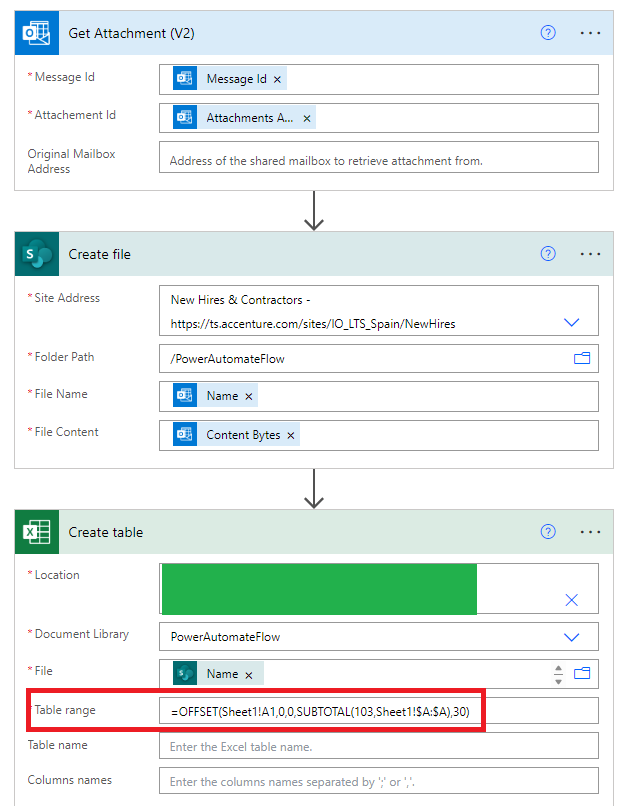
I have an XLSX Excel file with 30 columns, and the number of rows varies (usually fewer than 4,000 records). I created a simple flow with the following actions:

  1. When an email arrives (v3)
  2. Get Attachments
  3. Create file (SharePoint)
  4. Create table (Excel Online Business)

If I set a fixed range for the "Table range" property in the Create table action, the table is created without any issues. For example:
Sheet1!A1:AD3723

However, this approach isn't useful because the file I receive by email varies in the number of rows.

I tried using the following formula I found online:
=OFFSET(Sheet1!A1,0,0,SUBTOTAL(103,Sheet1!$A:$A),30)

Unfortunately, it doesn’t work and returns the following error in the flow:
 

"body": {
    "status": 400,
    "message": "The argument is invalid or missing or has an incorrect format.\r\nclientRequestId: 2efa7406-3979-78o0-ac6f-1beb8b8ce828\r\nserviceRequestId: c4b13ba2-f8b8-4496-88af-8d67005ea64e;3faf92f5-f3dd-4566-8a07-1b76b2386ce7",
    "error": {
        "message": "The argument is invalid or missing or has an incorrect format."
    },
    "source": "excelonline-cus.azconn-cus-001.p.azurewebsites.net"
}
 

Is there a formula or expression I can use that will work?

I would really appreciate your help.

Thank you!

Categories:
I have the same question (2)
  • Suggested answer
    SudeepGhatakNZ Profile Picture
    14,394 Most Valuable Professional on at
    Instead of using Excel formulas directly in Power Automate, you can use a combination of Power Automate actions to find the last row in your data.
    Add an action to count the number of rows returned by the previous step. Use an expression like:
    length(body('List_rows_present_in_a_table')?['value'])
     
    Set the Table range property using an expression that combines the first column and the last row count:
    concat('Sheet1!A1:AD', outputs('Get_row_count'))
    Let me know if that works
  • FlowFalcon Profile Picture
    143 on at

    Hi @SudeepGhatakNZ, @SudeepGhatakNZ thank you for your response.

    I'm having trouble understanding your instructions. I cannot use the expression length(body('List_rows_present_in_a_table')?['value']) since I don't have the table set up yet - creating the table is precisely what I need to do.

    Would you be able to provide some screenshots or more detailed step-by-step instructions? That would help me better understand the process.

    I look forward to your response.


    Thank you again for your help.

    Best regards,


  • takolota1 Profile Picture
    4,974 Moderator on at
    If just need to get the table data at any point, then you could use an Office Script like this template
  • Verified answer
    FlowFalcon Profile Picture
    143 on at
    Hi @AlexEncodian @takolota1 @SudeepGhatakNZ
     
    I cannot use third-party connectors, such as Encodian, due to data privacy concerns. I already had a script that converts the Excel file to a table, but I wanted to try a more direct solution (perhaps more professional?). I opted to use Microsoft Graph.
    Here I share how I implemented it. If you have any questions or if something is unclear, let me know.


    INVOKE AN HTTP REQUEST: It returns the number of records that has the Excel sheet.
     
     
    CREATE TABLE:
    • ID: ID from create file (@outputs('create_file')?['body/Id'])
    • TABLE RANGE: This is a custom dynamic value (@{body('Invoke_an_HTTP_request')?['address']})
    • TABLE NAME: this is optional. I use a variable for internal purposes.


Under review

Thank you for your reply! To ensure a great experience for everyone, your content is awaiting approval by our Community Managers. Please check back later.

Helpful resources

Quick Links

Forum hierarchy changes are complete!

In our never-ending quest to improve we are simplifying the forum hierarchy…

Ajay Kumar Gannamaneni – Community Spotlight

We are honored to recognize Ajay Kumar Gannamaneni as our Community Spotlight for December…

Leaderboard > Power Automate

#1
Michael E. Gernaey Profile Picture

Michael E. Gernaey 501 Super User 2025 Season 2

#2
Tomac Profile Picture

Tomac 323 Moderator

#3
abm abm Profile Picture

abm abm 237 Most Valuable Professional

Last 30 days Overall leaderboard
