I have dealt with a similar scenario and got this to work with a component that I created to convert any files to Base64 by manipulating an Image control inside of it, here is the YAML code:
ComponentDefinitions:
  ConvertToBase64:
    DefinitionType: CanvasComponent
    CustomProperties:
      ToBase64:
        PropertyKind: Action
        DisplayName: ToBase64
        Description: A custom property
        ReturnType: Text
        Parameters:
          - FileData:
              Description: FileData
              DataType: Text
              Default: ="Text"
    Properties:
      Height: =1
      ToBase64: |-
        =Set(varImageValue,FileData);
        Mid(
            JSON(Image2.Image, JSONFormat.IncludeBinaryData),
            Find(",", JSON(Image2.Image, JSONFormat.IncludeBinaryData)) + 1,
            Len(JSON(Image2.Image, JSONFormat.IncludeBinaryData)) - Find(",", JSON(Image2.Image, JSONFormat.IncludeBinaryData)) - 1
        )
      Width: =1
    Children:
      - Image2:
          Control: Image@2.2.3
          Properties:
            BorderColor: =RGBA(0, 18, 107, 1)
            Image: =varImageValue
            X: =40
            Y: =40
I also created a component that uses the attachment control outside of a form control:
ComponentDefinitions:
  FileAttachment_2:
    DefinitionType: CanvasComponent
    CustomProperties:
      Attachments:
        PropertyKind: Output
        DisplayName: Attachments
        Description: A custom property
        DataType: Record
      Border:
        PropertyKind: Input
        DisplayName: Border
        Description: A custom property
        DataType: Color
        Default: =Color.Transparent
      Items:
        PropertyKind: Input
        DisplayName: Items
        Description: A custom property
        DataType: Table
        Default: =
      MaxAttachmentSize:
        PropertyKind: Input
        DisplayName: Max Attachment Size
        Description: A custom property
        DataType: Number
        Default: =100
      MaximumAttachments:
        PropertyKind: Input
        DisplayName: Maximum Attachments
        Description: A custom property
        DataType: Number
        Default: =5
      NoAttachmentText:
        PropertyKind: Input
        DisplayName: No Attachment Text
        Description: A custom property
        DataType: Text
        Default: ="There is nothing attached."
      OnAddFile:
        PropertyKind: Input
        DisplayName: OnAddFile
        Description: A custom property
        DataType: Record
        Default: =
      Reset:
        PropertyKind: Input
        DisplayName: Reset
        Description: A custom property
        DataType: Boolean
        Default: =true
    Properties:
      Attachments: |-
        ={FileAttachment: FileAttachmentControl_1.Attachments}
      Height: =80
      OnReset: =Reset(FileAttachmentControl_1)
      Width: =200
    Children:
      - FileAttachmentControl_1:
          Control: Attachments@2.3.0
          Properties:
            BorderColor: =FileAttachment_2.Border
            Color: =RGBA(255, 255, 255, 1)
            DropTargetBackgroundColor: =RGBA(0, 0, 0, 0)
            DropTargetBorderStyle: =BorderStyle.None
            Fill: =RGBA(0, 0, 0, 0)
            Font: =Font.'Open Sans'
            Height: =80
            HoverFill: =RGBA(186, 202, 226, 1)
            ItemColor: =RGBA(255, 255, 255, 1)
            ItemFill: =RGBA(56, 96, 178, 1)
            ItemHoverFill: =RGBA(186, 202, 226, 1)
            Items: =FileAttachment_2.Items
            Items.Name: =SampleStringField
            Items.Value: =SampleStringField
            MaxAttachmentSize: =FileAttachment_2.MaxAttachmentSize
            MaxAttachments: =FileAttachment_2.MaximumAttachments
            NoAttachmentsText: =FileAttachment_2.NoAttachmentText
            OnAddFile: =FileAttachment_2.OnAddFile
            PaddingTop: =10
            PressedColor: =RGBA(255, 255, 255, 1)
            PressedFill: =RGBA(0, 18, 107, 1)
            Reset: =FileAttachment_2.Reset
            Size: =8
            TabIndex: =1
            Tooltip: =
            Width: =200
Using these two components, I am then able to convert each attachment in the Attachment component with the ConvertToBase64 component within the button's OnSelect property and run the flow as such:
//For each attachment, convert to base64 and store in a collection
ForAll(
    AttachmentComponent.Attachments.FileAttachment As doc,
    Collect(
        colFilesToUpload,
        {
            FileName: doc.Name,
            FileContent:  ConvertToBase64.ToBase64(doc.Value),
            FolderPath: ""
        }
    )
);

//Send all attachments to flow
Set(varUploadFile, 'CreateFile'.Run(JSON(colFilesToUpload, JSONFormat.IncludeBinaryData));
Now in the Power Automate flow, the JSON output is received as text:
Parse the JSON:
Then, run an Apply to Each action for the Parse JSON Body:
Add a Create File action in the Apply to Each and iterate through the following items from the Parse JSON Body:
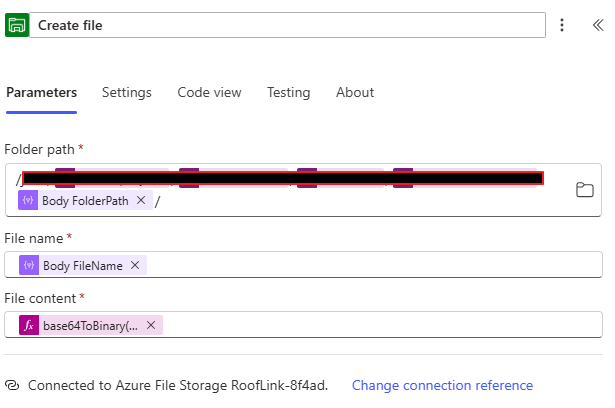
Here is the function for the File Content:
base64ToBinary(items('Apply_to_each')?['FileContent'])
Don't forget to let the users know that the upload was successful by returning a response from your flow:
//Notify if upload was successful
If(
    !IsBlank(varUploadFile),
    Notify("Files uploaded successfully!", NotificationType.Success),
    Notify("Upload failed. Please try again.", NotificationType.Error)
);
If this response was helpful to you, please mark your post as resolved so that others may reference to it.





 Share
Share Report
 Screenshot 2026-0...
 All responses (
 Answers (
 128
128









