web
You’re offline. This is a read only version of the page.
close
Skip to main content

Announcements

News and Announcements icon
Community site session details

Community site session details

Session Id :
Power Platform Community / Forums / Power Apps / Submitting Form to Dat...
Power Apps
Answered

Submitting Form to Dataverse Image Column

(2) ShareShare
ReportReport
Posted on by 214
I have a form, "CorpDetails_frm" that is used in our office to submit a new project. The form collects various bits of information, and the user can also upload an image through the picture control in the form.
 
Upon hitting the submit button, two things happen--the form is submitted and an email notification gets sent out.
 
The problem arises when the the form is submitted to the Dataverse--images saved to Dataverse seem to loose their original format. That is, when I later call on the image in my app for display purposes, it only displays as a square thumbnail. 
 
When I first began troubleshooting this, I realized the form was submitting the image to the Dataverse table as a square thumbnail--the Dataverse table only shows square thumbnails, not images in their original format.
 
Anyone have any thoughts on what I may be doing wrong? 
 
Thanks in advance
Kristine
 
Some details:
The data card in the form for the photo is called Documents Photo_DC, and its Update property has the code AddPicture1.Media.
The add picture control is called AddPicture1.
The image control is called DocPhoto, and its Image property has this code:
 
Coalesce(
    AddPicture1.Media,     // show newly picked image
    Parent.Default         // show existing image (in Edit mode only)
)
Categories:
I have the same question (0)
  • Haque Profile Picture
    1,397 on at
    Hi @kristinegriba,
     
    These are the three important points may help you:
    1. The square thumbnail in Dataverse table views is normal and does not mean the original image is lost.
    2. Use Power Apps image controls to display the full image from the image column.
    3. For original image storage without thumbnailing, consider file columns in dataverse.
     As a side note:
    1. The image column in Dataverse stores images and automatically generates thumbnails for display in views and forms.
    2. The thumbnail shown in the Dataverse table or model-driven app is a smaller, square version for performance and UI consistency.
    3. The full-size image is stored but not directly visible in the table view.

    Please let me know if this helps.

  • Haque Profile Picture
    1,397 on at
    Hi @kristinegriba,
     
    I forgot to one more thing to mention, if we want to diplay full image in the Canvas App, we can use image control bound to the image column of Dataverse.  Image control will render the full image, not just the thumbnail. Please make sure you bind the image control’s Image property to the image column from your Dataverse record.
  • kristinegriba Profile Picture
    214 on at
    @Haque Thanks for your reply.
     
    Re your points:
     
    The square thumbnail in Dataverse table views is normal and does not mean the original image is lost.
    Good to know--this is helpful, thank you. Is it safe to presume then that the full image is actually available for calling on elsewhere in the app for full rendering?
     
    Use Power Apps image controls to display the full image from the image column.
    I've tried this and I seem to have no luck If I place an image control to test calling up the image from the Image column in the Dataverse table, it still displays as a square thumbnail. Further along in the app, I call up the image to display to the user. See my screen capture embedded below... one of my screens from my app 'in progress':
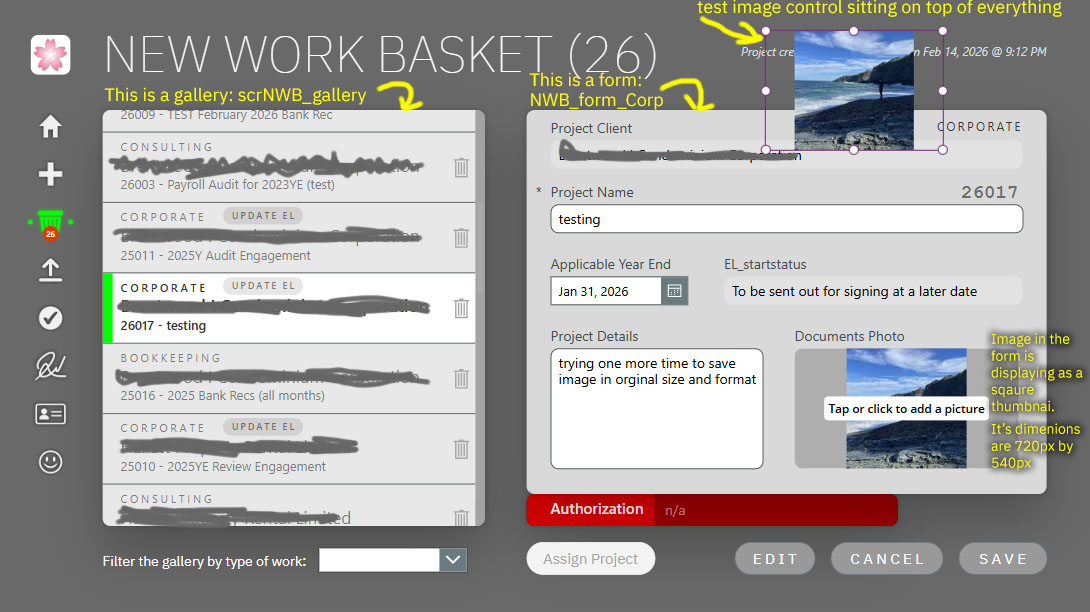
     
    For original image storage without thumbnailing, consider file columns in Dataverse.
    Originally I had used the file column, however, I don't get the photo showing--rather, it appears as an attachment.

    The image column in Dataverse stores images and automatically generates thumbnails for display in views and forms.
    Noted - wondering then if the full image can ever be displayed in a form? Wondering if there is a workaround for this?
     
    Thanks again for your assistance, Haque.
  • Haque Profile Picture
    1,397 on at
     
    Just a quick question, is your image column in Dataverse has the "Can store full images " option enabled?
     
  • kristinegriba Profile Picture
    214 on at
    @Haque Yessir it is, here is a screen capture...
     
  • Haque Profile Picture
    1,397 on at
     
    For sure we all are racing times - it needs bit of RnD for me, please allow me one day if someone doesn't jump in between. 
  • kristinegriba Profile Picture
    214 on at
    @Haque No worries, and I do apologize... wasn't trying to pressure... more so a case of "striking while the iron is hot." Whenever you are ready, I'll take your assistance at your pace :)
     
  • Verified answer
    Haque Profile Picture
    1,397 on at
     
    Could manage some time to spend and got a clue!
     
    The properties of the image I used are as below:
    File Size Details


    Add picture without to ThisItem.'Cover Image'.Full propety
    Screen-1: Although the attaced image size is 576X289, it shows a square image here (The problem we are facing)!
     
    Property is not set to Full.
    Screen-2: I have selected Cover Image Card--> Advance-->Default property.
    Look carefully, just in this moment "ThisItem.'Cover Image'" property is as it is. We will trick here!


    Screen-3: Effect of  ThisItem.'Cover Image'.Full property, the image shows its original size (the trick is a hidden property of image data card!). So, if I change this property, from ThisItem.'Cover Image' to ThisItem.'Cover Image'.Full , I get the image bigger. If we compare the Screen-1 and Screen-3 we will be able to see the difference. 
     
     
    Screen-4: When I run the app, I get my full-card sized image, I have stretched it, minimized it,  it becomes bigger.


    Please note that "Cover Image" column is my Dataverse table column. So you need to replace with your column. ThisItem.'Cover Image'.Full --> ThisItem.'YourImgCol'.Full
     
    I am convinced; it will solve the issue you are facing.
     
  • kristinegriba Profile Picture
    214 on at
    @Haque That is amazing!! I am at work right now but when I get home this evening I will try this because I believe you have solved the issue!! I'm so excited--thank you so much. I have been racking my brain researching and using Copilot, all without luck... and here you go, look at you solving that :) I'll let you know how I make out :)
  • kristinegriba Profile Picture
    214 on at
    @Haque Success!! I tried your solution and it worked!! Many thanks again, Haque, you've saved me many more hours of puttering around!!

Under review

Thank you for your reply! To ensure a great experience for everyone, your content is awaiting approval by our Community Managers. Please check back later.

Helpful resources

Quick Links

Introducing the 2026 Season 1 community Super Users

Congratulations to our 2026 Super Users!

Kudos to our 2025 Community Spotlight Honorees

Congratulations to our 2025 community superstars!

Congratulations to the March Top 10 Community Leaders!

These are the community rock stars!

Leaderboard > Power Apps

#1
11manish Profile Picture

11manish 505

#2
WarrenBelz Profile Picture

WarrenBelz 502 Most Valuable Professional

#3
Haque Profile Picture

Haque 324

Last 30 days Overall leaderboard
