Document management in SharePoint is often underestimated. Many organizations believe simply creating a document library is enough. In reality, managing documents at scale becomes complex very quickly.
- As document volume increases, common challenges appear:
- Users rely on folders instead of structured metadata.
- File names become inconsistent.
- Metadata fields are left blank.
- Searching depends on keywords rather than context.
- Governance and retention become difficult to enforce.
Over time, this leads to a cluttered repository where information technically exists, but is hard to retrieve efficiently.
Traditional SharePoint document management depends heavily on manual metadata tagging. However, users typically upload a file and move on. They rarely stop to fill five or six metadata columns properly. This is where intelligent automation becomes essential.
Autofill columns use AI to analyze document content and automatically populate metadata fields. Instead of relying on users to classify and tag content, the AI reads the document and fills the relevant columns based on a prompt or trained model.
This transforms SharePoint from a passive storage system into an intelligent content management platform.
Rather than
- Hoping users classify correctly
- Building complicated folder structures
- Running manual audits
You allow AI to standardize classification consistently.
Real-Time Scenario: IT Operations Document Library
An organization wants every IT communication notification uploaded to Microsoft SharePoint to be automatically classified into the appropriate Communication Type (Maintenance, Security, Infrastructure, or General Update) and tagged with accurate metadata, without any manual user input.
Let’s consider a practical example of how auto-fill works.
Getting started with Autofill is easy and works for both new and existing document libraries. Here’s a quick step-by-step guide to set it up.
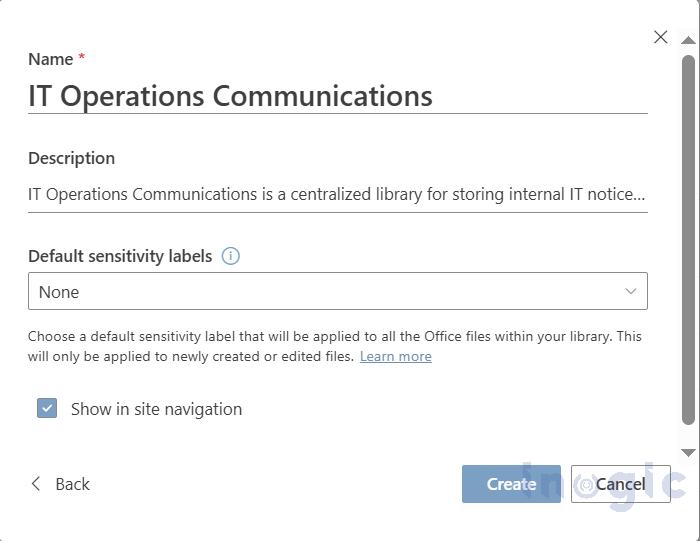
1. Setting up your SharePoint Library.
An organization maintains a SharePoint library called: IT Operations Communications
This library stores different types of documents: Maintenance notifications, Security advisories, Architecture research documents, Infrastructure strategy papers, etc.
The organization wants to automatically classify documents and extract key metadata at the time of upload.
Read More>>


