web
You’re offline. This is a read only version of the page.
close
Skip to main content

Notifications

Announcements

Community site session details

Community site session details

Session Id :
Power Platform Community / Forums / Power Automate / Power Automate Flow Se...
Power Automate
Suggested Answer

Power Automate Flow Sending Multiple Emails Instead of Single Email with Combined SharePoint List

(0) ShareShare
ReportReport
Posted on by 10
Hello Community,
Hope all is well with you.

I am Newbie to Power automate and haven't worked much on it.

I have a requirement to send an email of the SharePoint list data to the user.
1 complication I had was that few of my Columns were of Multi-Select Choice type in SharePoint List. So. I had to Split and Join Them using ",".
For that I have Used the technique mentioned Below in the Image 
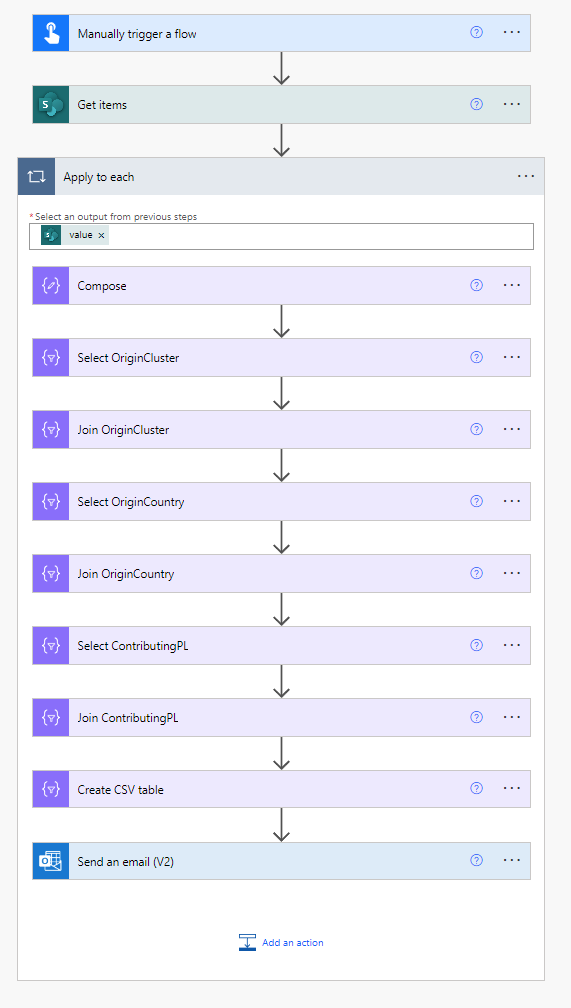
 
Because of having the Send an Email Option inside the Loop, instead of sending 1 file with all the records, the flow is sending 1 mail for each record in the SharePoint List.

So, for example if there are 20 records them I am getting 20 emails.

Kindly Help me with this Issue.

Many Thanks 
Categories:
I have the same question (0)
  • David_MA Profile Picture
    12,982 Super User 2025 Season 2 on at
    None of your screen shots seem to be attached. Therefore, I don't know what you're sending in the e-mail. You may want to consider using a Select and Convert to HTML Table actions instead of the Apply to each. You would then be able to send one e-mail. Although, depending on where the e-mail addresses come from, you may still need to use the join operation you described. This will illustrate the Select and Convert to HTML Table actions as well as show you how to format the resulting HTML table in the e-mail: Foolproof Power Automate HTML Table Styling
  • CU07101247-0 Profile Picture
    10 on at
    Hello 

    Thank you for your reply.
    have a substantial list of records, so I was considering generating a CSV file containing all the outputs and sending it via email.

    Currently, I am using the Apply to Each action to handle the Multi-Choice columns (OriginCluster, OriginCountry, ContributingPL) since there may be multiple selections. While this approach works well for a single record, it results in multiple emails being triggered when there are more than one record in the SharePoint list.

    I would greatly appreciate it if you could provide some guidance or suggestions on how to adjust my flow to consolidate the records into a single email with the CSV attachment.

    Again as I said, I am New to this whole Power automate thing I request you to please elaborate a bit if I'm doing anything Wrong

    This works really well when there is only one record but for more than 1 record, email is triggered many many times


    Please let me know if you need any other information from my end.
    Thank you 😊
  • Suggested answer
    David_MA Profile Picture
    12,982 Super User 2025 Season 2 on at
    Based on your screen shots, I cannot tell why, so why is the send e-mail inside the Apply to each? Without knowing why it is there, I would say move it outside of the Apply to each action and attach the csv file and send it. The send e-mail action doesn't need to be in the loop to send the csv you create in the loop.
  • CU07101247-0 Profile Picture
    10 on at

    Hello @David_MA,

    The reason for placing the "Send an email" action inside the "Apply to each" loop is due to a limitation with the CSV output. The CSV output is only accessible within the loop, so when I attempt to move the "Send an email" action outside the loop and add the CSV table output as an attachment, it fails to retrieve the CSV data. Therefore, I’ve kept it within the loop to ensure it can fetch the necessary CSV output correctly.

  • Suggested answer
    David_MA Profile Picture
    12,982 Super User 2025 Season 2 on at

    CU07101247-0 in the end, your process just creates one CSV file that you need to send, right? If so, create a string variable before the apply to each. Since a CSV file is nothing but a plain text file, set the variable with the Create CSV Table action. You will then be able to move the Outlook action outside of the apply to each and you can use the variable to generate the file.

Under review

Thank you for your reply! To ensure a great experience for everyone, your content is awaiting approval by our Community Managers. Please check back later.

Helpful resources

Quick Links

Forum hierarchy changes are complete!

In our never-ending quest to improve we are simplifying the forum hierarchy…

Ajay Kumar Gannamaneni – Community Spotlight

We are honored to recognize Ajay Kumar Gannamaneni as our Community Spotlight for December…

Leaderboard > Power Automate

#1
Michael E. Gernaey Profile Picture

Michael E. Gernaey 519 Super User 2025 Season 2

#2
Tomac Profile Picture

Tomac 296 Moderator

#3
abm abm Profile Picture

abm abm 232 Most Valuable Professional

Last 30 days Overall leaderboard
