web
You’re offline. This is a read only version of the page.
close
Skip to main content

Notifications

Announcements

Community site session details

Community site session details

Session Id :
Power Platform Community / Forums / Power Automate / "Set Variable" action ...
Power Automate
Unanswered

"Set Variable" action insisting on a Boolean value when my Initialize Variable is set to String

(0) ShareShare
ReportReport
Posted on by
As shown in the screenshot above, Initialize Variable FinalPresenterNames is set as String.
And yet I'm getting an error that insists on a Boolean value for Set Variable (error shown in both screenshots).
 
For context, I currently have this running 3x in parallel, for different variables (below). The issue being the "TRUE - Set variables" actions in the two outer flows. The middle one was created first when developing the flow and allows a String input as the value. I've confirmed that this flow works. But adding the two subsequent (outer) sections has been the issue, with both have the "invalid parameters" error, referring to the Boolean value requirement.
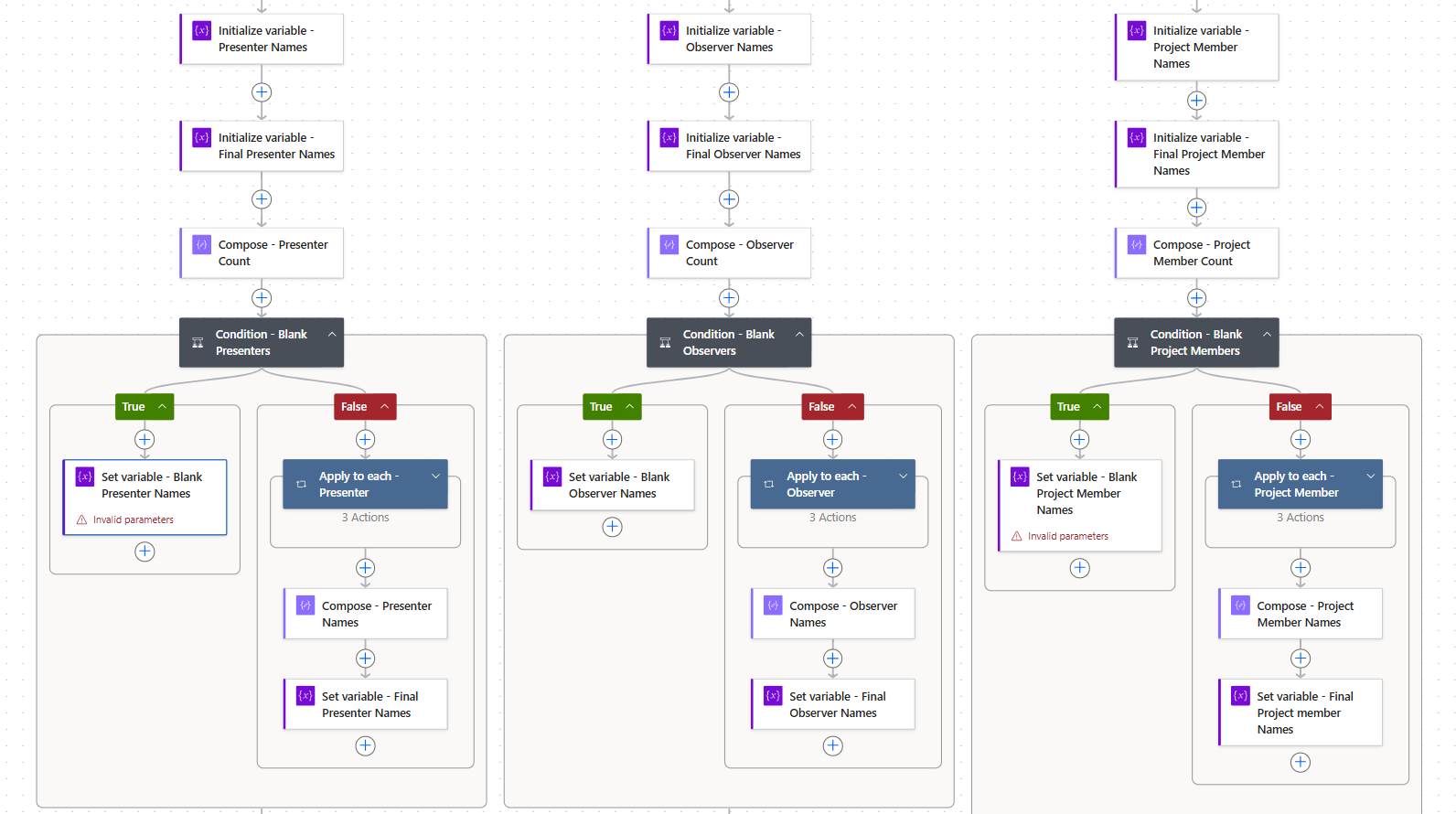
 
I'm very new to Power Automate, so I'm sure there's something I'm missing or unaware of. Any guidance would be greatly appreciated.  Thank you!
Categories:
I have the same question (0)
  • creativeopinion Profile Picture
    10,502 Super User 2025 Season 2 on at
    @LA-14051258-0 I'd recommend looking at adjusting the logic of your flow as it's redundant and will be hard to maintain. It's also not scalable the way you have it set up. 
     
    It's hard to offer any recommendations without seeing your full flow and the logic behind it. Toggle off the New Designer and click each action to expand it. Upload a screenshot of your flow in edit mode.
     
    From the looks of it, each parallel branch has the same logic with only minor variations.
     
    The Issue:
     
    • Repetitive logic: Each condition block and Apply to each is essentially identical.
    • Hard-coded references: You’re manually managing multiple parallel branches with hardcoded variable names.
    • Inefficient design: If you ever need to change the logic (e.g., how names are processed), you’ll have to update it in three places instead of just one.
     
    Why this Matters:
    • Maintainability suffers. The more duplicated logic you have, the harder it is to manage errors or enhancements.
    • Scalability is blocked. If you add another role (eg. Reviewer), you’d need to copy the entire structure again.
    • It’s not DRY (“Don’t Repeat Yourself”)—a core principle in automation and software design.
     
    A Better Approach:
    • Use a single branch and a dynamic reference key. Not sure how to create one? You might be interested in the tutorial linked below.
     
    Are you using the Switch action in your flow? While it seems like a simple way to handle multiple conditions, it can quickly become inefficient and difficult to manage.
     
    Here’s why:
    ❌ You can’t use dynamic content in the Equals field.
    ❌ You have to manually recreate the same actions for each case.
    ❌ Any updates require you to edit every single case individually.
     
    This results in a flow that’s repetitive, hard to scale, and a nightmare to maintain.
    In this tutorial, I’ll show you how to replace redundant Switch actions with a **Dynamic Reference Key**—a simple but powerful way to streamline your flows. Instead of repeating the same actions over and over, you’ll create a **lookup-style structure** that makes your flows more efficient, scalable, and easier to update.
     
    IN THIS VIDEO:

    ✓ Why the Switch action is inefficient and what to use instead
    ✓ What is a Dynamic Reference Key
    ✓ Creating a custom look up in Power Automate
    ✓ Using a Dynamic Reference Key instead of writing an expression with nested if() functions
    ✓ How to use a Dynamic Reference Key to reduce actions in your flow
    ✓ How to use a Dynamic Reference Key to route emails to different recipients based on a MS Form Selection
    ✓ How to reduce redundancies in your flow by using a single Send an Email (V2) action instead of multiple instances
    ✓ How to use a Dynamic Reference Key to send email notifications 90, 60 and 30 days from today’s date

    If you still run into issues while building your flow, share screenshots of your full flow and the logic behind it.

    Hope this helps!

    Consider giving me a ❤️ if you liked my response!

    👉 Level up your Power Automate skills by checking out my tutorials on YouTube
    👉 Tips and Tricks on TikTok and Instagram
     

Under review

Thank you for your reply! To ensure a great experience for everyone, your content is awaiting approval by our Community Managers. Please check back later.

Helpful resources

Quick Links

Forum hierarchy changes are complete!

In our never-ending quest to improve we are simplifying the forum hierarchy…

Ajay Kumar Gannamaneni – Community Spotlight

We are honored to recognize Ajay Kumar Gannamaneni as our Community Spotlight for December…

Leaderboard > Power Automate

#1
Michael E. Gernaey Profile Picture

Michael E. Gernaey 501 Super User 2025 Season 2

#2
Tomac Profile Picture

Tomac 323 Moderator

#3
abm abm Profile Picture

abm abm 237 Most Valuable Professional

Last 30 days Overall leaderboard



