web
You’re offline. This is a read only version of the page.
close
Skip to main content

Announcements

News and Announcements icon
Community site session details

Community site session details

Session Id :
Power Platform Community / Forums / Power Automate / Nesting Child flows an...
Power Automate
Answered

Nesting Child flows and time out limits

(1) ShareShare
ReportReport
Posted on by 163
Hi, 
I have a scenario whereby I have a SharePoint list where the entries need to go through six sequential levels of approvals (mad I know) and only proceed to the next level if the previous one was accepted.

So yes I could simply build a workflow which has six "start and wait for approval" actions each nested in turn within a condition action after each approval action.
However because the approvers are managers / directors etc. they aren't always proactive with their approval tasks, I therefore run the risk most likely of exceeding the 29 day workflow time limit.
 
My second thought was to then use a status field and don't use an approval action, instead send them an email (with option buttons) and when the "Approved" button was selected it then continued the workflow onto the next approver and so on. 
However this is likely to still exceed the 29day workflow limit with holidays/absences etc.
 
So my thoughts are now turning to building a Parent / Child / Grandchild / Great Grandchild etc scenario in a Solution.
My questions therefore are: 
1. Is there a limit to how many levels you can go to for child workflows within a solution
2. Will the child workflows have the 29 day limit each
3. I know that each Child workflow has to respond with a certain amount of time is this the 29 day limit or is this shorter.
 
Many thanks
Categories:
I have the same question (0)
  • David_MA Profile Picture
    14,090 Super User 2026 Season 1 on at
    I would do it this way:
    • Create one workflow for each of the six approval levels. 
    • On the outcome of the approval, use a switch or condition (I prefer switch) to check for approve or reject. You can use the default outcome in the switch for any unexpected events and send yourself a notification to check the flow run.
    • For the next approval, create a flow based on the trigger When an HTTP request is received.
      • Note: this is a premium action, so you need a premium license to do this. It sounds like you have a premium license if you can create solutions.
      • When you save the flow, it will generate a URL that you will use in your first workflow.
    • In the approve side of the switch or condition, take the URL generated from the step above and use the HTTP request to call the second approval.
    • Then just repeat this for the rest of the approvals doing the same thing each time.
       
    This is what it will look like in the first flow from the first approval outcome:
    This is the configuration of the HTTP request:
    You will want to at least pass along the item ID so you can use a Get item action to retrieve the corresponding item in the second approval.
     
    This is the configuration for the trigger in the second approval:
    There are several ways to set up the security on this, so what you choose is up to you. The recommended way would be an app registration in Azure. You can learn about that here: Add OAuth authentication for HTTP request triggers - Power Automate | Microsoft Learn.
     
    The process illustrated above has six approvals that encompasses 29 workflows, so using a solution is a wise decision. This way, each approval has 28 days to complete before it times out.
     
    There is a way to do approvals so there are no timeouts, but that is more complicated. It also involves premium actions.
  • Verified answer
    Pstork1 Profile Picture
    69,127 Most Valuable Professional on at
    Let me suggest a different design option.  Create a list to keep track of what stage you are at for each item/document being approved.  Then have a normal flow that kicks off the first level of approval.  At the end of that flow record the first approval in your tracking list with something that uniquely identifies the item being approved.  Now create a second flow that is triggered when an item is created or modified in the tracking list.  Have that flow read the current stage and send out the next approval. When it returns record that approval in the list.  That will trigger a new instance of the flow to do the next stage. If the current approval is on the last stage then complete the process and delete the tracking record.  By using a tracking list and two flows you can easily support as many stages as you want by creating columns in the tracking list for each stage. Since the flows run independent of each other you don't need to worry about the 30 days or timeouts of child flows.

    ----------------------------------------------------------------------------------
    If this Post helped you, please click "Does this answer your question" and give it a like to help others in the community find the answer too!

    Paul Papanek Stork, MVP
    Blog: https://www.dontpapanic.com/blog
     
  • Suggested answer
    rzaneti Profile Picture
    4,483 Super User 2026 Season 1 on at
    Hi @Ian_C,
     
    1. No, as far as I know. Honestly, I never tried more than 2 layers of child flows, but technically the parent flow just know their direct child and not the next level of nested automations, so there is no actual tracking or limitation, I think, on the qty of layers.
    2. 30 days each. I don't know however what would happen with the parent flows after the 30 days.  
    3. 30 days. Technically you could allocate the response step before managing the approval, so your parent flows would not time out.
     
    Also, just to contribute with your process brainstorming with an unsolicited recommendation: I don't know the details of your use case, but eventually you could consider to handle this process with a different automation design. Instead of having multiple Start and wait for approval steps divided into nested child flows, you could simply use the Create approval action and then leverage the Dataverse actions to manage the response and branch it and to create the next level's approvals.
     
    The approval requests are managed on the Dataverse Approvals table, so you could track their status change with a When a row is created, modified or deleted trigger and then create the next level approval. A great outcome of this design: you won't rely on the 30 days limit for the flows :)
     
    If you want to see this approach in practice (but in a much simpler scenario), check this blog that I wrote a few months ago about how to overcome the 30 days limit for approval requests: https://digitalmill.net/2024/11/25/approval-requests-above-the-30-days-limit-in-power-automate/
     
    Let me know if it works for you or if you need any additional help!
     
    If this solved your issue, please mark it as Accepted Answer.
    👍 If it helped, feel free to give it a like!

    🌐 Explore more Power Platform content on my Website or on my ▶️ YouTube
    💼 Find me on LinkedIn
  • David_MA Profile Picture
    14,090 Super User 2026 Season 1 on at
    I forgot to answer one of your questions in my post below: Will the child workflows have the 29 day limit each?
     
    When working with parent and child flows in Power Automate, it's important to understand the timeout limits and how they interact. Child flows have a 30-day timeout limit, while approvals within flows have a 28-day timeout limit. However, the parent flow's timeout clock continues to run when you call a child flow. To avoid timing out the parent flow, you should immediately use the "Respond to an app or flow" action to send a response back to the parent flow, allowing it to complete its run. This means that all tasks for that step need to be handled within the child flow itself, without relying on sending data back to the parent flow for further processing.
     
    And it looks like you already have a couple of other options to ponder. Good luck! In Power Automate, there is always more than one way to do something. You just need to decide which method is best for you.


  • Suggested answer
    MMcCloud Profile Picture
    393 Moderator on at
    Good Afternoon Friend,
     
    Non-premium suggestion here incoming:
    1. Is there a limit to how many levels you can go to for child workflows within a solution
    2. Will the child workflows have the 29 day limit each
    3. I know that each Child workflow has to respond with a certain amount of time is this the 29 day limit or is this shorter.
    I will follow your questions point by point.
     
    1. No but, if the wait for the other flow is longer than the 29 day limit it will stop the parent layers because they will time out before it and it won't have a response to return to.
     
    2. Yes but, they will have no where to return to as I said above because their parent flows will go away before they do.
     
    3.  As far as I am  aware you can run a flow as long as the limit at any level of your example Grandparent parent and chilld but, they are all held to their limit of 29 days.
     
     
    For a work around to this for free with a little extra work.
     
    1. You'll need SharePoint/Microsoft Lists for my example.
     
    Create a Status field in your List as a choice - You could also have a secondary list with the approver emails and do it this way selecting from that list as you move ask if you are interested
     
    2. You can log the approvers either into separate flows or make a singular flow which based off a switch statement and a status field moves to the different approver based on the current "Status" Field.
     
    3. You will then need a "StatusLastChanged" datetime field no time needed in your SharePoint List.
     
    4. Then when your flow runs and before you send the approval update the "StatusLastChanged" Date.
     
    5. Create a secondary flow that runs daily and checks the datedifference between your stored Date and the UTCNOW date like this 
    dateDifference(utcNow(), YourDate)
     
    6. If the time is up to 30 days your flow failed if you built it correctly and you would restart the original flow via a trigger of when an item is updated and check if that "Status" field was updated.
     
    7. Your original flow kicks off because "Status" is re-updated or if the person already approved it you should have updated the SharePoint List Immediately then stopped the original run of the original flow and moved to the next approver with a new run of the original flow based off the "Status" field being different.
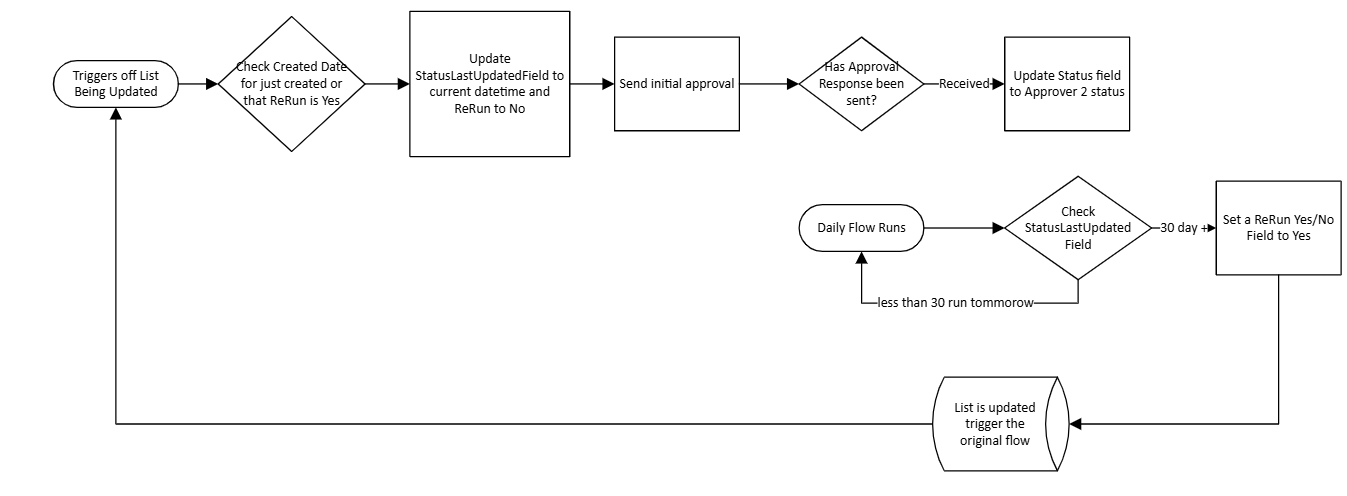
    Sorry I know this was a lot but, it might be a solution you are looking for let me know if you need any assistance if this solves your problem please select me as your answer have a nice day!
  • Ian_C Profile Picture
    163 on at
    Wow..
     
    Many thanks to all of you for your answers, they all provide answers to this conceptual question. As @David_MA says in Power Automate there is always more than one way to do something.

    I think that I am going to explore @Pstork1 's alternative suggestion of having a tracking list which drives the approvals (though being mindful of not having a continuous loop of workflows firing). That way the user will also have a one-stop place to view the progress of all the items in the various approval cycles.
    However I will also set up a daily workflow as @MMcCloud suggests to serve as a reminder pokes to the managers/directors  
     
    Again many thanks for your time and replies.

Under review

Thank you for your reply! To ensure a great experience for everyone, your content is awaiting approval by our Community Managers. Please check back later.

Helpful resources

Quick Links

Introducing the 2026 Season 1 community Super Users

Congratulations to our 2026 Super Users!

Kudos to our 2025 Community Spotlight Honorees

Congratulations to our 2025 community superstars!

Congratulations to the March Top 10 Community Leaders!

These are the community rock stars!

Leaderboard > Power Automate

#1
Haque Profile Picture

Haque 594

#2
Valantis Profile Picture

Valantis 328

#3
David_MA Profile Picture

David_MA 281 Super User 2026 Season 1

Last 30 days Overall leaderboard
