web
You’re offline. This is a read only version of the page.
close
Skip to main content

Notifications

Announcements

Community site session details

Community site session details

Session Id :
Power Platform Community / Forums / Power Automate / Exporting Linked Share...
Power Automate
Suggested Answer

Exporting Linked SharePoint Data to Excel Using Power Automate

(0) ShareShare
ReportReport
Posted on by 146

Hi everyone,

I'm new to Power Automate and have a question! I currently have two linked SharePoint lists (as shown in the attached file), connected through an ID field (my flow matches Request ID with the corresponding ID).
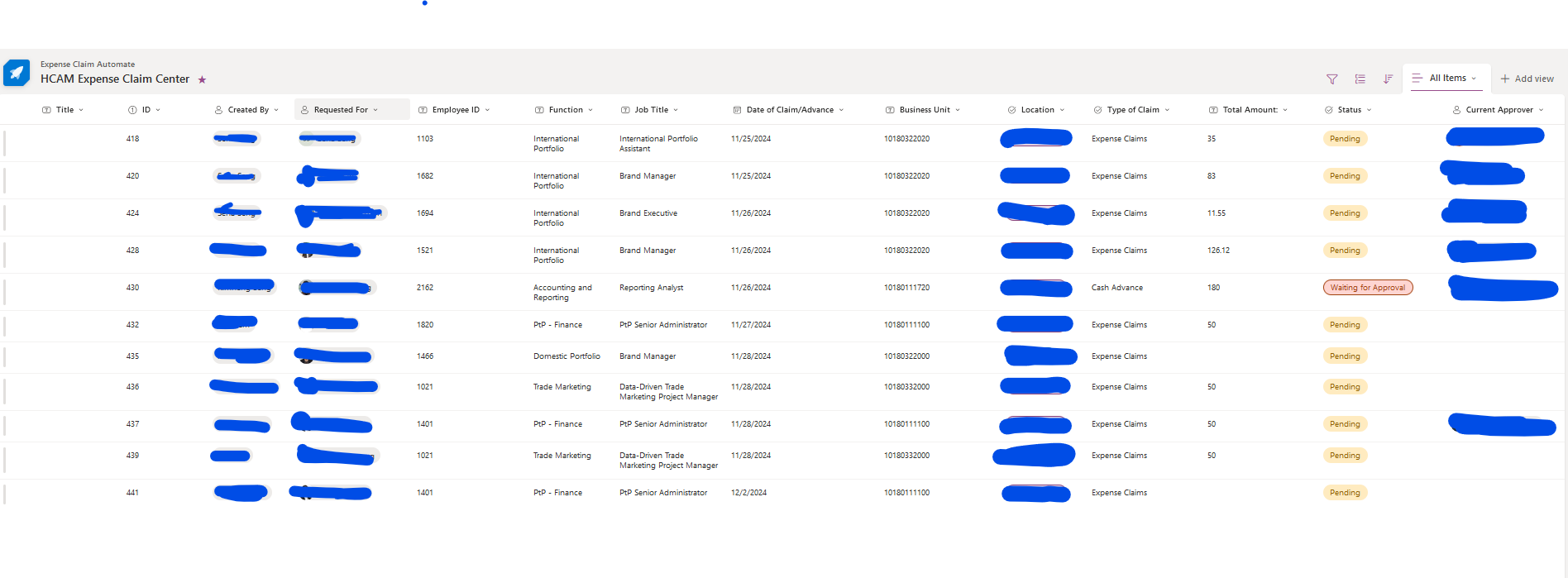
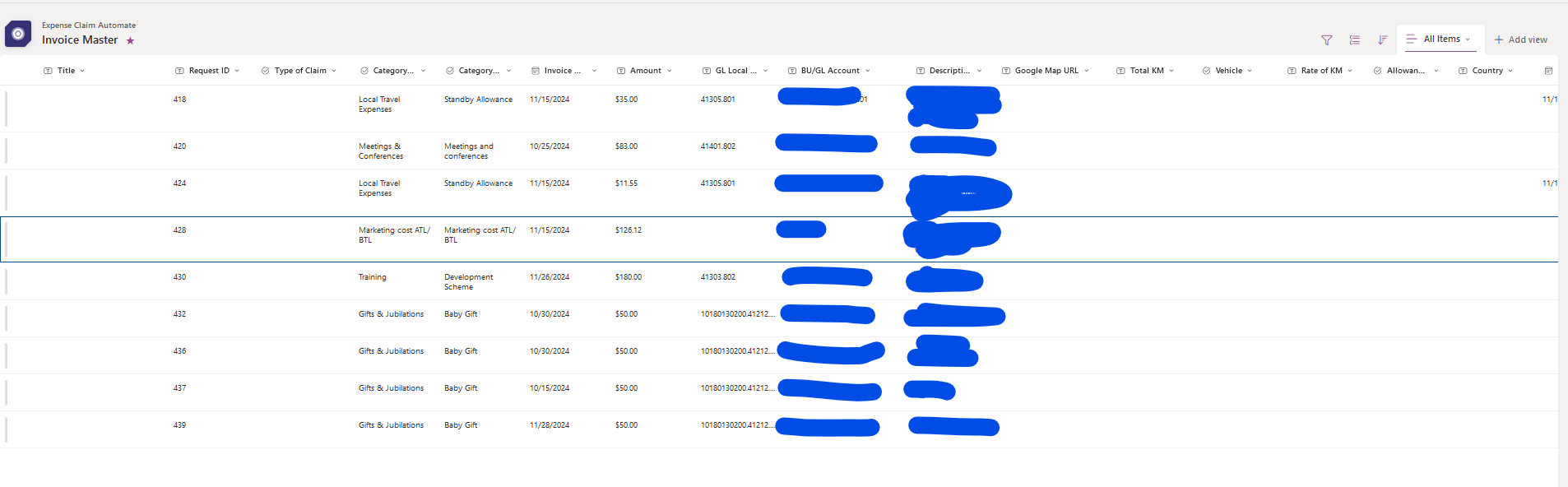
 

I want to export this linked data into Excel using Power Automate while maintaining the relationship between the two lists. How can I best achieve this?

I look forward to your guidance and appreciate your help!

Best regards,

Seth

Categories:
I have the same question (0)
  • Suggested answer
    VishnuReddy1997 Profile Picture
    2,656 Super User 2025 Season 2 on at
    Hi @ 
     
    Step 1: Identify the Linked Lists
    Ensure your two SharePoint lists are connected via a common field, such as Request ID (in List A) and ID (in List B).
    Step 2: Create the Flow in Power Automate
    Trigger: Start the flow with a manual trigger or a scheduled trigger (e.g., daily or weekly).
    Fetch List A Data:
    Use the Get Items action to retrieve data from List A.
    Fetch List B Data:
    Use the Get Items action to retrieve data from List B.
    Step 3: Combine Data
    Initialize an Array Variable:
    Create a variable (e.g., CombinedData) to store the linked data.
    Use Initialize Variable and set it as an array.
    Link Data:
    Use an Apply to Each loop on the items from List A.
    Inside the loop:
    Use a Filter Array action to match List B items where the ID field equals the Request ID from List A.
    Combine the relevant fields into a single JSON structure using a Compose action.
    Append the combined data to the CombinedData array.
    Step 4: Export to Excel
    Create an Excel File:
    Use the Create File action in OneDrive or SharePoint to create an Excel file.
    Insert Data into the File:
    Use the Create Table and Add Rows to a Table actions to populate the Excel file with the CombinedData array.
     

    (Note:- if you got your solution you can mark as solution and gives kudos)
     
    Thanks & Regards
    Vishnu Reddy
  • Seth18 Profile Picture
    146 on at
     
    I follow your step by step process but currently my question would be how do you call the variable of the CombinedData into the excel file? Since add row into a table is only showing like this!

Under review

Thank you for your reply! To ensure a great experience for everyone, your content is awaiting approval by our Community Managers. Please check back later.

Helpful resources

Quick Links

Forum hierarchy changes are complete!

In our never-ending quest to improve we are simplifying the forum hierarchy…

Ajay Kumar Gannamaneni – Community Spotlight

We are honored to recognize Ajay Kumar Gannamaneni as our Community Spotlight for December…

Leaderboard > Power Automate

#1
Michael E. Gernaey Profile Picture

Michael E. Gernaey 501 Super User 2025 Season 2

#2
Tomac Profile Picture

Tomac 323 Moderator

#3
abm abm Profile Picture

abm abm 237 Most Valuable Professional

Last 30 days Overall leaderboard



