web
You’re offline. This is a read only version of the page.
close
Skip to main content

Announcements

News and Announcements icon
Community site session details

Community site session details

Session Id :
Power Platform Community / Forums / Power Automate / Filtering an excel tab...
Power Automate
Unanswered

Filtering an excel table and sending an email of that filtered data

(1) ShareShare
ReportReport
Posted on by 2
Hello!
 
I have an excel workbook that contains two tables - one is a list of people and their email addresses (staff table), and another is a table that contains what bounty each person earned each day (bounty table).
 
I am trying to build a flow that loops through each person in the staff table, and then sends them a filtered version of the bounty table showing just the rows that contain their email address.
 
I have created an 'Apply to Each' that goes through each row of the staff table, but where I'm getting stuck is how to filter the Bounty Table. If I use the Filter Array action to try and take the values of the List Rows in Bounty Table action and filter the Email Address field, it creates another For Each, so I think I'm doing something wrong.
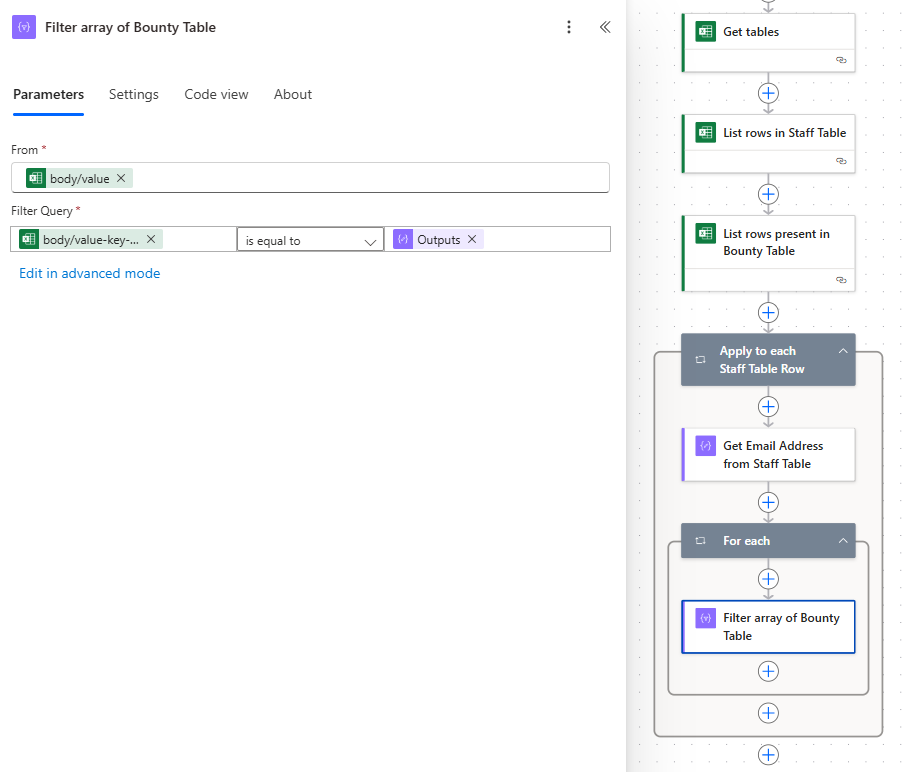
 
I'm not sure where to go next! If it is easier, I can set up the Excel workbook different so that excel creates seperate tables for each person and then I can loop through the worksheets and email each person their individual worksheet, but I'm also struggling with the same issue when trying to do that.
 
Let me know if you need any more info, I'm a beginner so I don't even know what I don't know here. Thank you!!
Categories:
I have the same question (0)
  • Sam_Fawzi Profile Picture
    902 Super User 2026 Season 1 on at
     
    How difficult is it to add employee emails to the Bounty table? If it's too challenging, what key are you using to match the two tables?
     
    Back to your current Approach
    You could loop through the staff table and the list of rows from the Bounty table, filtering based on the key value to retrieve the necessary information and send the emails.
  • creativeopinion Profile Picture
    10,508 Moderator on at
    @SR-04061412-0 You might be interested in the YT Tutorials linked below. The first one covers how to send multiple SP items in a single email. The concepts covered in this tutorial can be used in your flow. I've also linked a couple of tutorials on how to use the Filter Array action.
     
    How to Send a SINGLE EMAIL ✉️ with multiple SharePoint list items
    Building a Power Automate flow that will send an email with multiple SharePoint items can be a bit complex. In this video tutorial I’ll cover how to build a flow that will send a single email to each user with tasks that have been assigned to them. The logic in this flow can be applied to many different scenarios.

    First, I’ll show you how to use a Filter Query to return items from your SharePoint list that meet your criteria. Then I’ll show you how to return a list of unique email addresses so that each user receives a single email. Lastly I’ll show you how to compose an email that will contain an HTML table with a list of tasks for each user.

    IN THIS VIDEO:
    ✓ How to send multiple list items in a single email with a Power Automate Flow
    ✓ How to create a dynamic date range
    ✓ How to use the Convert Time Zone action
    ✓ How to use a Filter Query in the Get Items action
    ✓ How to count number of items in an array
    ✓ How to use the Select action to extract a users display name and email address
    ✓ How to create a unique list of email addresses
    ✓ How to use the Create HTML Table action
    ✓ How to customize the HTML Table with CSS styles
    ✓ How to use the Send an email (V2) action
    ✓ How to use the Append to String Variable action
    ✓ How to create a custom list of items for an email
    ✓ How to use the Send an email (V2) action
    ✓ How to display singular or plural text based on the number of items returned
     
    ----

    In this tutorial—I’m going to show you a quicker way to get the dynamic content from your Filter Array action—and it doesn’t require writing an expression.

    IN THIS VIDEO:
    ✓ How to Loop Through Filter Array Results in Power Automate
    ✓ Using Apply to Each with Filtered Arrays
    ✓ The Easiest Way to Access Dynamic Content from Filter Array
    ✓ Fixing Nested Apply to Each Actions
    ✓ When to Use Value vs. Body Dynamic Content
    ✓ Simplifying Power Automate Flows with Filter Array
    ✓ Troubleshooting Filter Array and Apply to Each Issues
     
    -----
     

    In this video tutorial I’ll show you 3 practical ways to use the Filter Array action and how to use it properly.
    1️⃣ Cross-Referencing Data
    2️⃣ Filtering by Key
    3️⃣ Substring Matching
    Did you know that the Condition action has a limit of 10 conditions? Although it might look like the Filter Array action can only accept one condition—this is not true. By using the advanced mode you can enter multiple conditions into a Filter Array action with an expression.

    IN THIS VIDEO:
    ✓ 3 Ways to Use the Filter Array Action
    ✓ How to use the Scope Action to Group Actions
    ✓ How to Check the Number of Items returned from a Filter Array Action
    ✓ How to Cross-Reference Data in Excel with a SharePoint List
    ✓ How the Filter Array Action Works
    ✓ How to Access the Dynamic Content from a Filter Array Action
    ✓ How to Filter Items by a Key
    ✓ How to Filter Items by Matching a Substring
    ✓ How to Use Multiple Conditions in a Filter Array Action
     
    If you still run into issues with your flow after reviewing these tutorials, upload a screenshot of your full flow. If you are using the new designer, toggle it off and click each action to expand it. Upload a screenshot of your flow in edit mode, it would help to provide more insight.
     
     
    Hope this helps!
    Consider giving me a ❤️ if you liked my response!

    👉 Level up your Power Automate skills by checking out my tutorials on YouTube
    👉 Tips and Tricks on TikTok and Instagram
     

Under review

Thank you for your reply! To ensure a great experience for everyone, your content is awaiting approval by our Community Managers. Please check back later.

Helpful resources

Quick Links

Introducing the 2026 Season 1 community Super Users

Congratulations to our 2026 Super Users!

Kudos to our 2025 Community Spotlight Honorees

Congratulations to our 2025 community superstars!

Congratulations to the April Top 10 Community Leaders!

These are the community rock stars!

Leaderboard > Power Automate

#1
Vish WR Profile Picture

Vish WR 976

#2
Valantis Profile Picture

Valantis 863

#3
Haque Profile Picture

Haque 547

Last 30 days Overall leaderboard
