web
You’re offline. This is a read only version of the page.
close
Skip to main content

Announcements

News and Announcements icon
Community site session details

Community site session details

Session Id :
Power Platform Community / Forums / Power Automate / How to build a daily f...
Power Automate
Suggested Answer

How to build a daily flow that checks Excel review dates and sends one‑time email reminders

(0) ShareShare
ReportReport
Posted on by 4

Hi community,

I have an Excel file stored in OneDrive/SharePoint with a table that includes:


  • Task/Item

  • ReviewDate (date)

  • RecipientEmail

  •  

My Goal:


  • Create a Power Automate flow that runs daily.

  • The flow should Daily check if any ReviewDate is exactly one week away.

  • If so, send an email reminder to the RecipientEmail.

  • Each email should only be sent once per recipient (no duplicates).

  • Update the ReminderSent column to TRUE after sending

  • I would love a,


  •  
  • A step‑by‑step approach to set this up in Power Automate.

  • Any formulas needed in Excel (e.g., calculating ReminderDate or comparing with TODAY).

  • Tips to ensure the flow runs reliably (date formats, time zones, update actions).


  •  
 

Thanks in advance for your guidance!

Categories:
I have the same question (0)
  • Suggested answer
    Ellis Karim Profile Picture
    12,051 Super User 2026 Season 1 on at
    Hi CU30101613-1,
     
    I wrote a tutorial that may help you get started.
     
    Please see: 


    Ellis Karim
    Ellis Karim
    elliskarim.com  |  LinkedIn  |  Bluesky
    If this solved your issue, please mark it as āœ… Accepted Answer. If it helped, feel free to give it a 🩷 Like!
  • Suggested answer
    Kalathiya Profile Picture
    2,001 Super User 2026 Season 1 on at
    Hello @CU30101613-1
     

    Step-by-Step Flow Setup for One-Week Reminder:


    #1.Create a Scheduled Flow
        Trigger: Recurrence
        Frequency: Daily

    #2. Calculate the Target Date (7 days from today)

        Add ā€œAdd to timeā€ action:
            - Base time: utcNow()
            - Interval: 7 (for 7 days ahead)
            - Time unit: Day 
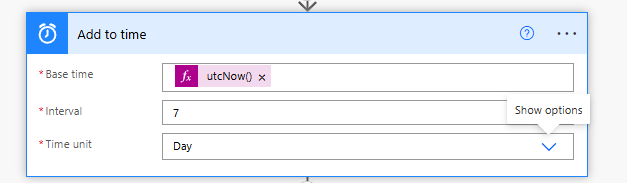

        Add a Compose action to format the date:

        Expression:

    formatDateTime(outputs('Add_to_time'),'yyyy-MM-dd') //Update the action name as per your


    This gives the date exactly 7 days from today in yyyy-MM-dd format.
      

    #3. Get Excel Table Rows
        Add ā€œList rows present in a tableā€ action
        Select your Excel file and Table
        Apply OData filter query to only fetch items where:
     
     
     In the action’s Advanced options, set the date format to ISO 8601. This ensures reliable date comparison in later steps.

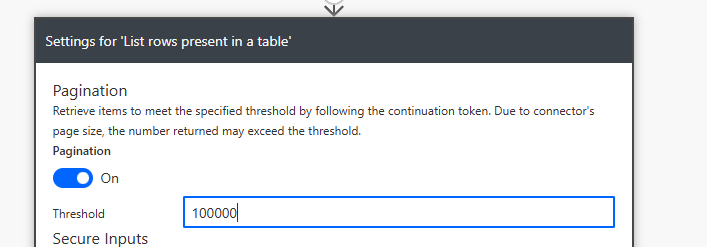
    Note: By default, this action returns a maximum of 256 rows.

    - If you have more records, go to Settings -> Pagination and enable it.

    - Set the maximum number of records to a number that fits your dataset.
     
     
    #4. Filter Items by Review Date
        Add Filter array action
        Filter rows where ReviewDate equals the target date from the Compose action:
        Expression example:
    formatDateTime(item()?['ReviewDate'],'yyyy-MM-dd') //Update the 'ReviewDate' column name as per yours
            equals the Compose output.
      
     
    #5. Send Email Notification
        Add Apply to each action on the filtered array
        Inside the loop:
            Add Send an email (V2) action
                To: RecipientEmail
                Customize Subject and Body as needed
        Update Excel Item (Optional)
        After sending the email, add Update a row action
        Set ReminderSent = Yes so the email is not sent again


    📩 Need more help? Mention@Kalathiya anytime!
    āœ”ļø Don’t forget to Accept as Solution if this guidance worked for you.
    💛 Your Like motivates me to keep helping

Under review

Thank you for your reply! To ensure a great experience for everyone, your content is awaiting approval by our Community Managers. Please check back later.

Helpful resources

Quick Links

Introducing the 2026 Season 1 community Super Users

Congratulations to our 2026 Super Users!

Kudos to our 2025 Community Spotlight Honorees

Congratulations to our 2025 community superstars!

Congratulations to the April Top 10 Community Leaders!

These are the community rock stars!

Leaderboard > Power Automate

#1
Vish WR Profile Picture

Vish WR 976

#2
Valantis Profile Picture

Valantis 863

#3
Haque Profile Picture

Haque 547

Last 30 days Overall leaderboard
