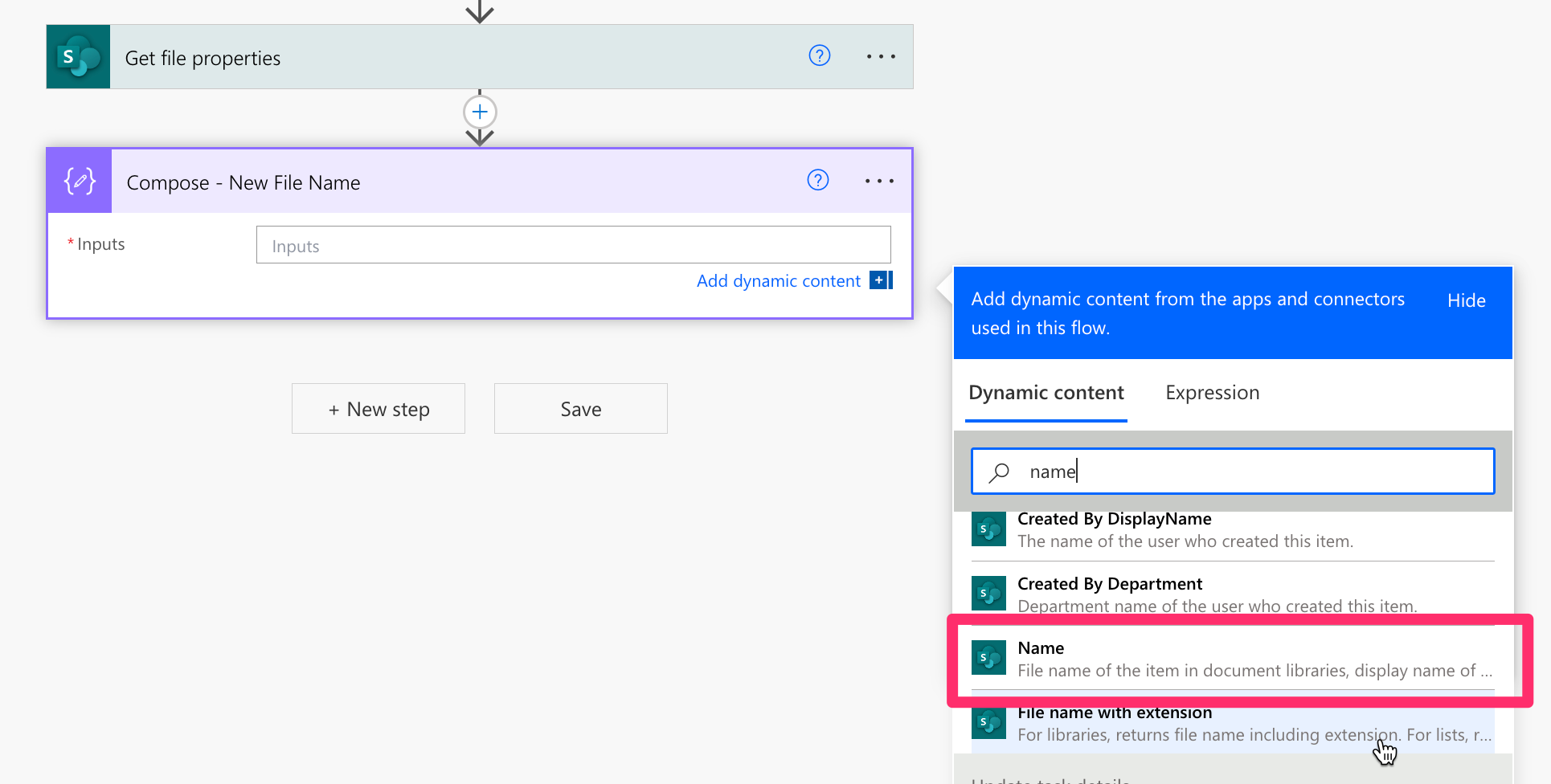
You need to use the Get File Properties action (singular). This action returns a single file. In your current flow you are using the Get File (Properties Only) action. While this isn't wrong, this action will return an array of items—even if it's a single item. This is why your current flow has an Apply to Each action.
This action is only require if you are looping through multiple items. Since your flow is being triggered when a file is created, you should only return the properties of the file created.
Also, the FileLearRef property is used in the OData Filter Query. The error states the following:
InvalidTemplate. Unable to process template language expressions in action 'Construct_New_File_Name' inputs at line '0' and column '0': 'The template language expression 'concat(variables('IncrementalNumber'), '. ', items('Apply_to_each')['FileLeafRef'])' cannot be evaluated because property 'FileLeafRef' doesn't exist, available properties are '@odata.etag, ItemInternalId, ID, Modified, Editor, Editor#Claims, SharedWithUsers, SharedWithUsers@odata.type, SharedWithUsers#Claims, SharedWithUsers#Claims@odata.type, MediaServiceImageTags, MediaServiceImageTags@odata.type, MediaServiceImageTags#WssId, MediaServiceImageTags#WssId@odata.type, Created, Author, Author#Claims, OData__DisplayName, {Identifier}, {IsFolder}, {Thumbnail}, {Link}, {Name}, {FilenameWithExtension}, {Path}, {FullPath}, {IsCheckedOut}, {DriveId}, {DriveItemId}, {VersionNumber}'. Please see https://aka.ms/logicexpressions for usage details.'.
You need to use the Name Dynamic Content in your Compose action.
Also, if your flow doesn't already have trigger conditions set up—I'd recommend that you consider using Trigger Conditions in your flow. This way your flow is only triggered when the files are created (not folders) and when files that meet your criteria are created. Trigger conditions can prevent your flow from unnecessarily triggering.
You may be interested in these YT Tutorials:
If you are using an Automated Cloud flow trigger in your flow—you need to consider adding trigger conditions.
Do YOU 🫵 know what a trigger condition is?
Trigger conditions can be set in most flow triggers. These conditions you set must be true for the trigger to fire.
In this Power Automate tutorial, I’m going to show you how to use trigger conditions in your flows to control when your Power Automate flows trigger. If your plan has flow run limits—you can avoid triggering your flows unnecessarily by using trigger conditions.
I’ll cover four different flow examples that would benefit from trigger conditions:
⚡️ Triggering a flow when a column is changed to a specific value
⚡️ Triggering a Flow When an Event Updated or Deleted
⚡️ Triggering a Flow When a New Folder is Created
⚡️ Triggering a Flow When a Specific Email is Received
I’ll also show you a trick on how to easily create the expressions needed and give you a few tips on how to troubleshoot your flow.
IN THIS VIDEO:
✓ Four different flows that would benefit from trigger conditions
✓ What is a trigger condition?
✓ How to add a trigger condition to your flow
✓ How to trigger a flow when a column is changed to a specific value
✓ How to trigger a flow when an event is updated or Deleted
✓ How to trigger a flow when a new folder is created
✓ How to trigger a flow when a specific email is received
✓ How to troubleshoot a trigger condition
✓ How to prevent case sensitivity issues with a trigger condition
✓ How to use the filter array action to easily compose an expression that can be used in a trigger condition
----
3 Mistakes YOU 🫵 are Making with the Apply to Each Action in your Microsoft Power Automate Flow
In this video tutorial I’ll go over how to avoid these common mistakes when using the Apply to Each action in a Power Automate flow:
1️⃣ Looping through a Single Item
2️⃣ Creating Unnecessary Nested Loops
3️⃣ Looping through an Unfiltered Array
At the end of the video I share a few helpful insights when it comes to using the Apply to Each action in your flow.
IN THIS VIDEO:
✓ How to avoid the Apply to Each action with a single item array
✓ How to use the item() function to access dynamic content in an array
✓ How to prevent unnecessary nested Apply to Each action loops
✓ How to use the Select action
✓ How to convert an array to a string with the Select action
✓How to use the Filter Query field
✓ How to count the number of items in an array
✓ How to use a condition control
✓ How to use the concurrency control
✓ How to set a top count
✓ How to use Compose actions for troubleshooting
Hope this helps!





