web
You’re offline. This is a read only version of the page.
close
Skip to main content

Notifications

Announcements

Community site session details

Community site session details

Session Id :
Power Platform Community / Forums / Power Automate / Corrupt file error whi...
Power Automate
Unanswered

Corrupt file error while using the 'Merge PDFs' action with a file content from an array variable

(2) ShareShare
ReportReport
Posted on by 14

Using the [Merge PDFs] Powerautomate action to merge multiple PDF files into a single file all stored on a SharePoint site. When I do this, I get the Corrupt File error. Here are the relevant steps I'm using.


1. [Get items] (from SharePoint)

---- [For Each] ----

2. [Parse] (to get file path)

3. [Get file content using path]

4. [Append to array variable]

--- Outside of [For Each] ----

5. [Merge PDFs] <- Error occurs here
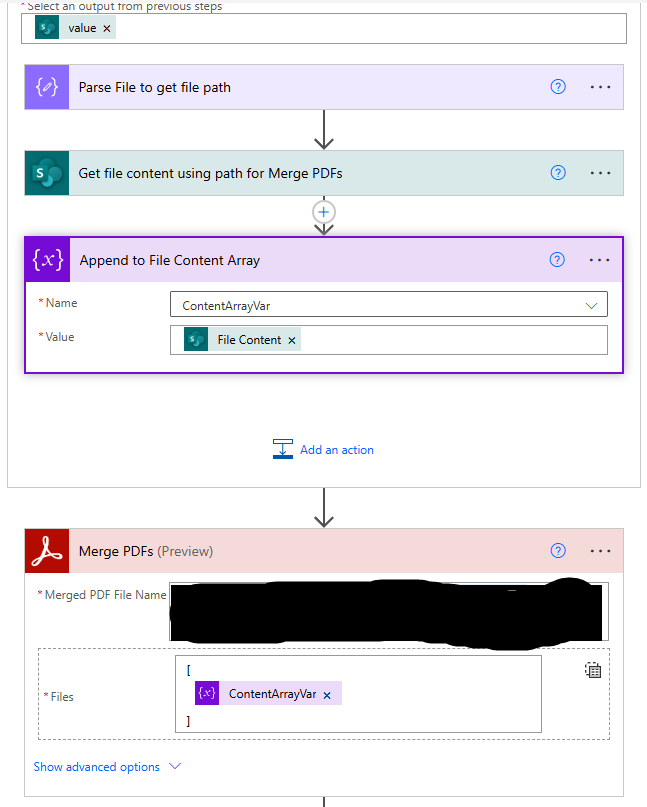
 

I'm including a notepad file with the raw inputs into the 'Merge PDFs' action for reference.


Any assistance in resolving this would be greatly appreciated.

Categories:
I have the same question (0)
  • Verified answer
    Ellis Karim Profile Picture
    11,681 Super User 2025 Season 2 on at
    Try:
     
    I think the Merge PDF action needs just the array: 
     
     
    I was able to extract and read the file content from the sample data.
     
    Ellis Karim
    Ellis Karim
    Blog | LinkedIn | Bluesky
    If this solved your issue, please mark it as ✅ Accepted Answer. If it helped, feel free to give it a 🩷 Like!
  • Suggested answer
    Riyaz_riz11 Profile Picture
    3,844 Super User 2025 Season 2 on at
    Hi,
     

    Method 1: Using File Content (Most Reliable)

    Initialize Variables (Top Level)

    Initialize variable: PDFFilesArray
    ├── Name: PDFFilesArray
    ├── Type: Array
    ├── Value: []

    Main Flow

    Get items (SharePoint)
    ├── Site Address: [Your SharePoint Site]
    ├── Library Name: [Your Document Library]
    ├── Filter Query: ContentType eq 'Document' and substringof('.pdf', Name)
    
    Apply to each
    ├── Select: outputs('Get_items')?['body/value']
    ├── Actions:
        ├── Get file content
        │   ├── Site Address: [Your SharePoint Site]
        │   ├── Library Name: [Your Document Library]
        │   ├── File identifier: items('Apply_to_each')?['ID']
        │
        ├── Append to array variable
        │   ├── Name: PDFFilesArray
        │   ├── Value: body('Get_file_content')
    
    Merge PDFs
    ├── Files: variables('PDFFilesArray')
    ├── Merged PDF File Name: "MergedDocument.pdf"

    Method 2: Using File Path with Proper Structure

     
    Initialize variable: PDFFilesArray
    ├── Name: PDFFilesArray
    ├── Type: Array
    ├── Value: []
    
    Get items (SharePoint)
    ├── Site Address: [Your SharePoint Site]
    ├── Library Name: [Your Document Library]
    ├── Filter Query: ContentType eq 'Document' and substringof('.pdf', Name)
    
    Apply to each
    ├── Select: outputs('Get_items')?['body/value']
    ├── Actions:
        ├── Compose: Build File Path
        │   ├── Value: @{concat('/sites/[SiteName]/[LibraryName]/', items('Apply_to_each')?['Name'])}
        │
        ├── Get file content using path
        │   ├── Site Address: [Your SharePoint Site]
        │   ├── File Path: outputs('Build_File_Path')
        │
        ├── Compose: Prepare File Object
        │   ├── Value: 
        │       {
        │         "Name": "@{items('Apply_to_each')?['Name']}",
        │         "ContentBytes": "@{body('Get_file_content_using_path')}"
        │       }
        │
        ├── Append to array variable
        │   ├── Name: PDFFilesArray
        │   ├── Value: outputs('Prepare_File_Object')
    
    Merge PDFs
    ├── Files: variables('PDFFilesArray')
    ├── Merged PDF File Name: "MergedDocument.pdf"

    Method 3: With Error Handling

    Initialize variable: PDFFilesArray
    ├── Name: PDFFilesArray
    ├── Type: Array
    ├── Value: []
    
    Initialize variable: ErrorLog
    ├── Name: ErrorLog
    ├── Type: String
    ├── Value: ""
    
    Get items (SharePoint)
    ├── Site Address: [Your SharePoint Site]
    ├── Library Name: [Your Document Library]
    ├── Filter Query: ContentType eq 'Document' and substringof('.pdf', Name)
    
    Apply to each
    ├── Select: outputs('Get_items')?['body/value']
    ├── Actions:
        ├── Scope: Try Process File
        │   ├── Get file content
        │   │   ├── Site Address: [Your SharePoint Site]
        │   │   ├── Library Name: [Your Document Library]
        │   │   ├── File identifier: items('Apply_to_each')?['ID']
        │   │
        │   ├── Condition: Check if content exists
        │   │   ├── Expression: @{not(empty(body('Get_file_content')))}
        │   │   ├── IF YES:
        │   │   │   ├── Append to array variable
        │   │   │   │   ├── Name: PDFFilesArray
        │   │   │   │   ├── Value: body('Get_file_content')
        │   │   ├── IF NO:
        │   │   │   ├── Set variable: ErrorLog
        │   │   │   │   ├── Value: @{concat(variables('ErrorLog'), 'Empty file: ', items('Apply_to_each')?['Name'], '; ')}
        │   │
        │   ├── Scope: Catch File Error
        │   │   ├── Configure run after: is failed
        │   │   ├── Set variable: ErrorLog
        │   │   │   ├── Value: @{concat(variables('ErrorLog'), 'Error processing: ', items('Apply_to_each')?['Name'], '; ')}
    
    Condition: Check if files exist
    ├── Expression: @{greater(length(variables('PDFFilesArray')), 0)}
    ├── IF YES:
    │   ├── Merge PDFs
    │   │   ├── Files: variables('PDFFilesArray')
    │   │   ├── Merged PDF File Name: "MergedDocument.pdf"
    ├── IF NO:
    │   ├── Send an email (V2)
    │   │   ├── Subject: "PDF Merge Failed - No Valid Files"
    │   │   ├── Body: @{variables('ErrorLog')}
     

    Method 4: Advanced with File Validation

    Initialize variable: PDFFilesArray
    ├── Name: PDFFilesArray
    ├── Type: Array
    ├── Value: []
    
    Get items (SharePoint)
    ├── Site Address: [Your SharePoint Site]
    ├── Library Name: [Your Document Library]
    ├── Filter Query: ContentType eq 'Document' and substringof('.pdf', Name) and File_x0020_Size gt 0
    
    Apply to each
    ├── Select: outputs('Get_items')?['body/value']
    ├── Actions:
        ├── Condition: Validate PDF file
        │   ├── Expression: @{and(contains(items('Apply_to_each')?['Name'], '.pdf'), greater(items('Apply_to_each')?['File_x0020_Size'], 0))}
        │   ├── IF YES:
        │   │   ├── Get file content
        │   │   │   ├── Site Address: [Your SharePoint Site]
        │   │   │   ├── Library Name: [Your Document Library]
        │   │   │   ├── File identifier: items('Apply_to_each')?['ID']
        │   │   │
        │   │   ├── Condition: Check content validity
        │   │   │   ├── Expression: @{and(not(empty(body('Get_file_content'))), startsWith(base64ToString(body('Get_file_content')), '%PDF'))}
        │   │   │   ├── IF YES:
        │   │   │   │   ├── Append to array variable
        │   │   │   │   │   ├── Name: PDFFilesArray
        │   │   │   │   │   ├── Value: body('Get_file_content')
    
    Merge PDFs
    ├── Files: variables('PDFFilesArray')
    ├── Merged PDF File Name: @{concat('MergedPDF_', formatDateTime(utcNow(), 'yyyyMMdd_HHmmss'), '.pdf')}
     

    Troubleshooting Tips

    1. Check File Content

    Add a Compose action to verify file content:

    Compose: Check First File
    ├── Value: @{first(variables('PDFFilesArray'))}

    2. Validate PDF Header

    Check if files are valid PDFs:

    Condition: Is Valid PDF
    ├── Expression: @{startsWith(base64ToString(body('Get_file_content')), '%PDF')}

    3. Check Array Structure

    Ensure your array contains binary content, not objects:

    // WRONG: Array of objects
    [
      {"Name": "file1.pdf", "Content": "..."},
      {"Name": "file2.pdf", "Content": "..."}
    ]
    
    // CORRECT: Array of binary content
    [
      "JVBERi0xLjQKJc...",  // Base64 PDF content
      "JVBERi0xLjQKJc..."   // Base64 PDF content
    ]

    4. File Size Limits

    Ensure files are within limits:

    • Individual PDF: < 50MB

    • Total merge size: < 100MB

    • Maximum files: 20 PDFs

    •  

    5. Test with Single File

    First test merging just one file to isolate the issue:

    Initialize variable: TestArray
    ├── Value: [body('Get_file_content')]
    
    Merge PDFs
    ├── Files: variables('TestArray')
     
    If I have answered your question, please mark it as the preferred solution ✅ . If you like my response, please give it a Thumbs Up 👍.
    Regards,
    Riyaz
     
  • CU11071952-0 Profile Picture
    14 on at
    Thank you for taking the time to write out answers to my post. While they have not solved my problem, they gave me a couple different avenues to explore.
     
    Riyaz,
     
    Here is what I attempted based on how I interpreted your advice:
     
    1. Used 'Get File Content' instead of 'Get File Content using path'
    2.  I ensured that all .pdfs I'm using in testing are functional.
    3. Previously, by passing the 'File Content' dynamic content into the 'Merge pdf' action, I was passing the whole .pdf file, which contained the '$content-type' as well as the '$content' (as an object, I assume). So I separated these and tried passing just the '$content's of the files as an array into the action.
     
    Unfortunately, none of these worked.
    ________________________________________________________________________
     
    Ellis,
     
    Thank you for your response. I'm a bit confused though, I believe I have been passing the contents as an array into the 'Merge PDFs' action. Do you mean I shouldn't be passing it as an array variable?
  • CU11071952-0 Profile Picture
    14 on at
    UPDATE:
     
    Per Ellis Karim's answer, the issue was the additional brackets I had in my 'Merge PDFs' action. After removing those, it worked.
     
    Crazy simple solution that took me forever to get.

Under review

Thank you for your reply! To ensure a great experience for everyone, your content is awaiting approval by our Community Managers. Please check back later.

Helpful resources

Quick Links

Forum hierarchy changes are complete!

In our never-ending quest to improve we are simplifying the forum hierarchy…

Ajay Kumar Gannamaneni – Community Spotlight

We are honored to recognize Ajay Kumar Gannamaneni as our Community Spotlight for December…

Leaderboard > Power Automate

#1
Michael E. Gernaey Profile Picture

Michael E. Gernaey 522 Super User 2025 Season 2

#2
Tomac Profile Picture

Tomac 364 Moderator

#3
abm abm Profile Picture

abm abm 243 Most Valuable Professional

Last 30 days Overall leaderboard



