web
You’re offline. This is a read only version of the page.
close
Skip to main content

Notifications

Announcements

Community site session details

Community site session details

Session Id :
Power Platform Community / Forums / Power Automate / Extract the next line ...
Power Automate
Answered

Extract the next line after a specific keyword in an email

(1) ShareShare
ReportReport
Posted on by 8

Hi everyone,

I want to extract a line based on a specific keyword using the "Apply to each" control and a condition in Power Automate. If the current item contains "Best regards", I want to print out the next line after this keyword.

For example, from the following email, I want to retrieve the text after "Best regards" which includes the name (Jane Rickman), the title (Customer Service Manager), and the email address (jane.doe@abccorp.com).

Hi John,

Best regards, 

Jane Rickman 
Customer Service Manager
 
ABC Corp
How can I achieve this in Power Automate, and how do I create new rows in an Excel spreadsheet with this information? Specifically, how can I extract individual items from the body, previously converted using the HTML-to-text action, and insert each item into its own column in a new row without using third-party tools?
 
Categories:
I have the same question (0)
  • Suggested answer
    AlexEncodian Profile Picture
    4,409 Moderator on at
    Since all the data is on separate rows, use a split() function with a split character line break. First, split the email by "Best regards" and then split the part after Best regards by line break. Filter out empty values and then add row to excel.
  • Verified answer
    WillPage Profile Picture
    2,307 Super User 2025 Season 2 on at
    This is quite a tricky thing to do reliably - you need to make some bold assumptions about the exact format of the emails coming in. Some things, like the incoming email address you would be better getting from the "From" property of the trigger than attempting to parse it out of the email body.

    But if you absolutely must, for whatever reason, then as the other respondent has said, split on a line break:
     
    Add a compose action, call it LineBreak then in there just hit enter to add a line break. Now you can split your message body on the string "Best regards" and take the last item to get the block of text that contains the information you want
     
     
    Now you can split that on the new line to get each line after Best regards as its own item array
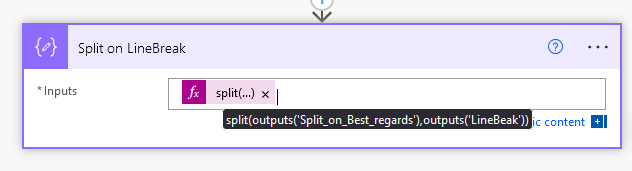
     
    You'll end up with an array that looks like this.
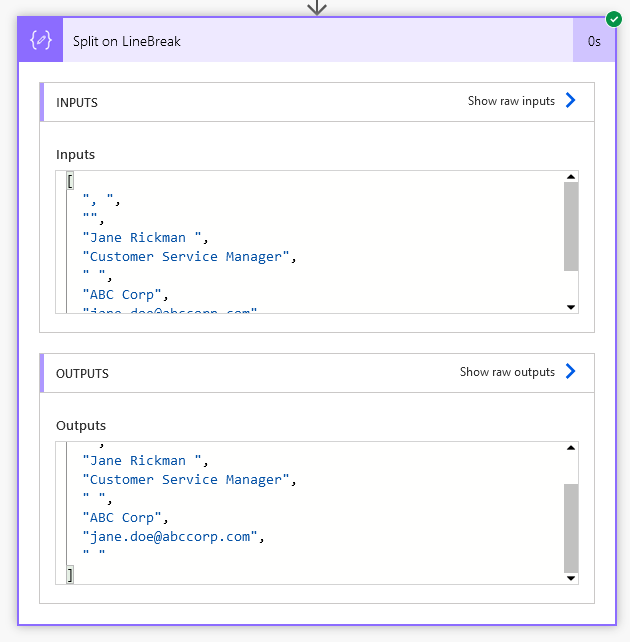
    Next thing is to remove any lines that don't start with a letter. There are a few ways you could do this, but probably most reliable is to firstly remove blank empty lines then remove any that don't start with a letter:
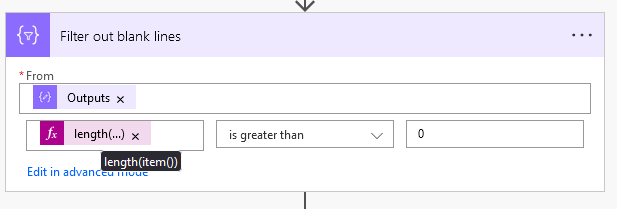
    The left hand side is the length of the item, which is a string. If it's 0, e.g an empty line or "", then get rid of it
     
    Now feed the result of that into the next filter:
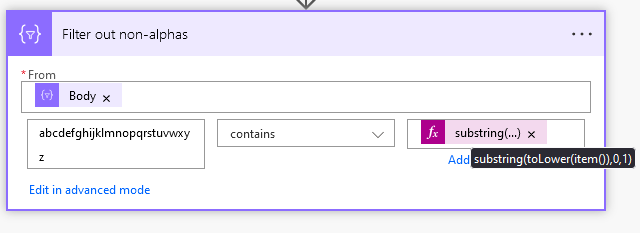
    The left hand side of the condition is simply every lower case letter in English and the right hand side is the first character of the line converted to lower case. If the first character of the line (converted to lower case) exists in that string of lower case letters, then it returns True, and the line is kept, and of not, then it's dropped. The result:
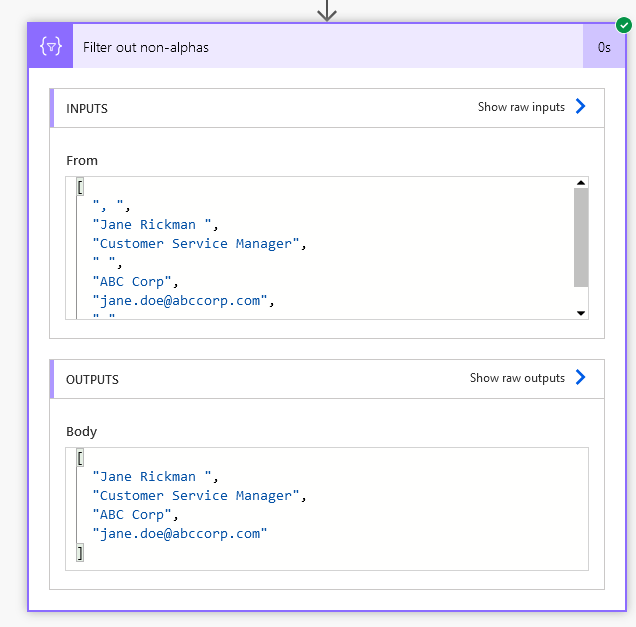
    Now, you can feed this into an Apply to each if you really want, but it seems kinda pointless. You can reference each item using its array index, e.g to get the company you get array index 2

Under review

Thank you for your reply! To ensure a great experience for everyone, your content is awaiting approval by our Community Managers. Please check back later.

Helpful resources

Quick Links

Forum hierarchy changes are complete!

In our never-ending quest to improve we are simplifying the forum hierarchy…

Ajay Kumar Gannamaneni – Community Spotlight

We are honored to recognize Ajay Kumar Gannamaneni as our Community Spotlight for December…

Leaderboard > Power Automate

#1
Michael E. Gernaey Profile Picture

Michael E. Gernaey 519 Super User 2025 Season 2

#2
Tomac Profile Picture

Tomac 296 Moderator

#3
abm abm Profile Picture

abm abm 232 Most Valuable Professional

Last 30 days Overall leaderboard



