web
You’re offline. This is a read only version of the page.
close
Skip to main content

Notifications

Announcements

Community site session details

Community site session details

Session Id :
Power Platform Community / Forums / Power Automate / Combining multiple app...
Power Automate
Suggested Answer

Combining multiple approvals into one approval

(0) ShareShare
ReportReport
Posted on by 6
Hi, 
 
I'm trying to do the following and seem to be mostly there. 
 
- Get any files that are over 30 days old - Complete
- Create a table displaying any files over 30 days old - Complete 
- Parse the table displaying any file over 30 days old - Complete
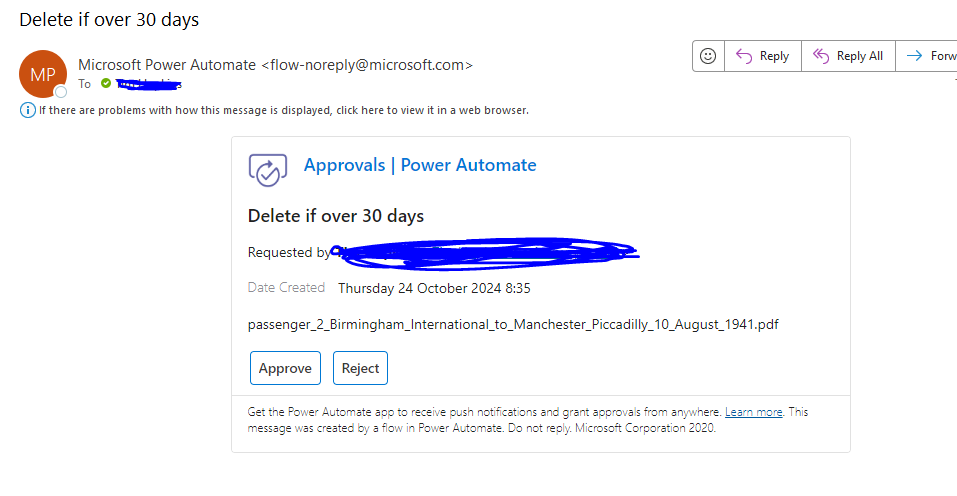
- Display a list of these files within an approval - Incomplete
- Once approval is accepted/rejected then continue to delete file over 30 days old - Complete
 
At the moment there are 3 files within the folder that are over 30 days old. 
 
I want to just have a singular approval that displays all 3 files within the approval. 
At the moment I seem to be receiving a approval for each singular file name within the Table/JSON
 
How can I remove the "For Each" Loop so that a singular approval displaying all the file names is sent to me? I have tried removing it manually but it automatically adds it in everytime I test it 
 
Kind  regards
 
Tim 


Categories:
I have the same question (0)
  • Suggested answer
    David_MA Profile Picture
    13,234 Super User 2025 Season 2 on at
    You need to do this:
    • Move the approval out of the apply to each action, as this is the reason it is sending multiple approvals.
    • Then toward the beginning of the flow, create a string variable. This will hold the information on the files that need to be reviewed.
    • In the apply to each, set it to the items returned from the Get files action or whatever you're doing with the data actions, which I think you might be using to filter the files, which you could probably do with a filter query instead.
    • Then add an Append to string variable and add the information about the file that you want in the approval. Note, you will need to format it using Markdown, which is what approvals uses to format the description. You can learn about what is supported in Markdown by approvals at Use Markdown language to format Power Automate approvals - Power Automate | Microsoft Learn.
    • Then just insert the variable into the approval with the information about the files.

Under review

Thank you for your reply! To ensure a great experience for everyone, your content is awaiting approval by our Community Managers. Please check back later.

Helpful resources

Quick Links

Forum hierarchy changes are complete!

In our never-ending quest to improve we are simplifying the forum hierarchy…

Ajay Kumar Gannamaneni – Community Spotlight

We are honored to recognize Ajay Kumar Gannamaneni as our Community Spotlight for December…

Leaderboard > Power Automate

#1
David_MA Profile Picture

David_MA 223 Super User 2025 Season 2

#2
Expiscornovus Profile Picture

Expiscornovus 205 Most Valuable Professional

#3
harshdeol Profile Picture

harshdeol 167 Moderator

Last 30 days Overall leaderboard