web
You’re offline. This is a read only version of the page.
close
Skip to main content

Notifications

Announcements

Community site session details

Community site session details

Session Id :
Power Platform Community / Forums / Power Automate / Need a Power Automate ...
Power Automate
Suggested Answer

Need a Power Automate Hero! “Apply to each” fail, “No dependent actions succeeded”.

(2) ShareShare
ReportReport
Posted on by 8
Need a Power Automate Hero! “Apply to each” fail, “No dependent actions succeeded”. 

I’ve gone through a lot of forums, Copilot, and YouTube videos, and have yet to solve a flow problem.  I have a Flow that’s supposed to populate rows (29 columns with anywhere from 500 to over 2000 rows) from an Excel table to a SharePoint List (which feeds a Power App).  Excel table tracks employee attendance, and includes data points such as employee name, ID, date, etc..  When it runs, it populates the rows in the list, but sometimes either not every single row from the excel table, or more rows than are in the table.  Then it fails. 

I’ve attached screenshots below, but here’s also the settings:

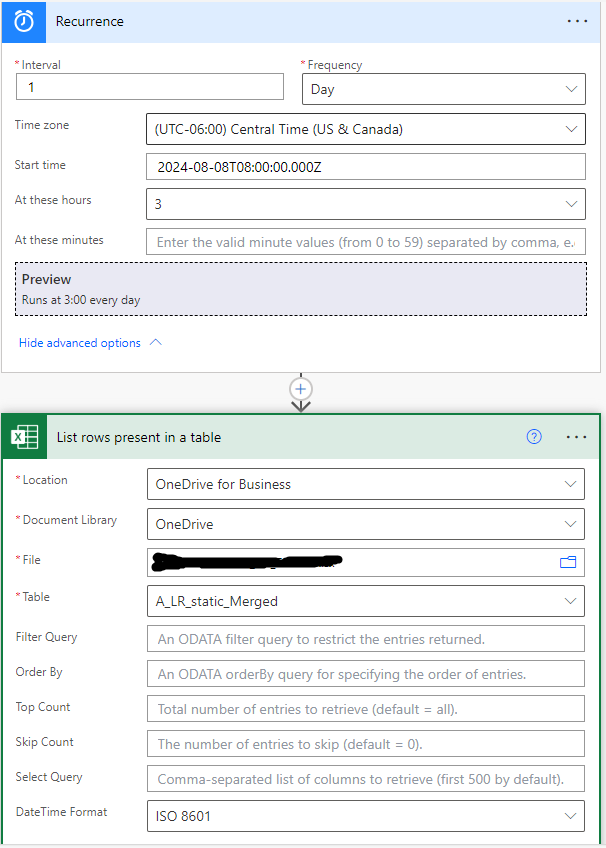
Recurrence:  Once a day
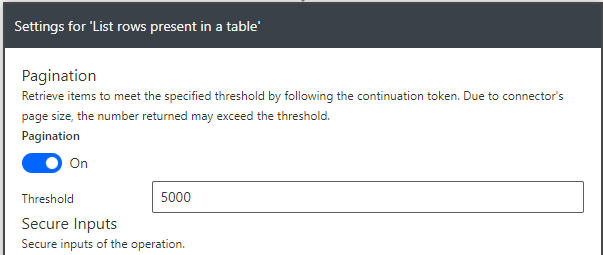
Excel List rows present in a table:  asterisks filled then DateTimeFormat set to ISO 8601, and Pagination set to 5000.
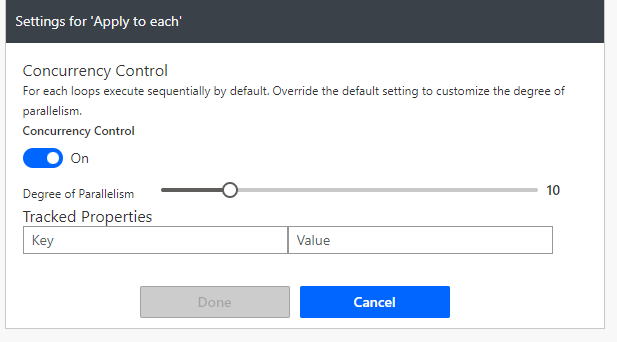
Apply to Each:  Concurrency Control on and Degree of Parallelism set to 10
SharePoint Get Items:  Pagination set to 5000 and filter query set to filter by a merged column of employee ID and date (formatted as a whole number), no spaces or special characters in the merge.
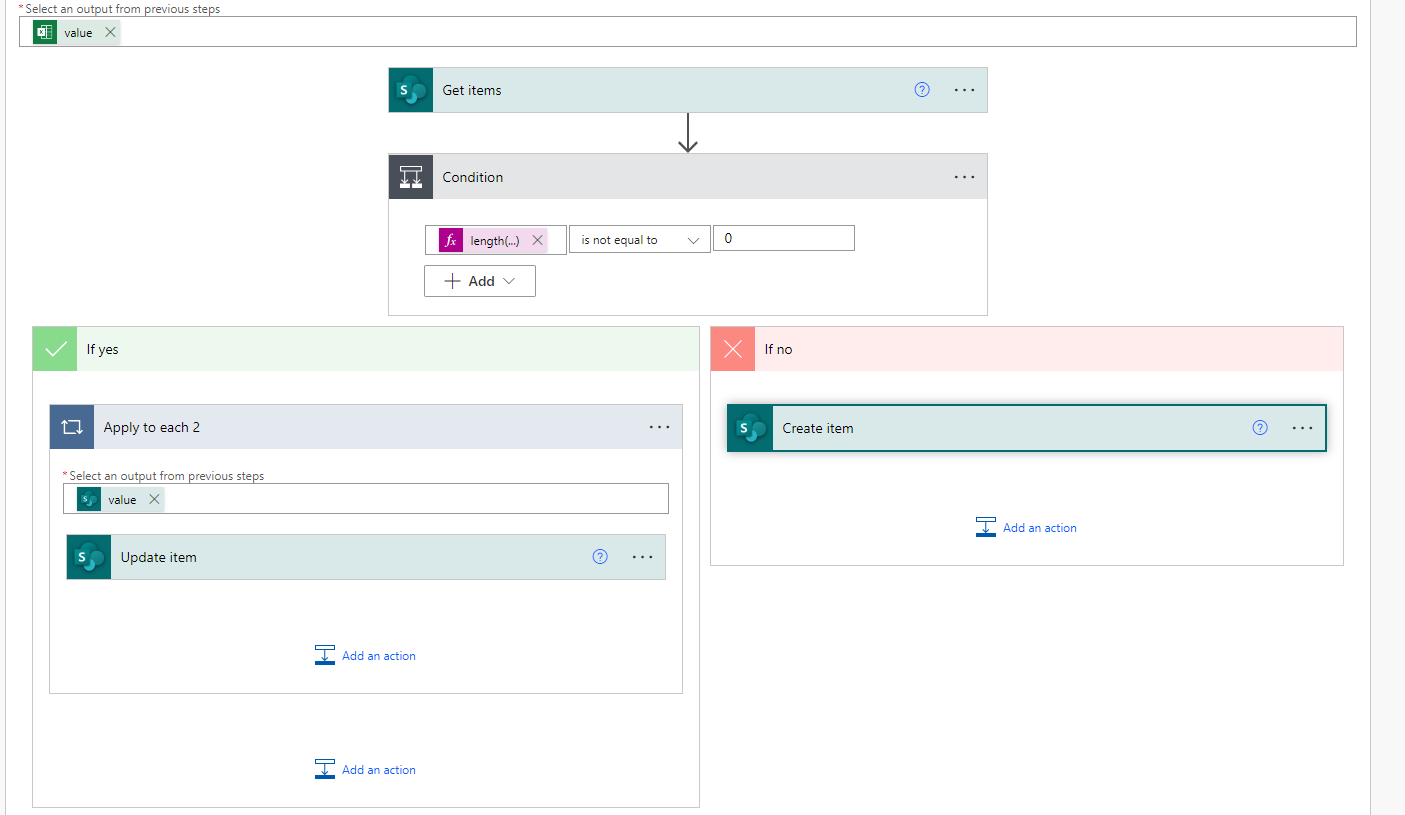
Condition control:  where “length(outputs('Get_items')?['body/value'])” is not equal to 0.
If Yes:
                Apply to each (output from Get items)
SharePoint Update item: has a total number of 29 columns of text, numbers, and dates.  No calculated columns.
If No:
                SharePoint Create item; same total and types of columns

I’ve tried using the terminate action both inside and outside the loop, but doesn’t work. Unless I’m putting it all in the wrong place.  I’m really at a loss.

Please help!  Thank you!
 
 
Categories:
I have the same question (0)
  • SudeepGhatakNZ Profile Picture
    14,394 Most Valuable Professional on at
    Are you able to post a screenshot of the executed flow run with the error?
     
  • creativeopinion Profile Picture
    10,502 Super User 2025 Season 2 on at
    It's always best practice to put the Get Items action OUTSIDE of the Apply to Each action. By nesting the Get Items action inside an Apply to Each action you are going to be running that action each time your Apply to Each action loops through a row from your Excel table. 
     
    Instead, you want to run both the List Rows Present in a Table and Get Items action outside of the Apply to Each loop. Use a Filter Array action instead to filter the SP list items you want to update.
     
    I cover a similar scenario in this YT Tutorial: Are you using the Microsoft Power Automate Filter Array Action wrong?

    In this video tutorial I’ll show you 3 practical ways to use the Filter Array action and how to use it properly.
    1️⃣ Cross-Referencing Data
    2️⃣ Filtering by Key
    3️⃣ Substring Matching

    Did you know that the Condition action has a limit of 10 conditions? Although it might look like the Filter Array action can only accept one condition—this is not true. By using the advanced mode you can enter multiple conditions into a Filter Array action with an expression.

    IN THIS VIDEO:
    ✅ 3 Ways to Use the Filter Array Action
    ✅ How to use the Scope Action to Group Actions
    ✅ How to Check the Number of Items returned from a Filter Array Action
    ✅ How to Cross-Reference Data in Excel with a SharePoint List
    ✅ How the Filter Array Action Works
    ✅ How to Access the Dynamic Content from a Filter Array Action
    ✅ How to Filter Items by a Key
    ✅ How to Filter Items by Matching a Substring
    ✅ How to Use Multiple Conditions in a Filter Array Action
     
     
    Hope this helps!
    Consider giving me a ❤️ if you liked my response!

    👉 Level up your Power Automate skills by checking out my tutorials on YouTube
    👉 Tips and Tricks on TikTok and Instagram
  • Suggested answer
    AnthonyAmador Profile Picture
    2,553 Moderator on at
    Hi,

    Could you explain why you are using the condition length(outputs('Get_items')?['body/value']) = 0? I don’t see why it is necessary. Also, you need to take out the “Get Items” from the “Apply to each” action; it needs to run only once to get all the items.

    I believe your flow should look like this: compare the Excel table column value with the same column value in the SharePoint list. If it already exists, just update it; if it doesn’t exist, then create a new one. The column you are comparing should be the key or identifier value for every row and item. 

     
    Hope this helps. 
    Anthony. 

Under review

Thank you for your reply! To ensure a great experience for everyone, your content is awaiting approval by our Community Managers. Please check back later.

Helpful resources

Quick Links

Forum hierarchy changes are complete!

In our never-ending quest to improve we are simplifying the forum hierarchy…

Ajay Kumar Gannamaneni – Community Spotlight

We are honored to recognize Ajay Kumar Gannamaneni as our Community Spotlight for December…

Leaderboard > Power Automate

#1
Michael E. Gernaey Profile Picture

Michael E. Gernaey 525 Super User 2025 Season 2

#2
Tomac Profile Picture

Tomac 324 Moderator

#3
abm abm Profile Picture

abm abm 232 Most Valuable Professional

Last 30 days Overall leaderboard