web
You’re offline. This is a read only version of the page.
close
Skip to main content

Announcements

Community site session details

Community site session details

Session Id :
Power Platform Community / Forums / Power Automate / Getting error while po...
Power Automate
Answered

Getting error while populating Word Document for multi select column with flow

(1) ShareShare
ReportReport
Posted on by 819 Moderator

Good morning!

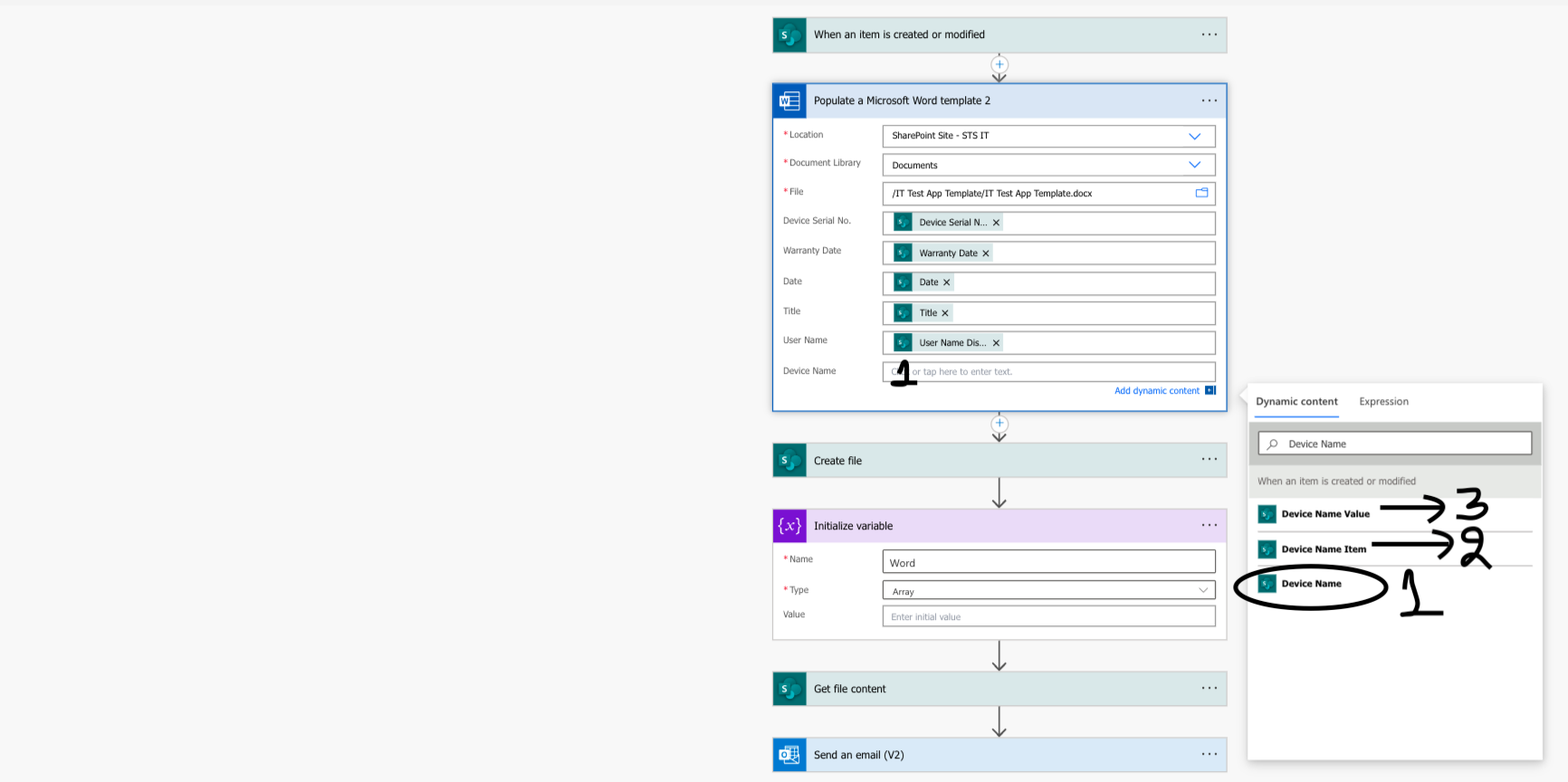
I am about to complete my Business app. I need help to populate multi select column.

I created a Sharepoint List and made power apps to collect data. Then I made a word template and also built a Power apps flow and mapped all values in template using Populate a Word Template step in flow.

Items Property

Choices([@'IT App for Testing'].DeviceName)
 

 DefaultSelectedItems Property
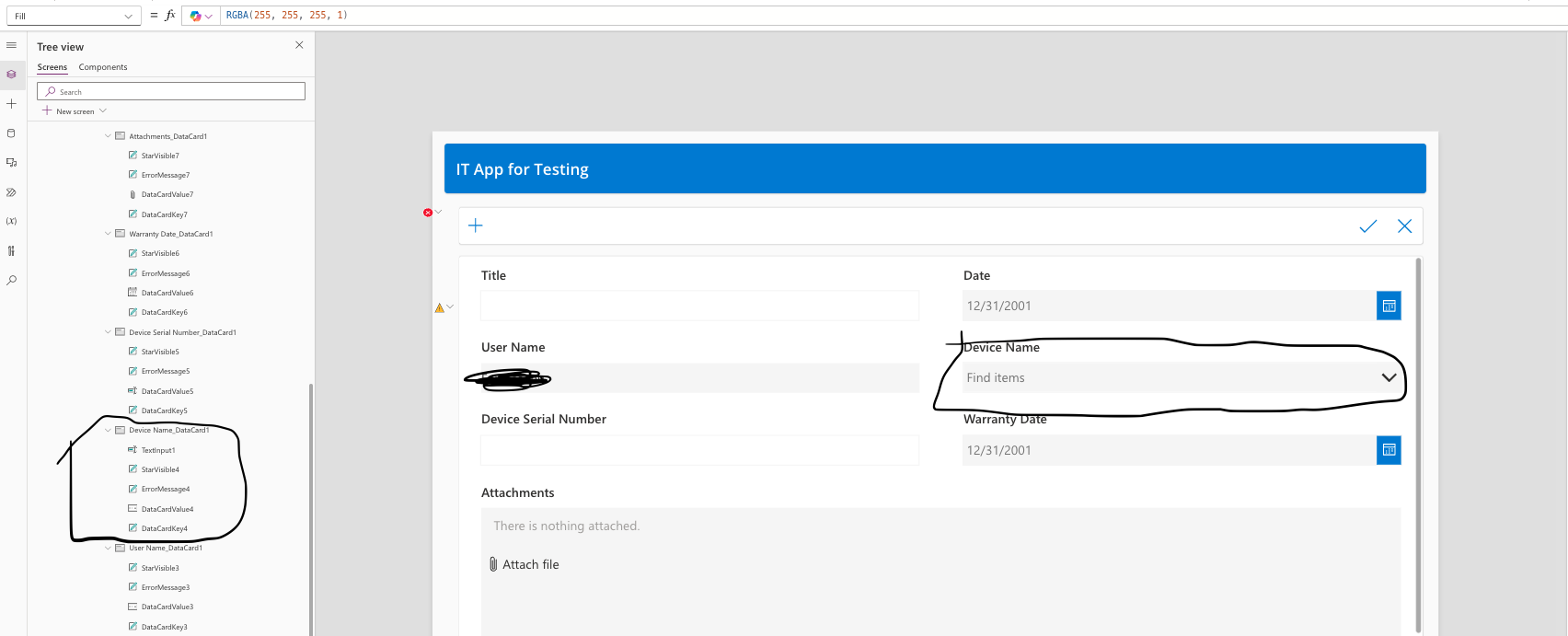
Parent.Default


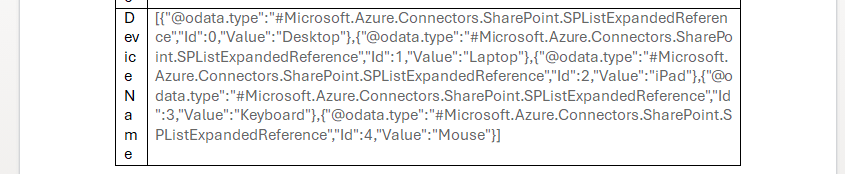
When I select Device Name and map the value, my word template populate like this - 
How can I fix this. I would appreciate the help.

Categories:
I have the same question (0)
  • Pstork1 Profile Picture
    68,898 Most Valuable Professional on at
    Your post says the problem is with a flow, but the screenshots are for a Power App.  So this may or may not help. But in general the problem when working with multiselect properties is that you have to handle them as an array, not a delimited string. Also, when setting the property you need to use a Data Select to strip out the ID and @oDatatype columns from the array before using it to set the property.
     
    Then to use it in a word template you need to process the array and create a string from it to insert into the template.
     
    If you post some screenshots from the Flow I'll try to give some more specific answers.
  • MTNK Profile Picture
    819 Moderator on at
    @Pstork1  Thank you for your assistance. I’ve updated my question based on the steps I tried. I would appreciate any help you can provide regarding my app(based on steps I followed as my flow is working,  I need help to populate the multi values for Device Name.
  • Pstork1 Profile Picture
    68,898 Most Valuable Professional on at
    As I mentioned in my reply you need to process the Array of Device names you are using before you try to use them in the Word Template.  The easiest way to do that is to use a Data Select to isolate the Device Name field and then Concatenate() to turn the Selected Array into a delimited string. Then you can insert that string into the Word Template.
  • MTNK Profile Picture
    819 Moderator on at
    @Pstork1. Can you please share the example of this. ( This is the test app. In my original app, I have more than 10 multi select fields.) It would help me for the original app.
  • Suggested answer
    Pstork1 Profile Picture
    68,898 Most Valuable Professional on at
    Here's a screenshot of the basic approach.  I have a Choice field that contains several values.  In the flow the results of the multiselect look like this.
    [
      {
        "@odata.type": "#Microsoft.Azure.Connectors.SharePoint.SPListExpandedReference",
        "Id": 0,
        "Value": "Choice 1"
      },
      {
        "@odata.type": "#Microsoft.Azure.Connectors.SharePoint.SPListExpandedReference",
        "Id": 2,
        "Value": "Choice 3"
      },
      {
        "@odata.type": "#Microsoft.Azure.Connectors.SharePoint.SPListExpandedReference",
        "Id": 4,
        "Value": "Choice 5"
      }
    ]
     

    The flow uses a data select action to isolate the Value property of the multiselect and then a

    JOIN() in a Compose to turn those results into a string.

    The resulting string in the Compose then looks like this.  

    Choice 1;Choice 3;Choice 5

    That output of the Compose could then be inserted into the Word Template.

  • MTNK Profile Picture
    819 Moderator on at

    I’m an intermediate Power Apps builder and I understand the steps you shared, but I’m having trouble implementing them. I’m currently working on a test app that has 170 columns, including 10 to 22 multi-select columns.

    I need guidance on how to properly set up one ComboBox for my test app. Once I figure that out, I’ll apply the same approach to the relevant columns in my main app.

    Could you help me with that?

     
    After that, where can I add the Select and Compose actions in my flow?
  • Pstork1 Profile Picture
    68,898 Most Valuable Professional on at
    Setting up the ComboBox in the App doesn't have anything to do with the flow.  To setup the ComboBox make sure its properties are set to the following
     
    Items = Choices(Listname,ColumnName) //I suspect the column is called DeviceName
    DisplayFields = ["Value"]
    SearchFields = ["Value"]
     
    Then in the pane to the right make sure that Allow multiple selections and Allow Searching are enabled.
     
  • Verified answer
    MTNK Profile Picture
    819 Moderator on at
    Update - Solved!
     
    Thanks you everyone for helping. 
     
    I created a CSV table and mapped the table values to the associated columns. I worked for me as I expected.


Under review

Thank you for your reply! To ensure a great experience for everyone, your content is awaiting approval by our Community Managers. Please check back later.

Helpful resources

Quick Links

Introducing the 2026 Season 1 community Super Users

Congratulations to our 2026 Super Users!

Kudos to our 2025 Community Spotlight Honorees

Congratulations to our 2025 community superstars!

Leaderboard > Power Automate

#1
trice602 Profile Picture

trice602 239 Super User 2026 Season 1

#2
David_MA Profile Picture

David_MA 177 Super User 2026 Season 1

#3
Kalathiya Profile Picture

Kalathiya 97 Super User 2026 Season 1

Last 30 days Overall leaderboard