web
You’re offline. This is a read only version of the page.
close
Skip to main content

Announcements

News and Announcements icon
Community site session details

Community site session details

Session Id :
Power Platform Community / Forums / Power Automate / Get count of emails re...
Power Automate
Suggested Answer

Get count of emails received in shared mailbox with certain subject line

(1) ShareShare
ReportReport
Posted on by 563
I need to write a scheduled power automate where i need to retrieve count of the emails received in shared mailbox for each employee ID and send out an email to CEO. 
 
In the below case, if i receive 5 emails in a day with subject which includes RBL12345, it should send out report indicating count as 5 for RBL12345. Report screenshot included below.
 
Note: Employee ID always starts with RBL and hence i need to look for subject line RBL and then send out below table in email to CEO. May i know how to achieve this?


This is the below table which i need to send out to CEO everyday at 6:00PM
 
Categories:
I have the same question (0)
  • Suggested answer
    Haque Profile Picture
    897 on at
     
    Can you please tell me about the employee id, is always at the start of the subject or in between anywhere in teh subject? However, I considered it can be anywhere in the subject. 

    1. Trigger - Use Recurrence (scheduled daily at a fixed time, e.g., 8 AM).

    2. Get Emails from Shared Mailbox

    • Action: Office 365 Outlook → Get emails (V3)

    • Configure:

      • Folder: Shared Mailbox Inbox // or any designated folder.

      • Filter: ReceivedDateTime ge utcNow('yyyy-MM-dd')

      • Top: 100 (adjust for expected volume) // - If you think it is needed.

    3. Filter Emails with RBL in Subject - let's use Action: Filter array -->Condition: contains(item()?['Subject'], 'RBL')

    4. Extract Employee ID (RBL Code) --> Take a Compose or Select action with an expression to pull the RBL code from the subject line. We will consider two scenrarion here:

    A. If the RBL code is always at the start of the subject:

    • substring(item()?['Subject'], 0, 8) //--Assuming RBL + 5 digits = 8 characters tota

    B. If it can appear anywhere, use indexOf + substring:

    • substring(item()?['Subject'], indexOf(item()?['Subject'], 'RBL'), 8) //-This finds the position of RBL and extracts 8 characters starting there.
       

    5. Group and Count - Let's initialize an array variable (e.g., Counts). In Apply to each (loop through filtered emails):

    • Extract RBL code with the above expression.

    • Append to array: { "EmployeeID": RBLCode, "Count": 1 }.

    • After loop, use Select + Union trick or an Office Script to group by EmployeeID and sum counts.

    6. Create HTML Table

    • Action: Create HTML table from grouped array.

    7. Create HTML Table - If you need a table like data ( Here is a stylish way to create table in PA). Let's leverage Action: Create HTML table --> Input: Array of {EmployeeID, Count}  | Output: A neat table like:

    Employee ID       Email Count
    RBL12345       5
    RBL67890       3
     

    8. Send Email to CEO - Action: Office 365 Outlook → Send an email (V2)


    I am sure some clues I tried to give. If these clues help to resolve the issue brought you by here, please don't forget to check the box Does this answer your question? At the same time, I am pretty sure you have liked the response!


  • MS.Ragavendar Profile Picture
    6,188 Super User 2026 Season 1 on at
     
    Filter emails based on the subject
    Display Count
     
    In addition to the @Haque the below two articles give you step by step implementation.
     
    ✅If this helped, please Accept as Solution to help others ❤️ A Like is appreciated 🏷️ Tag @MS.Ragavendar for follow-ups.
  • Iantaylor2050 Profile Picture
    563 on at
    Hi @Haque
     
    Step 5 is bit unclear. Can show me the steps how we do it?
  • Iantaylor2050 Profile Picture
    563 on at
    Hi @Haque
     
    I am not able to proceed from Step5. Can please provide me some screenshot which would be helpful.
     
     
  • Iantaylor2050 Profile Picture
    563 on at
     
     
    Hi All,
     
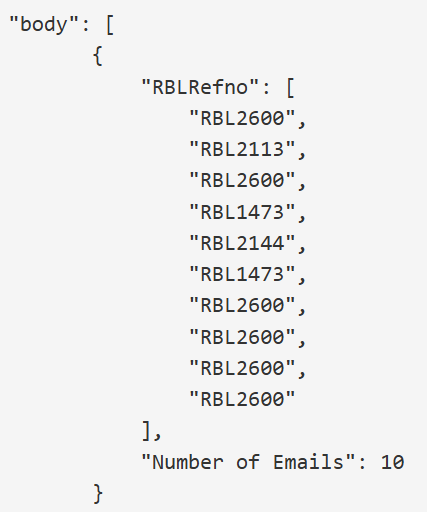
      I have the below array which should be converted to a table as highlighted below. May i know how to achieve this in Power Automate?
     "body": [
            {
                "RBLRefno": [
                    "RBL2600",
                    "RBL2113",
                    "RBL2600",
                    "RBL1473",
                    "RBL2144",
                    "RBL1473",
                    "RBL2600",
                    "RBL2600",
                    "RBL2600",
                    "RBL2600"
                ],
                "Number of Emails": 10
            }


  • Suggested answer
    Haque Profile Picture
    897 on at
     
    Sorry for catching up lately, I was bit busy with other stuff. Seems like you have come accross the solution, it needs a final touch. The array you have produced finally and asked to convert to a table. It can be achieved serveral different ways, here are some steps you need to follow:
     
    Step-1: I considered you can create RBLRefno from the last output.
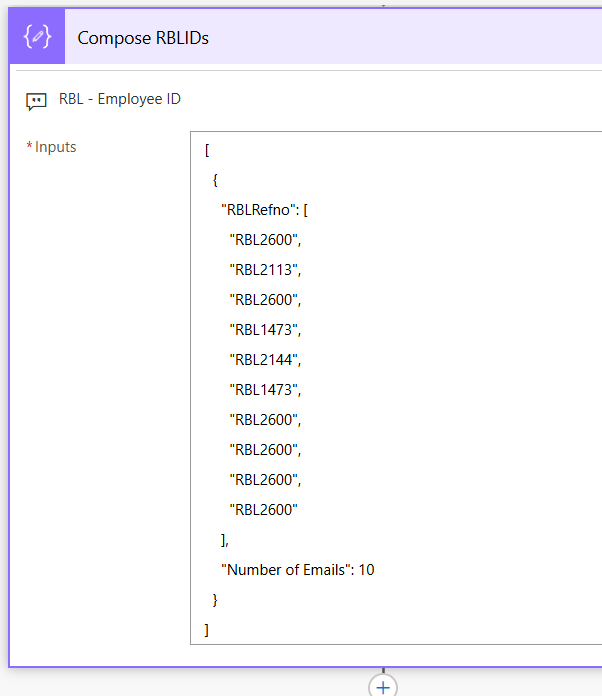
    Extracted array object (yours) Taken into Compose for manipulation (mine)
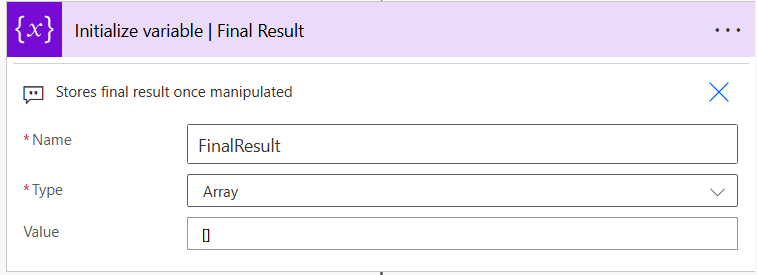
    Step-2: Booked an Array variable, for further use named FinalResult
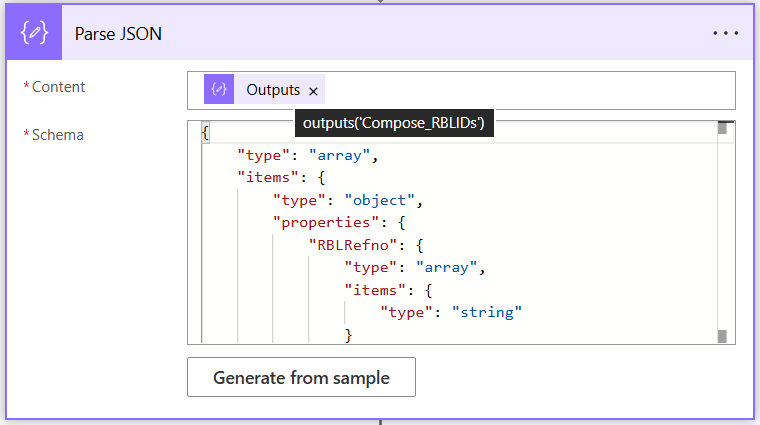
    Step-3: Introduced Parse JSON to align the Array object (from Step-1)
    Json schema | Just copy it from here and paste it in the Schema field, don’t’ use “Generate from sample
    {
        "type": "array",
        "items": {
            "type": "object",
            "properties": {
                "RBLRefno": {
                    "type": "array",
                    "items": {
                        "type": "string"
                    }
                },
                "Number of Emails": {
                    "type": "integer"
                }
            }
        }
    }
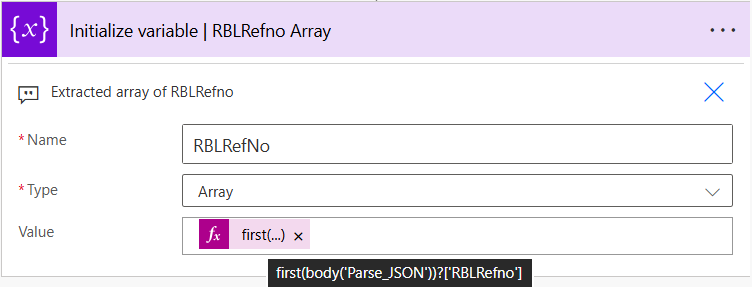
    Step-4: Introduced variable RBLRefNo of type Array whose Value is: first(body('Parse_JSON'))?['RBLRefno'] in the “Expression” field. The idea is to separate all RBLRefno in a single dimensional array.
    Compose RBLIDs RBLRefNo | Isolated as an one dimensional array
    [
      {
        "RBLRefno": [
          "RBL2600",
          "RBL2113",
          "RBL2600",
          "RBL1473",
          "RBL2144",
          "RBL1473",
          "RBL2600",
          "RBL2600",
          "RBL2600",
          "RBL2600"
        ],
        "Number of Emails": 10
      }
    ]

     
    {
      "variables": [
        {
          "name": "RBLRefNo",
          "type": "Array",
          "value": [
            "RBL2600",
            "RBL2113",
            "RBL2600",
            "RBL1473",
            "RBL2144",
            "RBL1473",
            "RBL2600",
            "RBL2600",
            "RBL2600",
            "RBL2600"
          ]
        }
      ]
    }
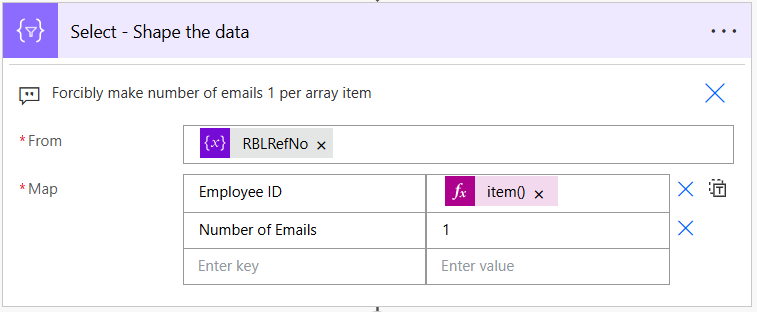
    Step-5: With a Select action, let’s assign each array item a value 1, this is for setting a default frequency per item.
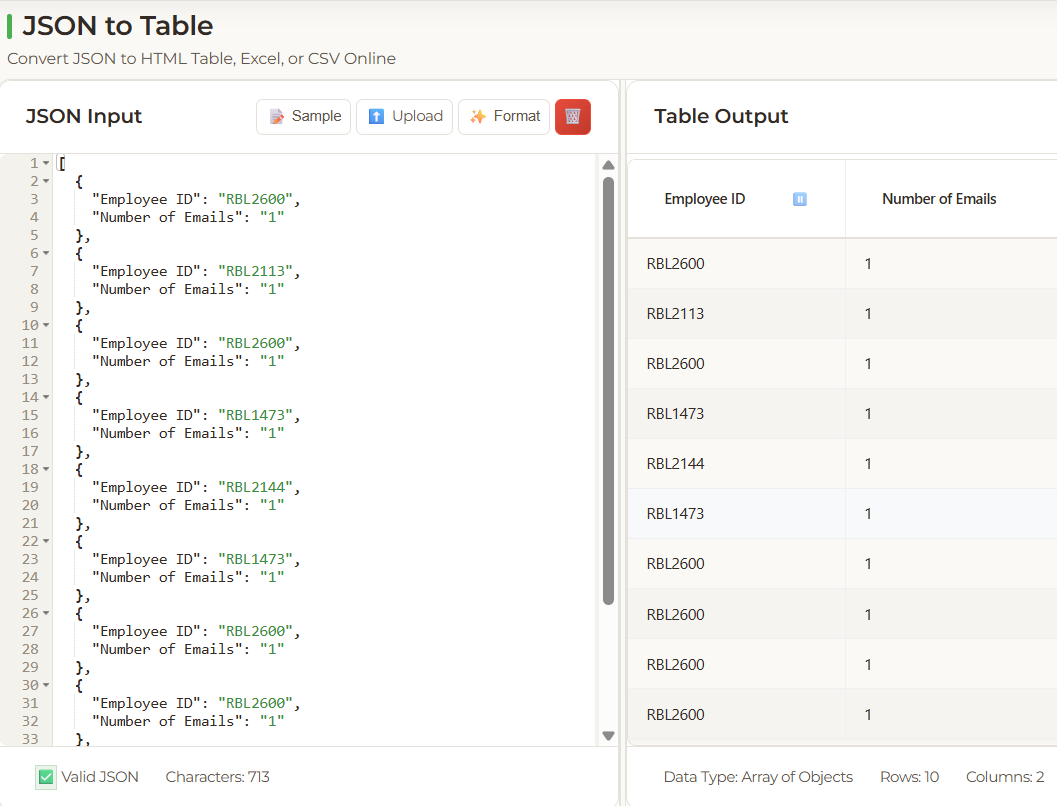
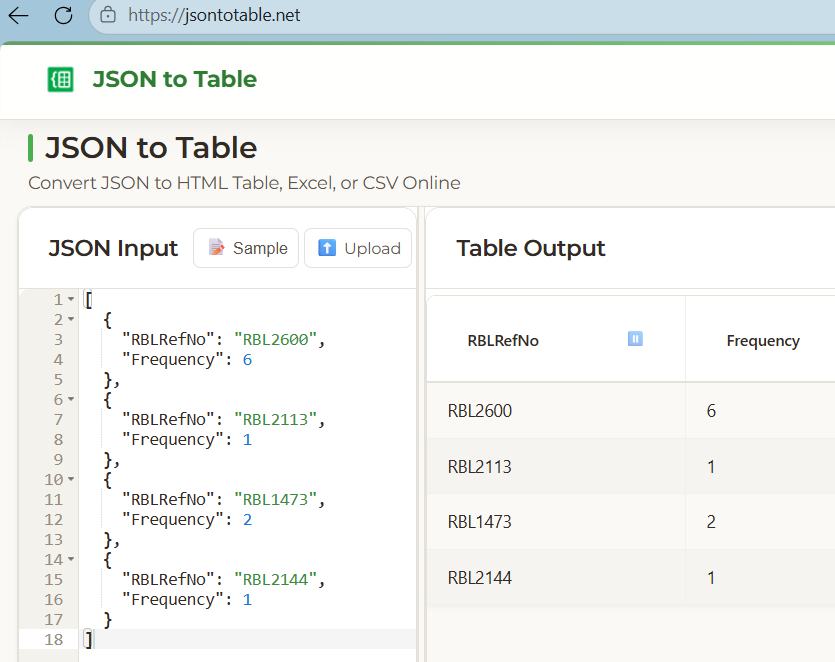
    Output(below) of Select action when we see the Json in Json t o table converter.
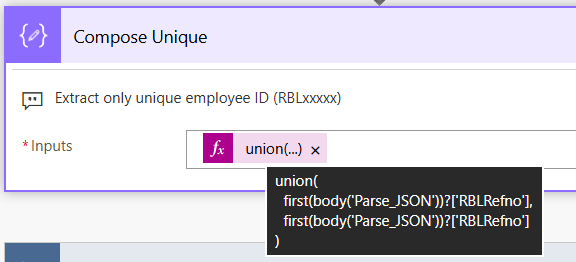
    Step-6: Let’s bring up the unique set of RBLxxxx numbers. Copy the below union operation and paste it in the Expression (in Dynamic content) field.

    union(
      first(body('Parse_JSON'))?['RBLRefno'],
      first(body('Parse_JSON'))?['RBLRefno']
    )


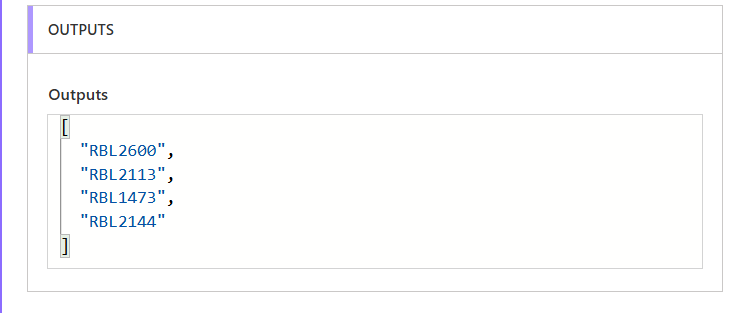
    We have four items after unique operations.
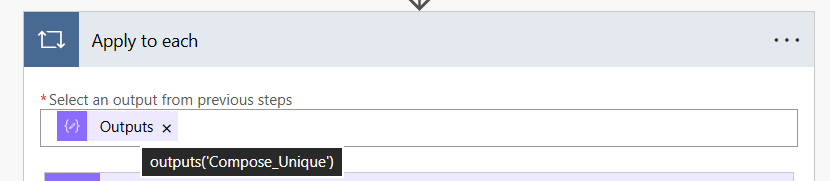
    Step-7: Let’s go for iteration (Apply to each) and count the occurrences of the same RBL in the original array (RBLRefNo in step-4)


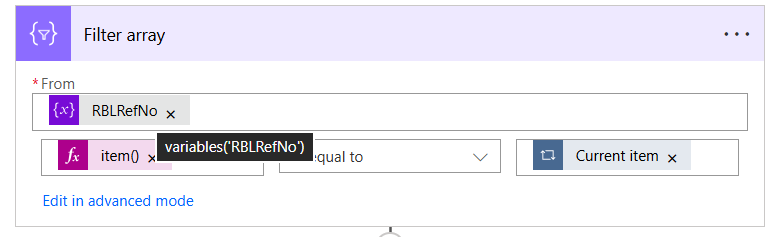
    Note: Using Filter array action to match original array item (RBLRefNo) with the current item (4 unique items in the Compose Unique) inside Apply to each loop.
    Conditionitem() is equal to Current item(items(‘Apply_to_each’)


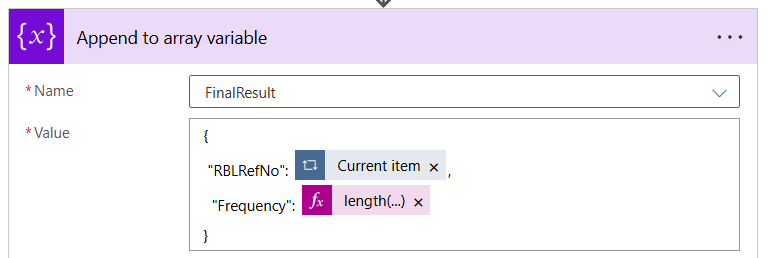
    In Step-2, we had declared FinalResult to append the array variable like above inside Apply to each loop
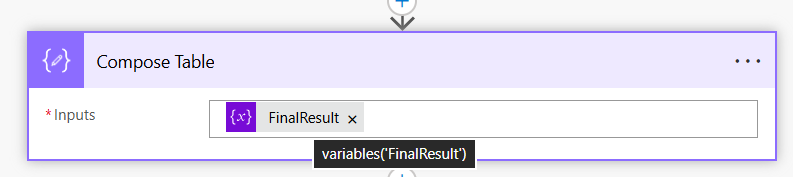
    Step-8: After end of the Apply to each loop, let’s compose the FinalResult for a table format.
     
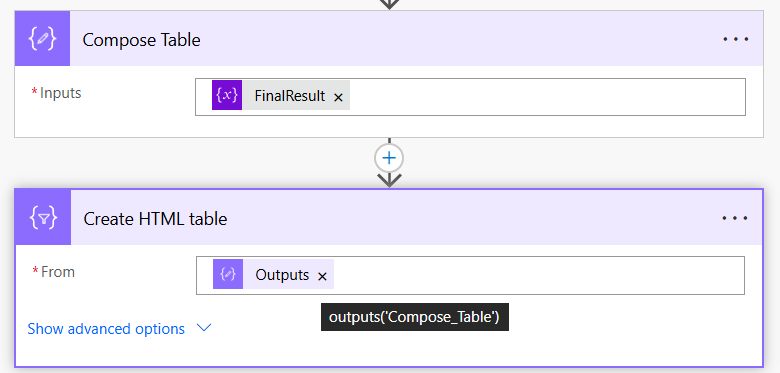
    Step-9: Finally create a HTML table with the FinalResult from the Compose Table output.
    Step-10: Output of Create HTML table action (below)
     
     
    I see  a similar thread answered in the community
     

    I am sure some clues I tried to give. If these clues help to resolve the issue brought you by here, please don't forget to check the box Does this answer your question? At the same time, I am pretty sure you have liked the response!
     

Under review

Thank you for your reply! To ensure a great experience for everyone, your content is awaiting approval by our Community Managers. Please check back later.

Helpful resources

Quick Links

Introducing the 2026 Season 1 community Super Users

Congratulations to our 2026 Super Users!

Kudos to our 2025 Community Spotlight Honorees

Congratulations to our 2025 community superstars!

Leaderboard > Power Automate

#1
Haque Profile Picture

Haque 333

#2
David_MA Profile Picture

David_MA 245 Super User 2026 Season 1

#3
Expiscornovus Profile Picture

Expiscornovus 202 Most Valuable Professional

Last 30 days Overall leaderboard