I have a Power Bi dataset that looks like this: (dashboard filtered to me for PHI sake)

What I want to do is build a power automate flow that queries this dataset every day. When a row has a "Days to Expiration" less than 60, I want it to trigger an email.
The email would go to the person listed, and cc their "Prim Reg Assistant". The email addresses are in the dataset (just not shown on dashboard). They are "EMAIL_ADDRESS" and "Prim Reg Email".
I asked an AI how to do this and it pretty much gave me the roadmap (listed below), but I am having trouble with one particular case.
General Plan:
Step 1: Trigger the Flow
- Trigger: Use the "Recurrence" trigger to schedule the flow. This will allow it to run periodically (e.g., daily, weekly).
Step 2: Run Power BI Query
- Action: Use the "Run a query against a dataset" action for Power BI. Set the dataset to "REG-Credential Management."
- Query the table "rv_contact_credential_with_primreg" using DAX or SQL, and filter rows where "Days to Expiration" is less than 60.
Step 3: Parse Query Results
- Action: After running the query, you’ll get a list of records. Use the "Apply to each" action to iterate through the results.
- Extract relevant columns: "EMAIL_ADDRESS," "Primary Reg Email," and "Days to Expiration."
Step 4: Send Emails
- Action: Use the "Send an email (V2)" action.
- To: Set to the value from "EMAIL_ADDRESS."
- CC: Set to the value from "Primary Reg Email."
- Subject: Customize the subject, e.g., "Credential Expiration Warning."
- Body: Add a message like, "Your credential is about to expire in [Days to Expiration] days."
Here's where I'm having a problem:
I've done this so far and tested it, and it appears to work. Queries the dataset, returns all the rows that fit the criteria:
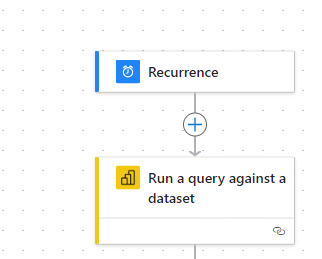
But I have no idea how to do the "Apply to each" step.
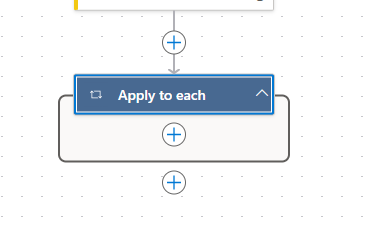
I've added it, but how do I add stuff inside it? What action do I use? I even asked the AI to spell out the details and it did:
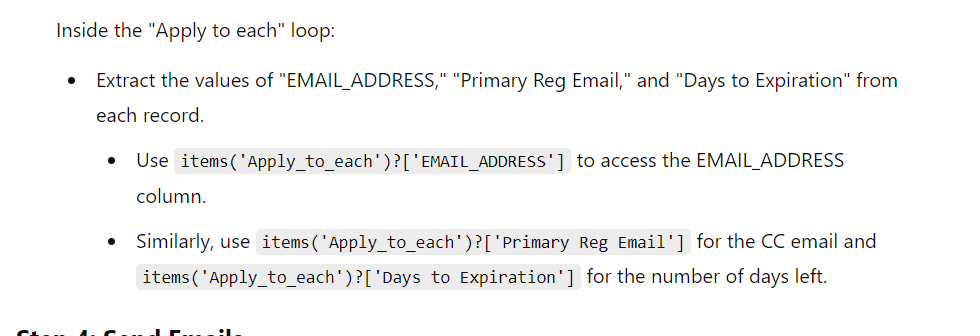
But again, how do I actually DO that? Do I hit the plus sign and add an action? I'm in the "new designer" if that matters. Any help would be appreciated!


 50
50








 Share
Share Report
 All responses (
 Answers (






