//Assumptions
I am assuming that within SharePoint Document Library you have a folder where current TEMPLATE folder is Stored.
and You copy that Folder to different Folder (Same Document Library of Different Document library). I am using different document libraries in this case. You can modify the Flow/File path based on your specify Setup and requirement.
Instead of Copying folder directly from SharePoint document Library, you can now Copy the Folder using this Flow automatically. You just need to run the Power Automate flow and It willl ask for the Employee Name. Once ran successfully, It will automatically copy the folder and Files (After Renaming)
If you want you can change the Power Automate Flow and trigger and other things as needed.
//Setup
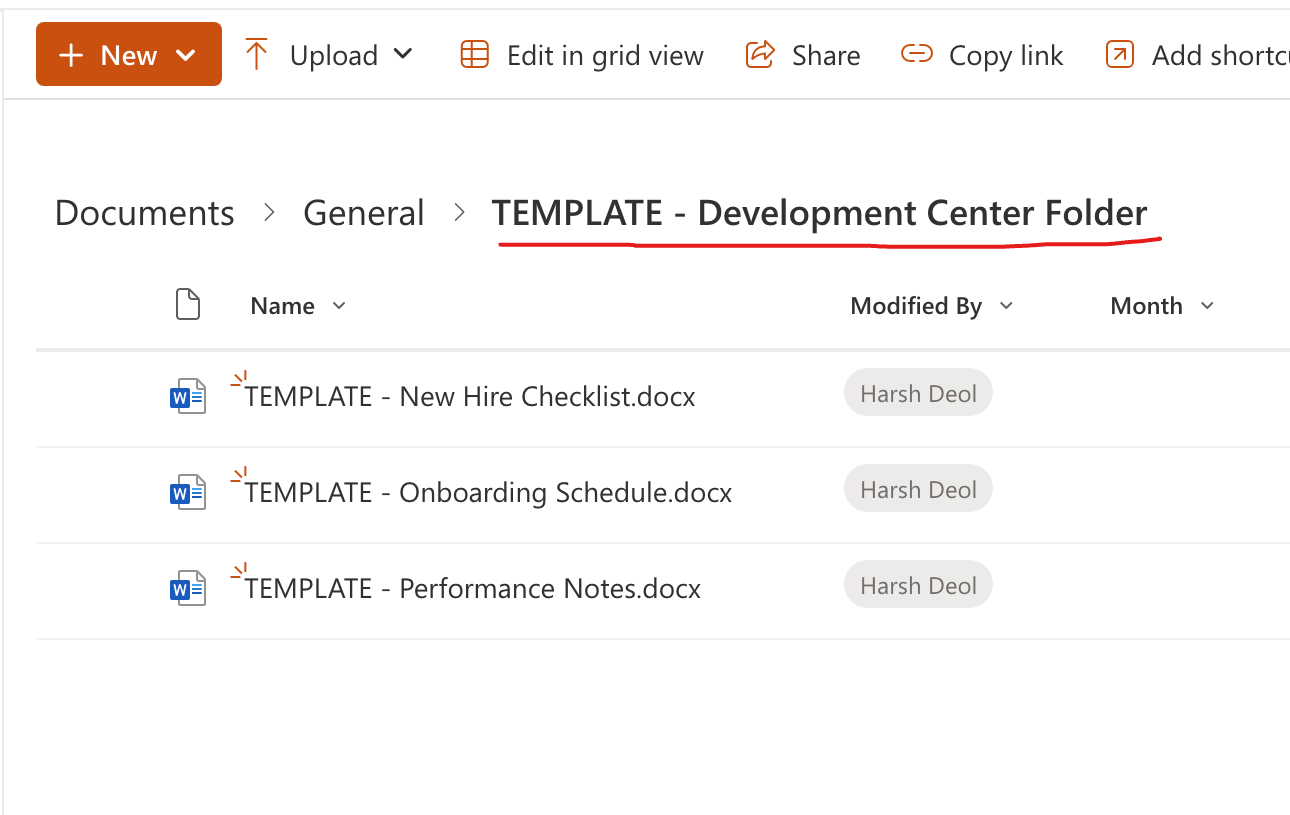
1. Where TEMPLATE Folder is Saved
SharePoint Site Name: Community
Document Library Name: Documents
Folder Name: TEMPLATE - Development Center Folder
Under that I have several Files. See attached Image
2. Where I am copying the document below:
SharePoint Site Name: Community
Document Library Name: Document Library 2
 //Power Automate Flow
1. Trigger: Manually trigger a Flow
I have created the power Automate flow with Manual Trigger and set a Input Parameter as Employee Name.
2. Action: Copy Folder
Add your current and Destination SharePoint Site (Add same if both folder are in the same SharePoint site). Also, Select the Folder Path.
This will copy your Templatate folder.
3. Get Files(Properties Only)
This is used to Get all the files of Newly create TEMPLATE folder.
4. Send and HTTP request to SharePoint
This is added to Rename the Main TEMPLATE Folder.
URI: _api/web/lists/GetbyTitle('
Document Library 2')/items(
@{outputs('Copy_folder')?['body/ItemId']})/validateUpdateListItem
Body:
{
"formValues": [
{
"FieldName": "FileLeafRef",
"FieldValue": "
@{triggerBody()['text']}@{replace(outputs('Copy_folder')?['body/Name'], 'TEMPLATE','')}"
}
]
}
* In the URI's GetbyTitle replace
'Document Library 2' with
your document Library Name.
**Rename Logic: Employee Name + Replace the TEMPLATE with '' (Empty String). You can use the split() as well.
 5. Add an Apply to each to iterate on each files of that Folder.
6. Send an HTTP request to SharePoint
5. Add an Apply to each to iterate on each files of that Folder.
6. Send an HTTP request to SharePoint
Added this action again to rename the Files
URI: _api/web/lists/GetbyTitle('
Document Library 2')/items(
@{items('Apply_to_each')?['ID']})/validateUpdateListItem
Body:
{
"formValues": [
{
"FieldName": "FileLeafRef",
"FieldValue": "
@{triggerBody()['text']}@{replace(outputs('Copy_folder')?['body/Name'], 'TEMPLATE','')}"
}
]
}
* In the URI's GetbyTitle replace
'Document Library 2' with
your document Library Name.
**Rename Logic: Employee Name + Replace the TEMPLATE with '' (Empty String). You can use the split() as well.
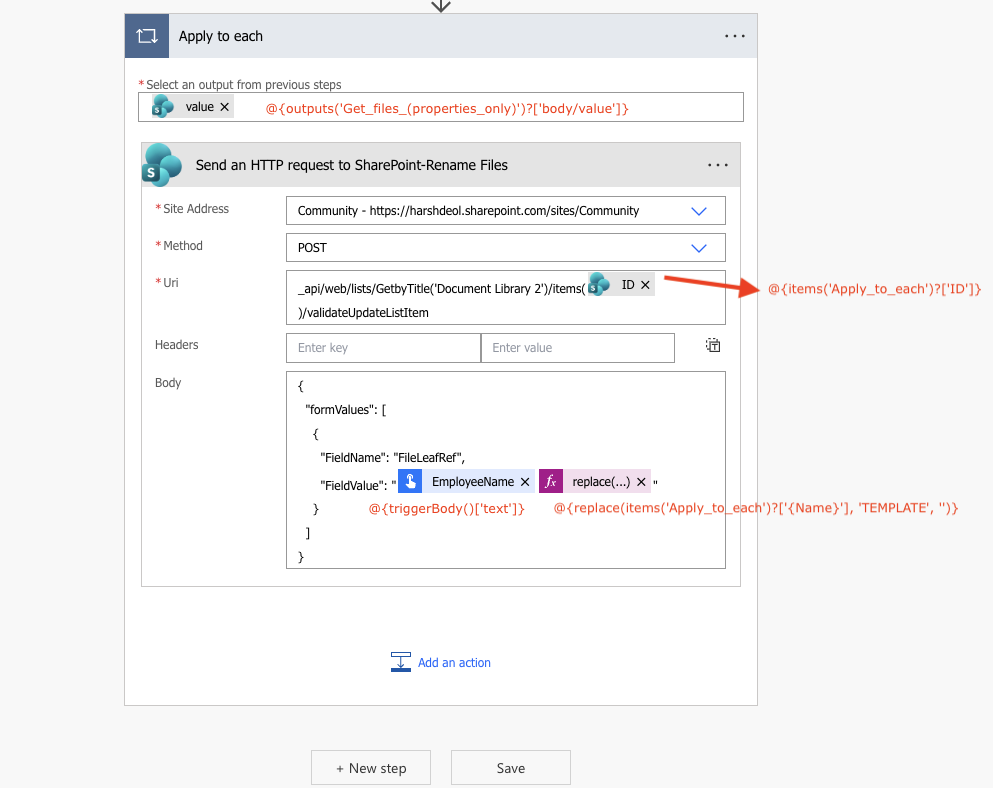
Now, the flow is Ready. Save this and Test.
//Testing
To test the flow, Click on the Test and Add Employee Name. I have added my name, this will rename the Template folder name and Replace TEMPLATE with Input name.
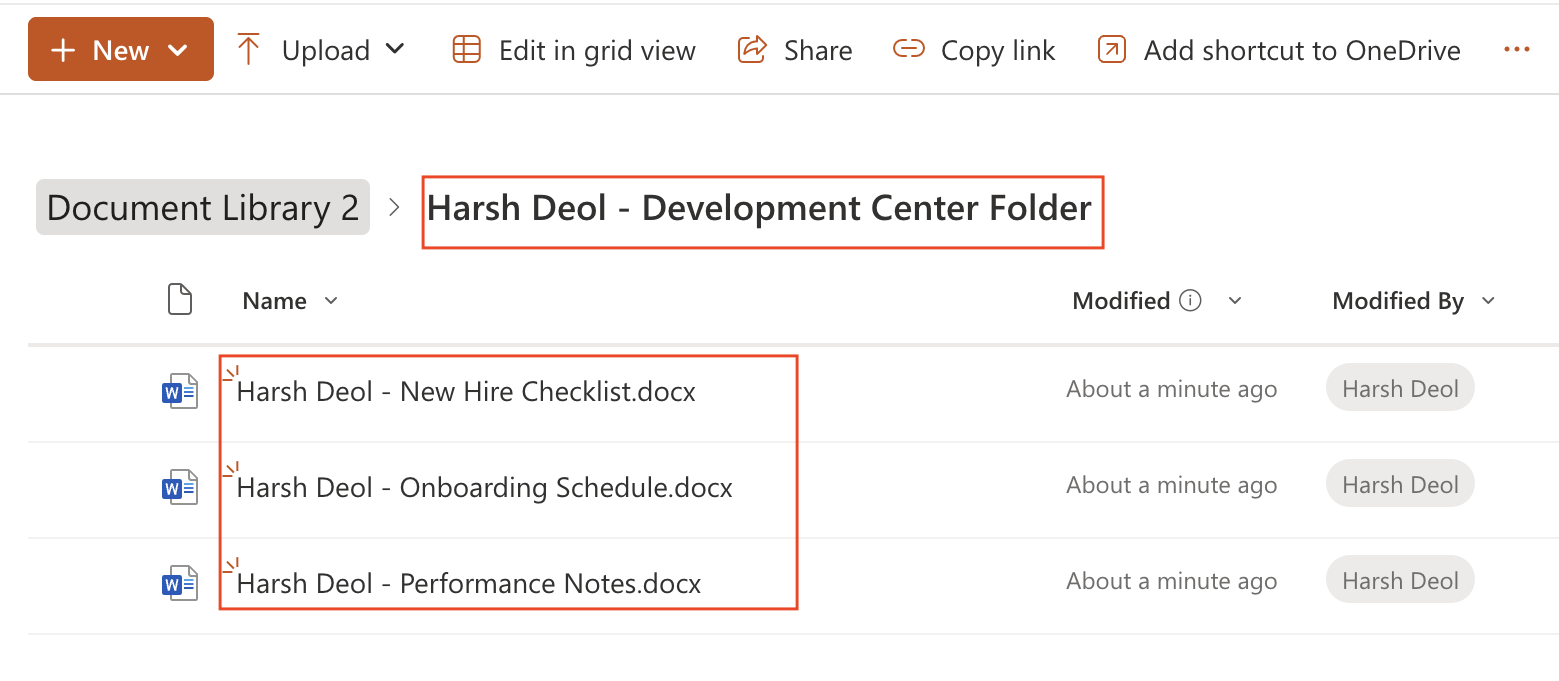
 //OUTPUT
See the Renamed Folder is saved in the Document Library 2 and all the files is also renamed.
In case if this folder have a Sub Folder and Files in that SubFolder then this current Power Automate flow will also rename that automatatically. You don't need seperate configuration for that.
Hope this helps. Please review and try this at your end. Let me know if you have any questions.
--------------------------------------------------------------------------------------------------------------------------------------------------------------------
If your question got an answer, accept this as Solution by selecting ✅ "Does this answer your question", If you liked my answer, please hit the ❤️(Like) button.
Thank you,
Harsh Deol





