web
You’re offline. This is a read only version of the page.
close
Skip to main content

Announcements

News and Announcements icon
Community site session details

Community site session details

Session Id :
Power Platform Community / Forums / Power Automate / Export Excel spreadshe...
Power Automate
Suggested Answer

Export Excel spreadsheet from PowerApps

(0) ShareShare
ReportReport
Posted on by 789
Hello Everyone,
 

I am trying to export data from a gallery in PowerApps using Power Automate. When the Export button is pressed in the Canvas app, an Excel file is created in either OneDrive or SharePoint, and then it is downloaded to the user’s machine. The Excel file should also reflect the filtered data based on the first gallery’s buttons.

I am using two galleries: the first gallery contains buttons that filter the second gallery based on the Status column. SharePoint is being used as the data source.

 
gallery 1 Item:                       OnSelect:  Set(varSelectedStatus, ThisItem.Status)
[
{
  Status: "All"
},
{
Status: "Draft"
},
{
Status: "Saved"
},
Status: "Closed"
{
Status: "Under Review"
}
]
 
Gallery 2 Has 5 columns
ID (Intege), Name (Single Line of Text), Status (Choice), Amount (Intege), Margin (Single Line of Text)
 
Item property
SortByColumns(
    Filter(
        Proposals,
        IsBlank(varSelectedStatus)
            || varSelectedStatus = "All"
            || Status.Value = varSelectedStatus
    ),
    "Created",
    SortOrder.Descending
)
 
I hope someone can help.
Categories:
I have the same question (0)
  • Suggested answer
    Haque Profile Picture
    1,729 on at
    Hi @Caleb62881177,
     
    Let's try the following steps to export the filtered data: 

    Let's modify the code at button's OnSelect property, please use this formula:


    // Create a collection of the filtered data shown in Gallery 2
    ClearCollect(
        colFilteredProposals,
        SortByColumns(
            Filter(
                Proposals,
                IsBlank(varSelectedStatus) || varSelectedStatus = "All" || Status.Value = varSelectedStatus
            ),
            "Created",
            SortOrder.Descending
        )
    );
    
    // Convert the collection to JSON
    Set(
        varFilteredJSON,
        JSON(colFilteredProposals, JSONFormat.IncludeBinaryData)
    );
    
    // Call the Power Automate flow and get the download link
    Set(
        varDownloadLink,
        ExportGalleryToExcel.Run(varFilteredJSON)
    );
    
    // Launch the download link
    Launch(varDownloadLink);
    
     
    Next, let's build the flow:

    Step-1: Let's use the PowerApps (V2) trigger and Parse JSON like below:

    1. Use the JSON string from PowerApps as input.
    2. Provide a schema matching your filtered data structure (see below).
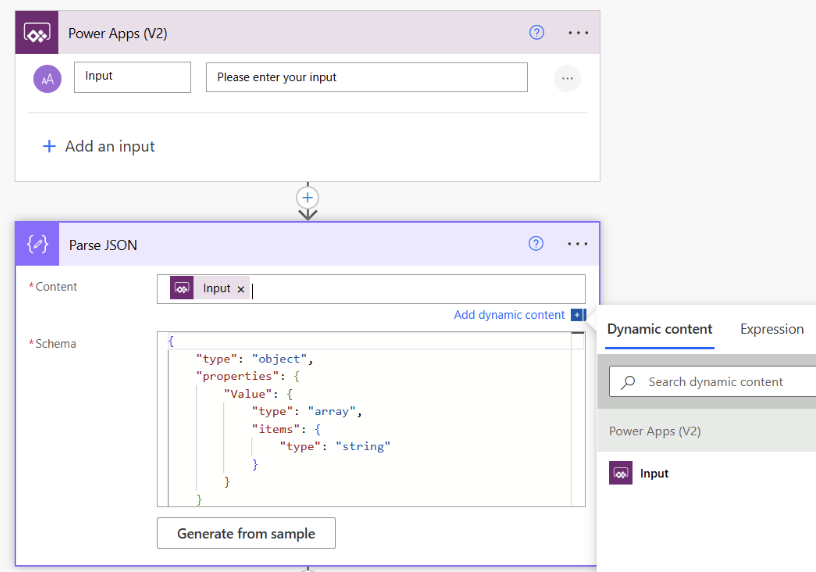
    Please use the following json in the Parse JSON field:


    {
      "type": "array",
      "items": {
        "type": "object",
        "properties": {
          "ID": { "type": "integer" },
          "Name": { "type": "string" },
          "Status": { "type": "string" },
          "Amount": { "type": "integer" },
          "Margin": { "type": "string" }
        },
        "required": ["ID", "Name", "Status", "Amount", "Margin"]
      }
    }


    Step-2: Wherever you want (either in SP or OD), use Create File action. Can be a blank file or a template file with a table. (For simplicity I avaoided screenshot.)


    Step-3: Now we can loop ParseJSON result (let's use Apply to each) to inser rows into table and then use Add a row into table action like below:
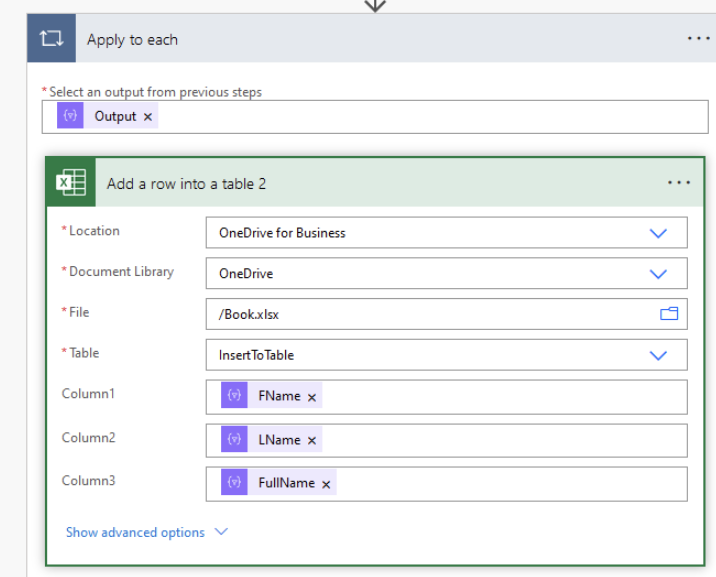


    Step-4: TO generate the sharing link, please use Create sharing link action - download link actually.

    Step-5: Finally, you can use Respond to PowerApps action to return the sharing link URL


    Please note that, I have skipped screenshot where I felt things are easy to catchup. 


    I am sure some clues I tried to give. If these clues help to resolve the issue brought you by here, please don't forget to check the box Does this answer your question? At the same time, I am pretty sure you have liked the response!


  • Caleb62881177 Profile Picture
    789 on at
    Hi @Haque,
     
    Can you show a screenshot of the Create sharing link for a file or folder, because sure what ID to use in Item Id of that action.
  • Suggested answer
    Haque Profile Picture
    1,729 on at
    Hi @Caleb62881177,
     
    I believe it is the ID of the file that is created in Step-2. I would suggest you to spend sometimes on this video.
     
    Thanks in advance.


  • Caleb62881177 Profile Picture
    789 on at
    Hi @Haque,
     
    Can please show screenshot(s) of the step 2 of creating the excel file in SharePoint/OneDrive?
  • Suggested answer
    Haque Profile Picture
    1,729 on at
     
    Hi @Caleb62881177,
     
    For SP:


    If you want, you can check this one too for you need. Particularly the file creation part.
     
     
  • Caleb62881177 Profile Picture
    789 on at
    Hi @Haque, Sorry for this late response.

    I build the flow and it's working, but the flow doesn't download the excel instead it opens it up in Chrome browser instead.
     
  • Suggested answer
    Haque Profile Picture
    1,729 on at
     
    Good to hear that flow is working. Is this something you want PowerAutomate will directly help to download the file in the user machine?
     
    Can you please check if this  link helps?


    I am sure some clues I tried to give. If these clues help to resolve the issue brought you by here, please don't forget to check the box Does this answer your question? At the same time, I am pretty sure you have liked the response!
  • Haque Profile Picture
    1,729 on at
     
    Is download issue addressed? 

Under review

Thank you for your reply! To ensure a great experience for everyone, your content is awaiting approval by our Community Managers. Please check back later.

Helpful resources

Quick Links

Introducing the 2026 Season 1 community Super Users

Congratulations to our 2026 Super Users!

Kudos to our 2025 Community Spotlight Honorees

Congratulations to our 2025 community superstars!

Congratulations to the March Top 10 Community Leaders!

These are the community rock stars!

Leaderboard > Power Automate

#1
Haque Profile Picture

Haque 573

#2
Valantis Profile Picture

Valantis 407

#3
11manish Profile Picture

11manish 387

Last 30 days Overall leaderboard



