




 1,297
1,297 Like
Like Share
Share
 Report
Event marketers know the drill: a contact registers enthusiastically for a webinar, then forgets about it entirely by the time it starts. Customer Insights – Journeys addresses this gap with a native Add to Calendar button that lets registered contacts drop the event straight into their calendar app from the confirmation email.
Why it matters
No-shows are one of the biggest silent killers of event ROI — registration numbers look great, attendance numbers don’t. Adding a calendar reminder at the point of registration is one of the simplest, lowest-effort ways to close that gap, and doing it natively (instead of a manual workaround) means less setup and fewer broken links.
How to set it up
- In the email designer, add a button.
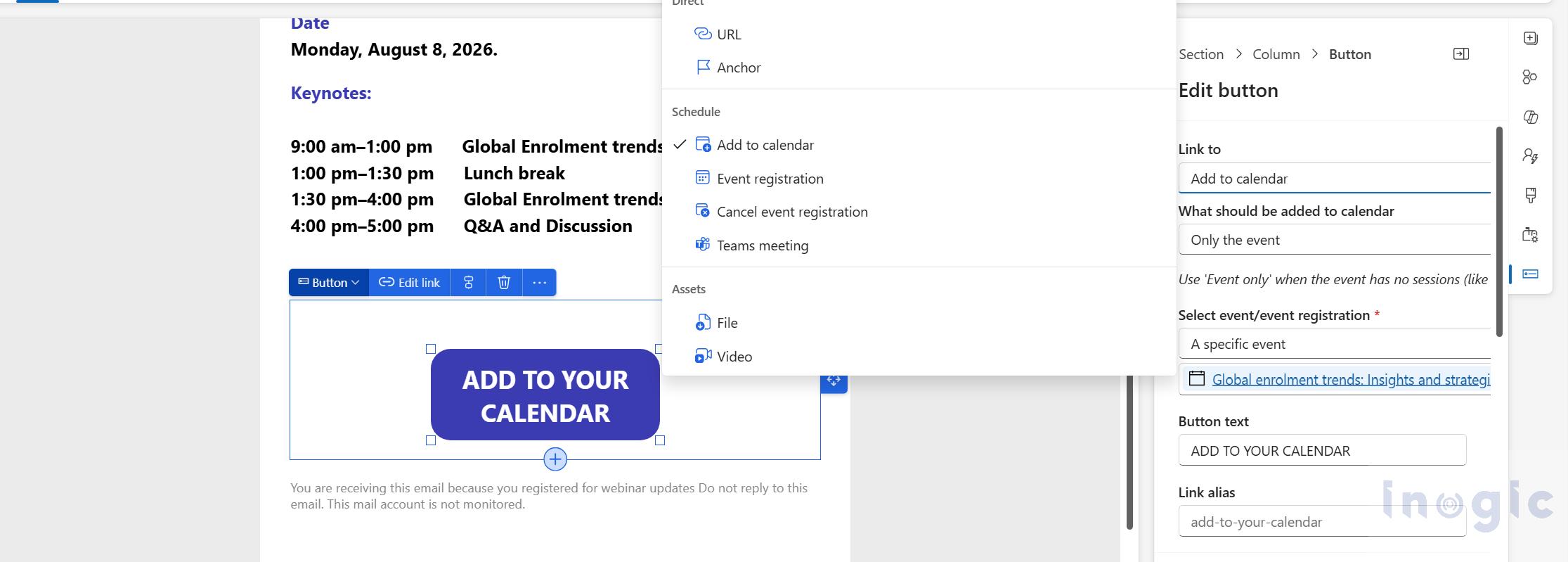
- On the button’s Properties tab, set Link to → Add to Calendar.
- Choose what the file should contain: event only, sessions only, or both.
- Select the event to link to.
- Set your button text and styling.
Where this button belongs
This isn’t a general-purpose email button – it’s tied to registration data, so it only makes sense inside a journey that fires after someone registers. The standard pattern is a trigger-based journey built on the Event Registration Created trigger: a contact submits the registration form, the trigger fires, and the journey sends a welcome/confirmation email containing the Add to Calendar button. The same journey pattern is typically extended with reminder emails (seven days and one day out) and a text message an hour before the event, using the Event Check-in and Event Registration Cancelled triggers to branch the post-event follow-up between “thank you for attending” and “we missed you” paths.
The practical implication: build the Add to Calendar button into your registration confirmation email, not a generic newsletter or invitation blast, because the button’s visibility depends entirely on the recipient already having a registration record tied to that event... Read More
*This post is locked for comments