web
You’re offline. This is a read only version of the page.
close
Skip to main content

Notifications

Announcements

Community site session details

Community site session details

Session Id :
Power Platform Community / Forums / Power Apps / Populate Different Num...
Power Apps
Answered

Populate Different Number in Each Gallery Item

(2) ShareShare
ReportReport
Posted on by 5,325 Super User 2025 Season 2
I have Gallery1.

In Gallery1 is Label1 and Label2.

Intent -
When 'Add SOW' button is clicked (creating item in Gallery), auto-populate
Gallery1 Label1 with next/first available number from collection (SPList1),
which has one column, 'Title', with a list of numbers from 1 to 25.

If the 'Add SOW' button is pushed a second time, the next item created should
have the next number available that doesn't match the number of above.

In the example I am able to populate Label1 using 'First(col_Collection).Title'.

However, all subsequent Gallery1 items also have '1' in Label1.

In the example, the first item was automatically numbered '1'. The next item
created should have '2' in Label1.

Label1 has -
Default:
First(col_SOW_Numbers).Value
OnChange: ClearCollect(col_SOW_Picked,Self.Text)

'Add SOW' button has -
OnSelect:
Collect(colLOADSOW, {intLOADSOW: GUID(), rem: false})

Gallery1 has -
Items:
colLOADSOW


Categories:
I have the same question (0)
  • Suggested answer
    WarrenBelz Profile Picture
    153,051 Most Valuable Professional on at
    A couple of things here to clarify - firstly Title is a Text column, so having numbers in it requires conversion (you will see this below and it complicates things a bit). Also to populate a label in a Gallery, you need to populate the field in the collection that it is attached to - you have not provided the field name, so I have called it SOW below.
    Collect(
       colLOADSOW,
       {
          intLOADSOW: GUID(),
          rem: false,
          SOW: Value(
             First(
                Sort(
                   Filter(
                      List1,
                      Value(Title) > Max(
                         colLOADSOW,
                         SOW
                      )
                   ),
                   Value(Title),
                   SortOrder.Ascending
                )
             ).Title
          )
       }
    )
     
    Please click Does this answer your question if my post helped you solve your issue. This will help others find it more readily. It also closes the item. If the content was useful in other ways, please consider giving it a Like.
    MVP (Business Applications)    Visit my blog Practical Power Apps    LinkedIn   
  • Phineas Profile Picture
    5,325 Super User 2025 Season 2 on at
     
    And I should test your formula, in the ‘OnChange’ of Gallery1 Label1, yes?
  • stampcoin Profile Picture
    5,058 Super User 2025 Season 2 on at
    @Phineas Hi there,
    @WarrenBelz 's answer almost there.
     
    To avoid the delegation warning. 
     
    App, OnStart =
    ClearCollect(
        colAllSOWNumbers,
        AddColumns(
            Sort(
                ShowColumns(SPList1, Title),   // grab tile from the list
                Title, SortOrder.Ascending               // keep them in order
            ),
            Num,                               // call it Num
            Value(Title)                         
        )
    );
     
    Then, 'Add SOW' button OnSelect:
     
    // Add-SOW button
    With(
        {
            nextNum:
                First(
                    Filter(
                        colAllSOWNumbers,
                        !(Num in colLOADSOW.SOW)          
                    )
                ).Num
        },
        If(
            !IsBlank(nextNum),
            Collect(
                colLOADSOW,
                {
                    intLOADSOW: GUID(),
                    SOW:        nextNum,
                    rem:        false
                }
            ),
            Notify("All SOW tags are already in use.", NotificationType.Error)
        )
    );
    
     
    Textinput.default = ThisItem.SOW
    Textinput.OnChange = false.
    Gallery1.Item is the same as before.
     
     
  • WarrenBelz Profile Picture
    153,051 Most Valuable Professional on at
    Thanks @stampcoin, but that does not solve a potential Delegation issue as AddColumns() is not Delegated (it is a local function) and the Value conversion of the Title would not be Delegated either (which is why I mentioned that it complicated the issue). Also List1 is small, so Delegation is not really an issue and sorting Title as a Text column will put will go 1,11,12,13,14,15,16,17,19,2,20,21 . . . 
    However if something without warnings is desired
    With(
       {
          _List: List1,
          _Max: Max(
             colLOADSOW,
             SOW
          )
       },
       Collect(
          colLOADSOW,
          {
             intLOADSOW: GUID(),
             rem: false,
             SOW: First(
                Sort(
                   Filter(
                      AddColumns(
                         _List,
                         TitleVal,
                         Value(Title)
                      ),
                      TitleVal > _Max
                   ),
                   TitleVal,
                   SortOrder.Ascending
                )
             ).TitleVal
          }
       )
    )
    @Phineas - you can use the code above where you were using it before (I assumed you wanted the relevant replacement code) on the SOW button.
     
    Please click Does this answer your question if my post helped you solve your issue. This will help others find it more readily. It also closes the item. If the content was useful in other ways, please consider giving it a Like.
    MVP (Business Applications)    Visit my blog Practical Power Apps    LinkedIn   
  • Phineas Profile Picture
    5,325 Super User 2025 Season 2 on at
    @WarrenBelz

    Just about got it.

    I tweaked your formula a bit. I needed to add a 'Value' because my referenced field is 'Text'.

    The only issue is the numbering doesn't start where it should. It started at '9' then the next
    new SOW number is '40', and I can't figure out why.

    In the example, the last SOW added to the 'Production' list for this 'Heat Number' ('4902')
    was '5' (circled in the EPS_Active_SOW_Gallery).

    The formula should identify the last SOW number in EPS_Active_SOW_Gallery (or the last SOW
    Number added to the list that is associated with the "Heat' (in this case '4902') and automatically
    generate the next number (in this case '6') in the gallery when the 'Add SOW' button is clicked,
    then '7', '8' and so on.

    If there are no 'current' SOWs in the list associated with the 'Heat Number' the SOW Number in
    gallery, when 'Add SOW' button is clicked, should start at '1'.

    In my 'OnStart' I am creating the col_SOW_Numbers (that runs to '40') -


    My new 'Add SOW' button formula -
    With(
       {
          _List: col_SOW_Numbers,
          _Max: Max(
             colLoadSOW,
             SOW
          )
       },
       Collect(
          colLoadSOW,
          {
             intLOADSOW: GUID(),
             rem: false,
             SOW: First(
                Sort(
                   Filter(
                      AddColumns(
                         _List,
                         TitleVal,Value
                         
                      ),
                      Value(TitleVal) > _Max
                   ),
                   TitleVal,
                   SortOrder.Descending
                )
             ).TitleVal
          }
       )
    )


  • Verified answer
    WarrenBelz Profile Picture
    153,051 Most Valuable Professional on at
    OK - now you have posted the full story (once again, I plead with you do do this at the start) including the numbers collection (except you put your code as an image again . . .), this changes things quite a bit. Firstly you are using collections only in the exercise, so Delegation is not an issue.
    You are also (as I mentioned earlier) unnecessarily complicating the exercise with using text for the numbers. So, the first part is your numbers collection - make them actual numbers
    ClearCollect(
        col_SOW_Numbers,
        Sequence(40)
    );
    Next is far simpler
    Collect(
       colLOADSOW,
       {
          intLOADSOW: GUID(),
          rem: false,
          SOW: LookUp(
             col_SOW_Numbers,
             Value > Max(
                colLOADSOW,
                SOW
             )
          ).Value
       }
    )
    NOTE: If the SOW number is required to be Text in the Production List, you can convert it when you patch it over there from colLOADSOW.
     
    Please click Does this answer your question if my post helped you solve your issue. This will help others find it more readily. It also closes the item. If the content was useful in other ways, please consider giving it a Like.
    MVP (Business Applications)    Visit my blog Practical Power Apps    LinkedIn   
     
  • Phineas Profile Picture
    5,325 Super User 2025 Season 2 on at
    @WarrenBelz

    One last tweak needed.

    In the example, the user is updating (adding to) the existing list, which includes a 'Heat' that already exists.

    In this case the formula should be able to identify which number in the sequence the Production is already on;
    in the example that number is '5', which means the formula should populate the next SOW Number as '4902-6',
    since '4902-5' was the last SOW added to the list. As written the formula is starting with '1'.

    Gallery has - colLoadSOW
    Label1 has - ThisItem.SOW
    Add SOW Button -
    With(
       {
          _List: col_SOW_Numbers,
          _Max: Max(
             colLoadSOW,
             SOW
          )
       },
       Collect(
          colLoadSOW,
          {
             intLOADSOW: GUID(),
             rem: false,
             SOW: LookUp(
                col_SOW_Numbers,
                Value > Max(
                colLoadSOW,
                SOW
                )
            ).Value
        }
    ))


    I tried this edit. It brings in '6' as the first new SOW. However,
    the second, third, fourth and so on, are also '6'.
    With(
       {
          _List: col_SOW_Numbers,
          _Max: Max(
             CountRows(EPS_Active_SOW_Gallery.AllItems)
          )
       },
       Collect(
          colLoadSOW,
          {
             intLOADSOW: GUID(),
             rem: false,
             SOW: LookUp(
                    col_SOW_Numbers,
                    Value > Max(
                CountRows(EPS_Active_SOW_Gallery.AllItems)
                )
               
            ).Value
        }
    ))
  • WarrenBelz Profile Picture
    153,051 Most Valuable Professional on at
    OK - getting a bit unclear now - your current exercise has no reference at all to your Production list - you are simply collecting new records with a sequential number, a Boolean field set to false and a random GUID in a text field. How does this in any way reference your list (or have you left something relevant out again)
  • Phineas Profile Picture
    5,325 Super User 2025 Season 2 on at
    @WarrenBelz

    I have three screens doing similar but different things.

    What we have so far is working on the other two screens, based on how they work.

    On this last screen the 'Tap' and 'SOW' (two different galleries, but the formula will work
    in both with a tweak or two) 'Add' buttons formula needs to include a way to know the last
    'SOW' or 'Tap' Number added to the col_Production (Production List), and start the new 'Tap'
    or 'SOW' count there.

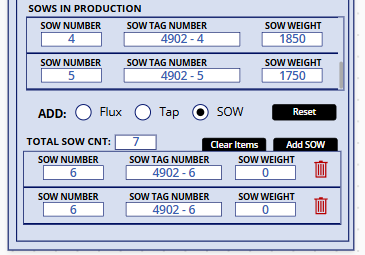
    In the below example the first new SOW number would be '6', as '5' is showing in the gallery
    above and was the last SOW add for the 'Campain'.

    If this was a new 'Heat' (which is the case on the other screen, which is why there is no problem
    there), starting at '1' would be correct. On this Update version of the screen the new SOW number
    needs to pick up where the last 'Heat' associated SOW number finished, '5'.

    I tried to reference the 'existing' gallery directly in my edited formula. It returned the '6' as required,
    but it returns ONLY 6.

    The existing SOW gallery has the following in its items (the 'Campaign' number is hidden in the gallery) -
    Filter(col_Production,!IsBlank(SOW_Number) && Campaign = EPS_Campaign_Number_Fld.Text))
  • WarrenBelz Profile Picture
    153,051 Most Valuable Professional on at
    Now totally lost - if the Items of (this other) gallery is 
    Filter(
       col_Production,
       !IsBlank(SOW_Number) && 
       Campaign = EPS_Campaign_Number_Fld.Text
    )
    how does colLoadSOW have any connection to any record in the gallery and (as I asked before) how are you then updating your List from this gallery ? Also is the Add SOW button inside or outside the gallery ?

Under review

Thank you for your reply! To ensure a great experience for everyone, your content is awaiting approval by our Community Managers. Please check back later.

Helpful resources

Quick Links

Forum hierarchy changes are complete!

In our never-ending quest to improve we are simplifying the forum hierarchy…

Ajay Kumar Gannamaneni – Community Spotlight

We are honored to recognize Ajay Kumar Gannamaneni as our Community Spotlight for December…

Leaderboard > Power Apps

#1
WarrenBelz Profile Picture

WarrenBelz 711 Most Valuable Professional

#2
Michael E. Gernaey Profile Picture

Michael E. Gernaey 319 Super User 2025 Season 2

#3
Power Platform 1919 Profile Picture

Power Platform 1919 268

Last 30 days Overall leaderboard



