web
You’re offline. This is a read only version of the page.
close
Skip to main content

Announcements

News and Announcements icon
Community site session details

Community site session details

Session Id :
Power Platform Community / Forums / Power Apps / Issue with direct down...
Power Apps
Answered

Issue with direct download code in power app

(0) ShareShare
ReportReport
Posted on by 19
GM Everyone
 
I am seeking help in direct code to download data verse table in csv. Below code added on "On Select":
 
 
// Part 1
Set(
    dsCombined,
    <Tablename>
);
 
// Part 2 Header row (quoted)
Set(
    headerRow,
    """Period"",""Category"""
);
 
// Part 3 Body rows: build CSV lines, escape embedded quotes in every field
 
Set(
    csvBody,
    Concat(
        dsCombined,
        """"
        & Substitute(period<Field name per data verse table> & "", """", """""")
        & ""","""
        & """"
        & Substitute(category <Field name per data verse table> & "", """", """""")
        & """"
        & Char(13) & Char(10)      // CRLF per row
    )
);
 
// 3) Combine header + body
Set(
    csvAll,
    headerRow & Char(13) & Char(10) & csvBody
);
 
// 4) Trigger download (single-argument Download; BOM; replace '+' with '%20')
 
Download(
    "data:text/csv;charset=utf-8," & EncodeUrl(csvAll)
);
 
 
We are getting error message with Part 4 download part, The URL passed to the function is not valid. Could some one please guide this is required on Canvas app or any other way to write download section.
 
Regards
Mohit
I have the same question (0)
  • Kushal_M Profile Picture
    165 Super User 2026 Season 1 on at
    Hello  ,
     
    Canvas apps do NOT support "data:" URLs in the Download() function. Power Apps only allows "http:// or https://" URLs or files coming from a connector / flow. That’s why you get “The URL passed to the function is not valid” Even though the CSV string is correct.
     
    You can try with Power Automate Flow → CSV Download which is reliable way.
     
    Steps: Canvas App → Power Automate → Create CSV file → Return file for download
  • CU04120706-0 Profile Picture
    19 on at
     
     
    Thanks for the response, as advised I work on the same via Power automate. Used below steps:
     
    1. When Power Apps calls a flow (V2) - Added parameters
    2. Initialize variable - creating string variable.
    3. Compose - to check all parameters are blank or not.. Basically boolean result.
    4. Condition - on compose output if it is true 
      1. Compose - to map parameters value to filter columns.
      2. List rows - True - to retrieve data from Dataverse table, filters row retriving value from compose step.
      3. Create CSV table retriving value from list row function.
      4. Compose file name - giving a file name
      5.  respond to power app  - added file retriving from csv table step and file retriving name from compose.
     
    My flow is running fine till compose file name step, I can see data in csv table step in running logs. But my respond to power app is showing no output , unable to understand why.
     
  • Kushal_M Profile Picture
    165 Super User 2026 Season 1 on at
     
    Thank you for the information !

    Could you please confirm whether it is possible to upload the file to SharePoint or OneDrive?
     
    If yes:
    Please upload the file to SharePoint/OneDrive from Power Automate and return the file URL to Power Apps. You can then use this URL as a hyperlink with the Download() function in Power Apps.
     
    If not:
    Please use an Attachment control in View mode in Power Apps and bind the file response returned from Power Automate. The user can then manually click the attachment, which will trigger the file download.
     
    Please let me know which option works best for you.


    🏷️ Please tag me @Kushal_M, if you still have any queries related to the solution or issue persists.
    ❤️ Please consider giving it a Like, If the approach was useful in other ways.
     Please click Accept as solution if my post helped you solve your issue and help others who will face the similar issue in future.
  • CU04120706-0 Profile Picture
    19 on at
     
    We don't want to download file into share point or One drive. We are looking for something which allow user direct download, since it is canvas app getting lots of issue in that.
     
    Since I am new to power app, could you please elobrate more on Attachment control solution.
     
    Regards
    Mohit Jain
  • Verified answer
    Kalathiya Profile Picture
    1,971 Super User 2026 Season 1 on at
    Hello @CU04120706-0

    I’ve gone through all the comments and scenarios shared above. If your requirement is only to generate the CSV file and you don’t want to download it directly or save it to SharePoint/OneDrive, you can email the CSV file directly to the requester.

    Suggested approach:

    #1. Add one more parameter in the Power Apps -> Flow trigger to pass the logged-in user’s email address. In Power Apps, the User().Email function returns the currently logged-in user’s email, which you can pass directly to the flow.

    Your Power Automate trigger with user email parameter. 
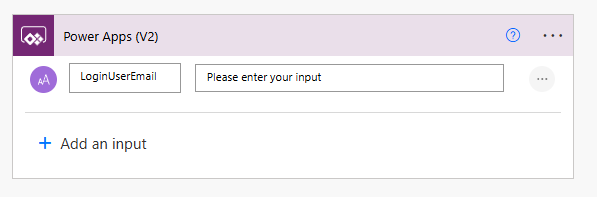
    after adding this login user parameter in automate just refresh the Power Automate in PowerApps.
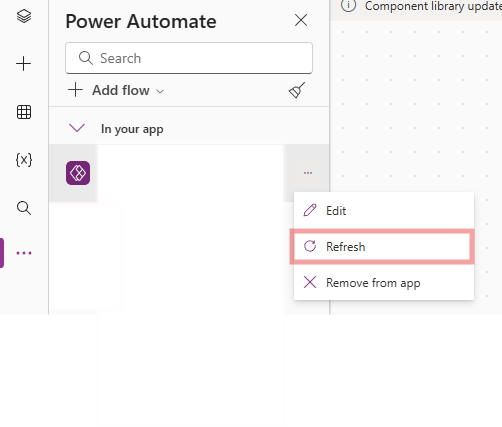
    PowerAutomate.Run(User().Email); 
    //Your Power Automate trigger should be configured like this. Inside the trigger, add a parameter so that you can pass the value from Power Apps.
    
    User().Email  //This function will return current login user email..


    #2. After the Create CSV table step in your flow, use Send an email (V2).
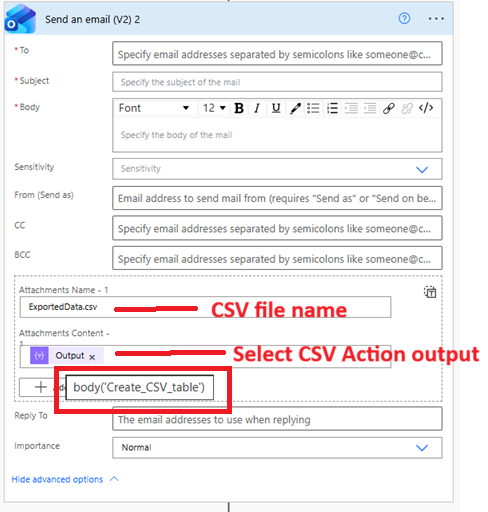

    #3. Attach the CSV output directly as an email attachment (use the CSV table output as file content).
    #4. Set the file name using the same value you already created in the Compose file name step.
    #5. From Power Apps, after triggering the flow, just use the Notify() function to show a message like:
          Notify("Your file is being generated and will be sent to your email within 1–2 minutes.");

    This way, the flow knows exactly which user requested the file and can use that email address later to send the generated CSV as an email attachment.

    Hope this helps!

    📩 Need more help? Mention@Kalathiya anytime!
    ✔️ Don’t forget to Accept as Solution if this guidance worked for you.
    💛 Your Like motivates me to keep helping.


Under review

Thank you for your reply! To ensure a great experience for everyone, your content is awaiting approval by our Community Managers. Please check back later.

Helpful resources

Quick Links

Introducing the 2026 Season 1 community Super Users

Congratulations to our 2026 Super Users!

Kudos to our 2025 Community Spotlight Honorees

Congratulations to our 2025 community superstars!

Congratulations to the April Top 10 Community Leaders!

These are the community rock stars!

Leaderboard > Power Apps

#1
Vish WR Profile Picture

Vish WR 1,074

#2
Valantis Profile Picture

Valantis 639

#3
11manish Profile Picture

11manish 606

Last 30 days Overall leaderboard
