I've created the following example for this use case. This is the sample collection that I will be using:
ClearCollect(RandomDatesCollection,
    { RandomDate: Date(2025, 1, 27), Label: "Event A" },
    { RandomDate: Date(2025, 6, 13), Label: "Event B" },
    { RandomDate: Date(2025, 3, 30), Label: "Event C" },
    { RandomDate: Date(2025, 4, 23), Label: "Event D" },
    { RandomDate: Date(2024, 8, 6), Label: "Event E" },
    { RandomDate: Date(2025, 2, 8), Label: "Event F" },
    { RandomDate: Date(2025, 6, 13), Label: "Event G" },
    { RandomDate: Date(2024, 8, 4), Label: "Event H" },
    { RandomDate: Date(2025, 7, 4), Label: "Event I" },
    { RandomDate: Date(2024, 10, 14), Label: "Event J" },
    { RandomDate: Date(2024, 11, 13), Label: "Event K" },
    { RandomDate: Date(2025, 7, 22), Label: "Event L" },
    { RandomDate: Date(2025, 4, 7), Label: "Event M" },
    { RandomDate: Date(2025, 5, 27), Label: "Event N" },
    { RandomDate: Date(2025, 4, 17), Label: "Event O" },
    { RandomDate: Date(2025, 7, 21), Label: "Event P" },
    { RandomDate: Date(2024, 8, 26), Label: "Event Q" },
    { RandomDate: Date(2025, 4, 9), Label: "Event R" },
    { RandomDate: Date(2025, 2, 22), Label: "Event S" },
    { RandomDate: Date(2025, 3, 26), Label: "Event T" }
)
![]()

First I create a dropdown that populates the year and month similar to previously described (but using DateAdd to better handle the transition between the years.
In the items parameter of the gallery, I create a new column reference date, set it to the first day of the month of the parameter RandomDate, and bind it to the selected dropdown value like this:
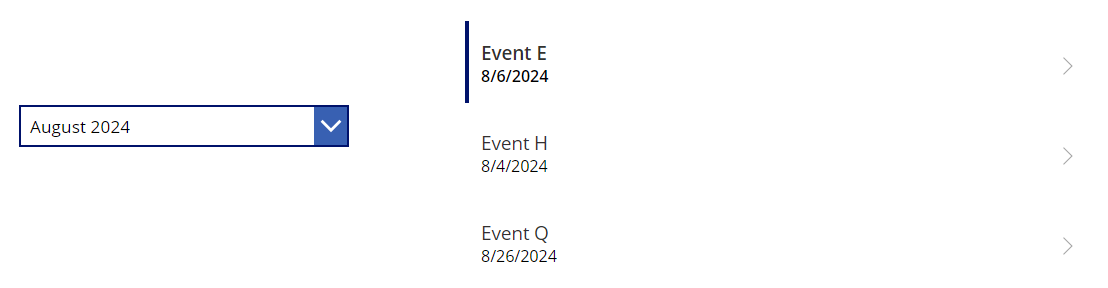
Now, whenever I select a month and year, all the events of that months are displayed in the gallery.
Let me know if this helps







