web
You’re offline. This is a read only version of the page.
close
Skip to main content

Announcements

News and Announcements icon
Community site session details

Community site session details

Session Id :
Power Platform Community / Forums / Power Apps / How to convert appres ...
Power Apps
Answered

How to convert appres blob to binary file -> To save to sharepoint list

(1) ShareShare
ReportReport
Posted on by 5
Hi everyone, I'm using the attachment control to try to save a file.
But, I cannot convert the appres://bolbmanager/... to the binary file.
 
Here is my code:
Collect(
                colOrderItems,
                {
                    'MB ID': ThisItem.'MB ID',
                    Name: ThisItem.Name,
                    Quantity: _qty,
                    PricePer: Text(_unitPrice),
                    ShortText: _shortTextBase,
                    TotalPrice: _qty * _unitPrice,
                    Supplier: ThisItem.Supplier,
                    DeliveryDate: DateAdd(Today(), _leadDays),
                    ESN: ThisItem.ESN,
                    Unit: "",
                    GLAccount: "65900200",
                    CostCenter: Text(First(colRequestor).CostCenter),
                    AssetClass: "",
                    Item: "",
                    Picture: ThisItem.'Picture URL',
                    RequestID: "",
                    Size: TextInput3.Text,
                    // Inside your Collect/Patch logic, just save the raw Value
                    FileAttachments: ForAll(DataCardValue26_1.Attachments, { FileName: Name, FileData: JSON(Value, JSONFormat.IncludeBinaryData) })
                }
            )

But the data still showing like this in the collection:
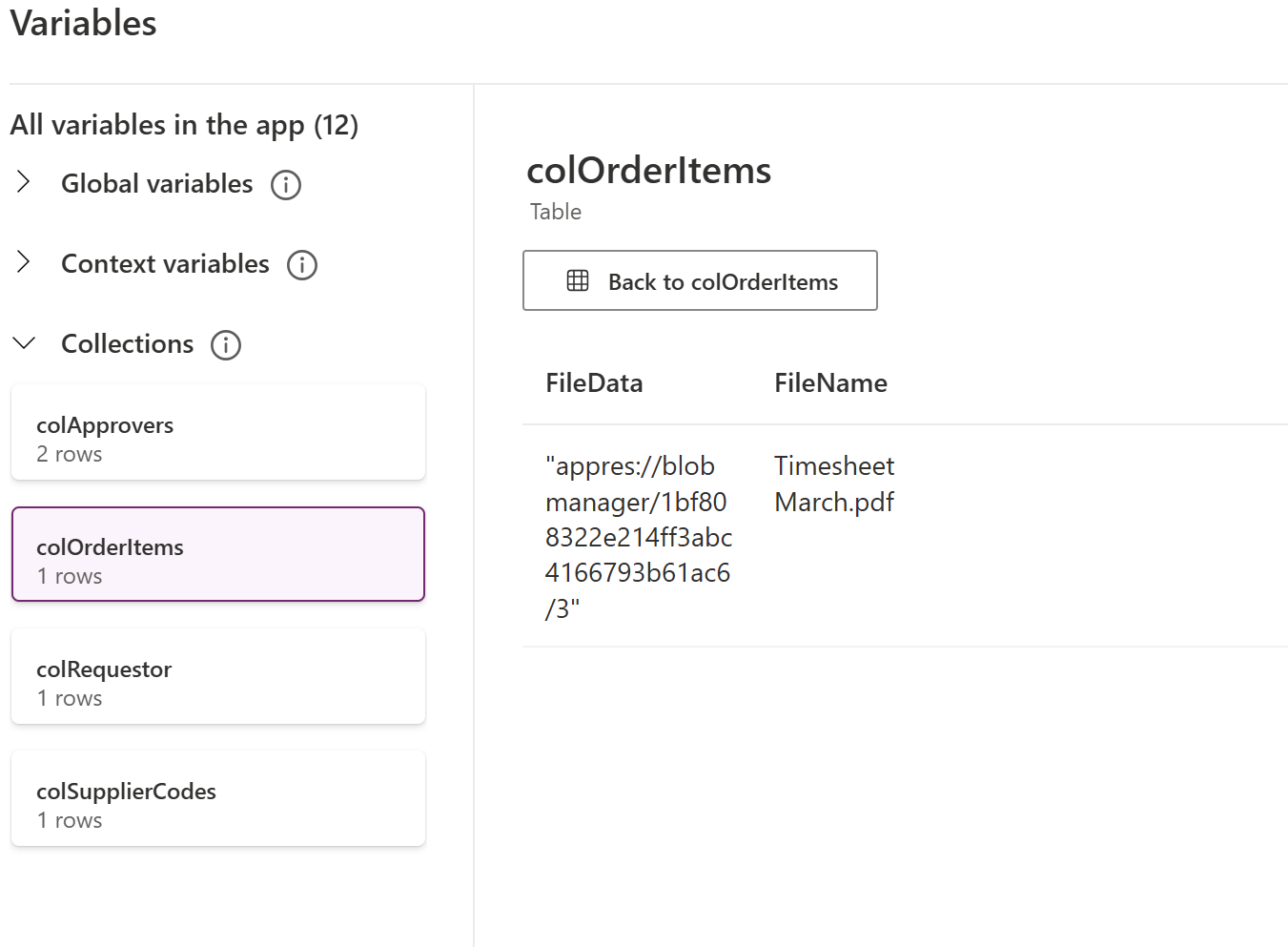

So, I would like to know how to correctly convert it to binary?
I have the same question (0)
  • Verified answer
    Radovan Santa Profile Picture
    40 on at

    It is not completely straightforward to convert the appres://blobmanager/... value directly into a native binary file inside Power Apps.

    What I would recommend instead is using Base64, which is essentially binary content encoded as text. This makes it much easier to pass the file from Power Apps to other services, and then convert it back into a real file when needed.

    Below is an example of an approach that works reliably.


    Step by Step

    1. Add an Attachment control

    Upload your file using the Attachment control.

    2. Add an Image control (hidden)

    Place an Image control (it does not need to be visible) and set its Image property to:

    3. Convert the content to Base64

    On a button (e.g. OnSelect), convert the image content to JSON and extract only the Base64 part:


    4. Use the Base64 output

    The variable varBase64Only now contains the Base64 string.

    This can be stored as text or sent to Power Automate / API and later converted back into a file.


    What this means

    This Base64 value is not “raw binary” inside Power Apps, but it represents the file content encoded as text.

    That is sufficient for most scenarios, because it can be converted back into the original file when needed.


    Why I recommend this approach

    Handling the appres://blobmanager/... reference directly as binary in Power Apps is difficult and not reliable.

    Using Base64 is a common and stable pattern for:


    • Power Apps → Power Automate

    • Power Apps → SharePoint

    • Power Apps → Azure Blob / APIs

    Summary

    You do not need to force Power Apps to produce raw binary.

    Instead:


    • Convert the file to Base64

    • Pass it forward

    • Convert it back to a file where needed (e.g. using base64ToBinary() in Power Automate)


    •  

    I hope this helps. If this resolves your issue, feel free to accept my solution.

Under review

Thank you for your reply! To ensure a great experience for everyone, your content is awaiting approval by our Community Managers. Please check back later.

Helpful resources

Quick Links

Introducing the 2026 Season 1 community Super Users

Congratulations to our 2026 Super Users!

Kudos to our 2025 Community Spotlight Honorees

Congratulations to our 2025 community superstars!

Congratulations to the March Top 10 Community Leaders!

These are the community rock stars!

Leaderboard > Power Apps

#1
11manish Profile Picture

11manish 505

#2
Vish WR Profile Picture

Vish WR 482

#3
WarrenBelz Profile Picture

WarrenBelz 384 Most Valuable Professional

Last 30 days Overall leaderboard