Artificial intelligence is transforming the way we work, and Microsoft continues to push the boundaries with innovations in Copilot Studio. One of the most exciting preview features is Computer Use, a tool that enables Copilot agents to perform tasks directly on Windows desktops and web applications, just like a human would.
Instead of relying on APIs, connectors, or complex integrations, Computer Use operates visually by clicking buttons, typing into fields, and navigating menus. For organizations that use Dynamics 365 model-driven apps, this offers a powerful new way to automate everyday tasks such as creating records, updating data, or processing forms.
In this blog, we’ll explore what Computer Use is, why it matters for Dynamics 365 users, how you can set it up, tips for Effective Instructions, and walk through a step-by-step example of creating a new record automatically.
What is Computer Use in Copilot Studio for Dynamics 365?
Computer Use is powered by Computer-Using Agents (CUA), an AI model that combines computer vision with reasoning. It allows Copilot to interpret what’s happening on the screen and interact with user interfaces in real time.
- If you can do it manually, Copilot can too.
- It adapts to UI changes (such as a button moving or a layout shifting).
- It works with both web applications (like Dynamics 365 online) and desktop apps (like Outlook, Excel, or custom Windows applications).
Because it works visually, it fills a gap where no API or connector exists. This is particularly useful for organizations that rely on legacy systems or highly customized apps that are difficult to integrate.
How to Add Computer Use to Copilot Studio
1. Open Copilot Studio and go to your agent.
2. Navigate to Tools > Add Tool > New Tool.
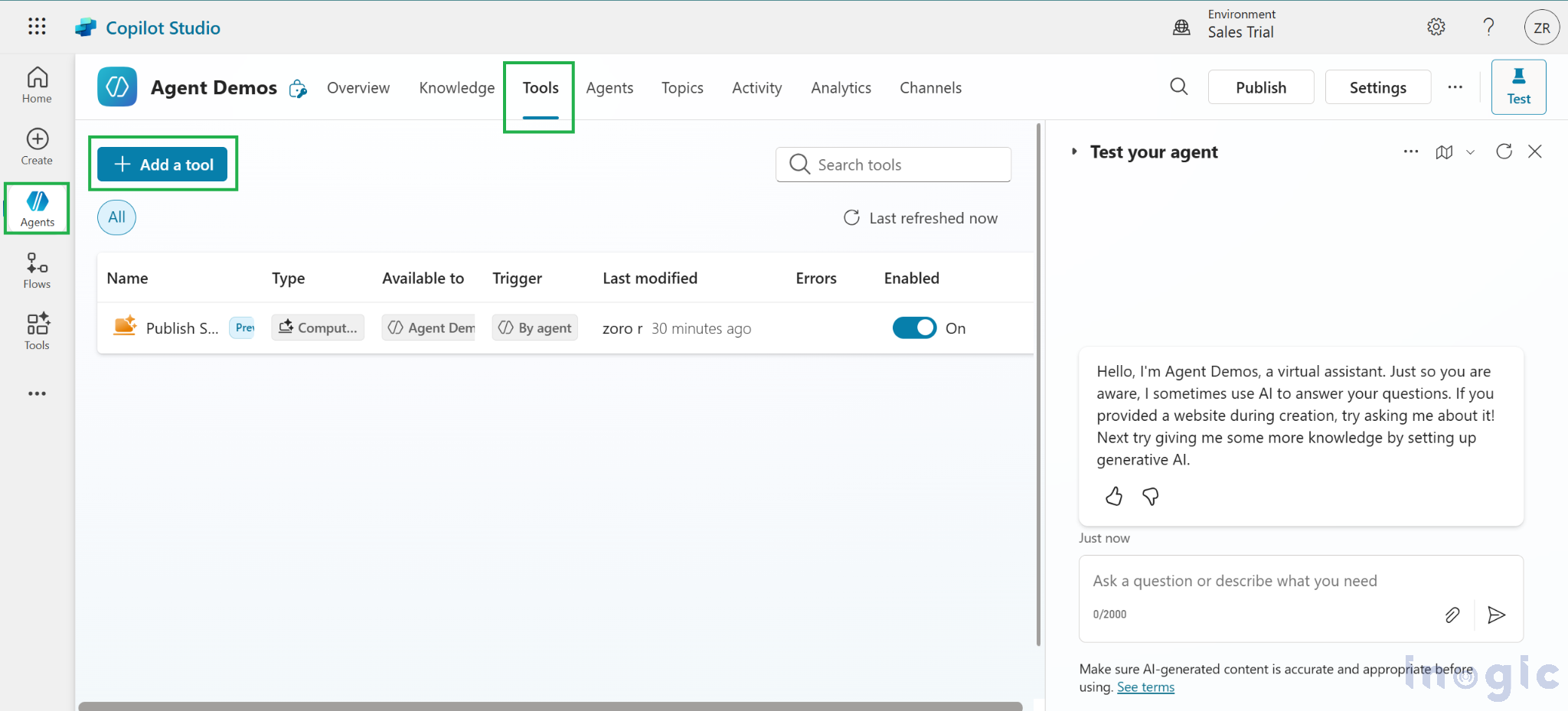
3. Choose Computer Use
4. Add Instructions and Click on Add and configure...Read More


