Creating AI prompts from scratch can be time-consuming, especially when juggling tasks like drafting emails, summarizing feedback, or writing business proposals. Microsoft’s “Draft with Copilot” in the AI Prompt Builder streamlines this process by generating structured, context-aware prompts automatically.
Whether you're working with customer feedback, support chats, or survey data, Copilot understands the context and drafts prompts for you—saving time and improving consistency.
For example, in this blog, we’ve used a Customer Feedback Classification Prompt. Here, Copilot processes the message content and smartly assigns it to categories like Product Issue, Billing Problem, or Feature Request based on the language used. It even provides a brief rationale explaining why the message fits that specific category. You can then review the classification, tweak it if needed, and take appropriate action — all within minutes.
By automating this process, Copilot helps you prioritize issues more effectively, reduce manual effort, and ensure consistent handling of customer feedback across your team or organization.
How to Enable It
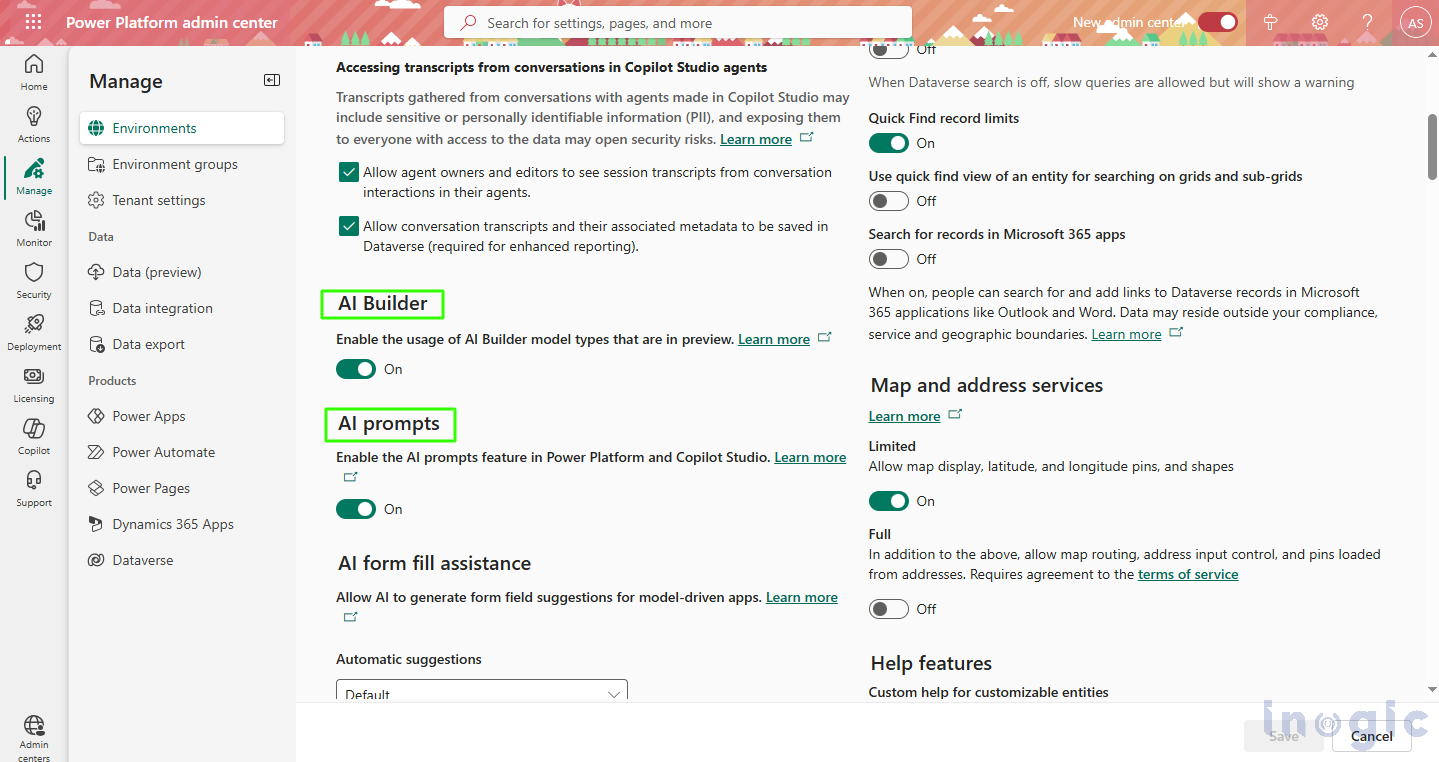
Go to Power Platform Admin Center
Navigate to Settings > Features
Toggle on “AI Builder” and “AI Prompt”
Read More>>


