Hi,
So a couple things
1) will your main file have a Table around the data?
2) will the secondary files have a Table around the data?
3) I am guessing that anytime this file exists, you want to paste the data to the client. Is this literally just one row or will a client have more than one?
4) is the master file getting overwritten? or just updated?
Some other things.
A) you didn't specifically say whether or not the file should check ALL client id's so if it has 50 rows in it, iterate through all 50 rows, and for each Row's Client ID, update the Client.
If the answer is, yes, just grab all the ides and iterate through them then we have extra work to do.
--You would have to NOT filter the Apply to each using the Client ID, just leave the filter off. This way it will loop through all ID's versus a specific 1. Removing this filter will give you that, not much work but a tiny tiny difference.
Since this is Excel it will be necessary
Now as for the steps, you actually called them out pretty well. So let me write them up as I understand them
- Power automate looks for a main file with a specific title and excel type when a file is added.
- You want to use this trigger
- Retrieve content from the main Excel file that matches the required criteria.
In this case since its an Excel File you want to use
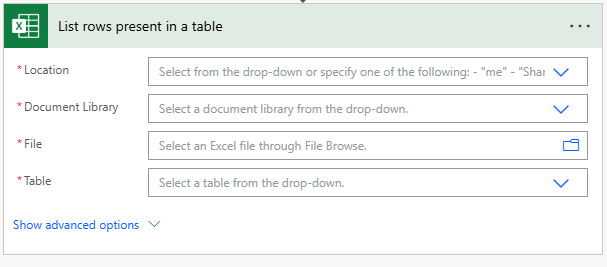
Now understand, this MUST have a table pre-existing around the data. If NOT, you have to use this Action first, to add One, either manually or using this action below AND you need to setup a Key (think primary key, so that the updates will point to the correct row)
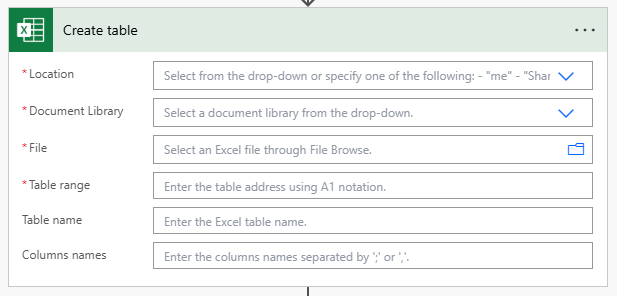
- Next, Power Automate should scan the Client ID column in the main database to identify relevant client records.
In this case, you should use a Filter, on the List Rows in a Table for instance
[ClientIDColumnAsAnUInt] eq InsertYourClientIdHere
If its a string then you need
[ClientIDColumnAsAString] eq 'InsertYourClientIdHere"
- Then, based on the Client ID, Power Automate should search a separate folder to find the corresponding client tracker file.
After your List Rows, you will add An Apply to Each. All other actions go into this Action as its loops through whatever fields you need to add into the other field
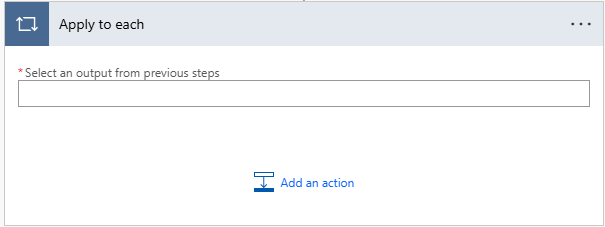
Now I do not know how many rows you are updating. Whether its 1 or 50 this is the action to use so to loop through them
- Now this is where it gets more tricky, within the client tracker file, Power Automate should locate the row corresponding to the current date (the date column already exists in the tracker file). Finally, Power Automate should copy the relevant information from the main database and paste it into the corresponding row under the current date in the client tracker file.
Now inside the Apply to Each
-Add another ListRows in a Table, and point it at the Clients Master File
-Make sure to use Filters to get only the rows you want (by Date, or ID etc)
-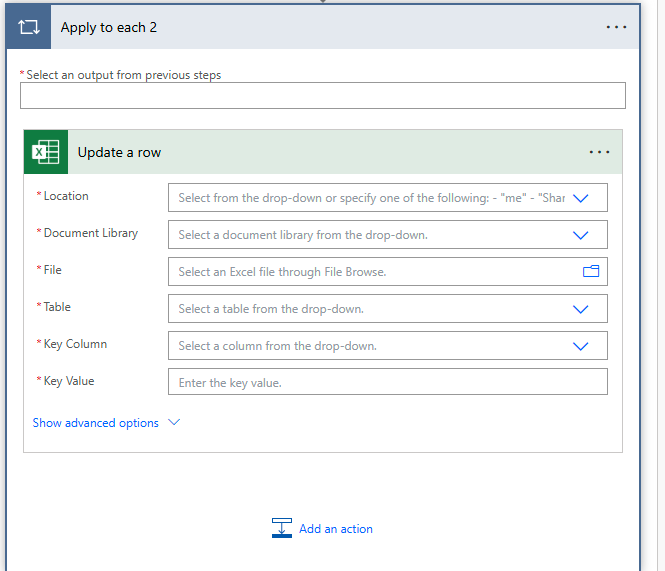
Now in my Inner Apply to each I did NOT add a Create Table for the Client Excel Table. If it needs one, you will need to add it before or with the action.
So a Pseudo Version looks like this







