web
You’re offline. This is a read only version of the page.
close
Skip to main content

Announcements

News and Announcements icon
Community site session details

Community site session details

Session Id :
Power Platform Community / Forums / Power Pages / Allow user to view sit...
Power Pages
Suggested Answer

Allow user to view site without publishing

(1) ShareShare
ReportReport
Posted on by 49
Hi all,
 
I am testing out some things, and I need another user for these tests. I would not like to publish my site, but rather add another administrator to the site. 
 
How would I go around doing this? 

I was told to go to the Power Pages Managment site, under security select the role I wanted, and then select related. However, when I select related on the role I want, I get this drop down: Refresh related {0} and no data is available.
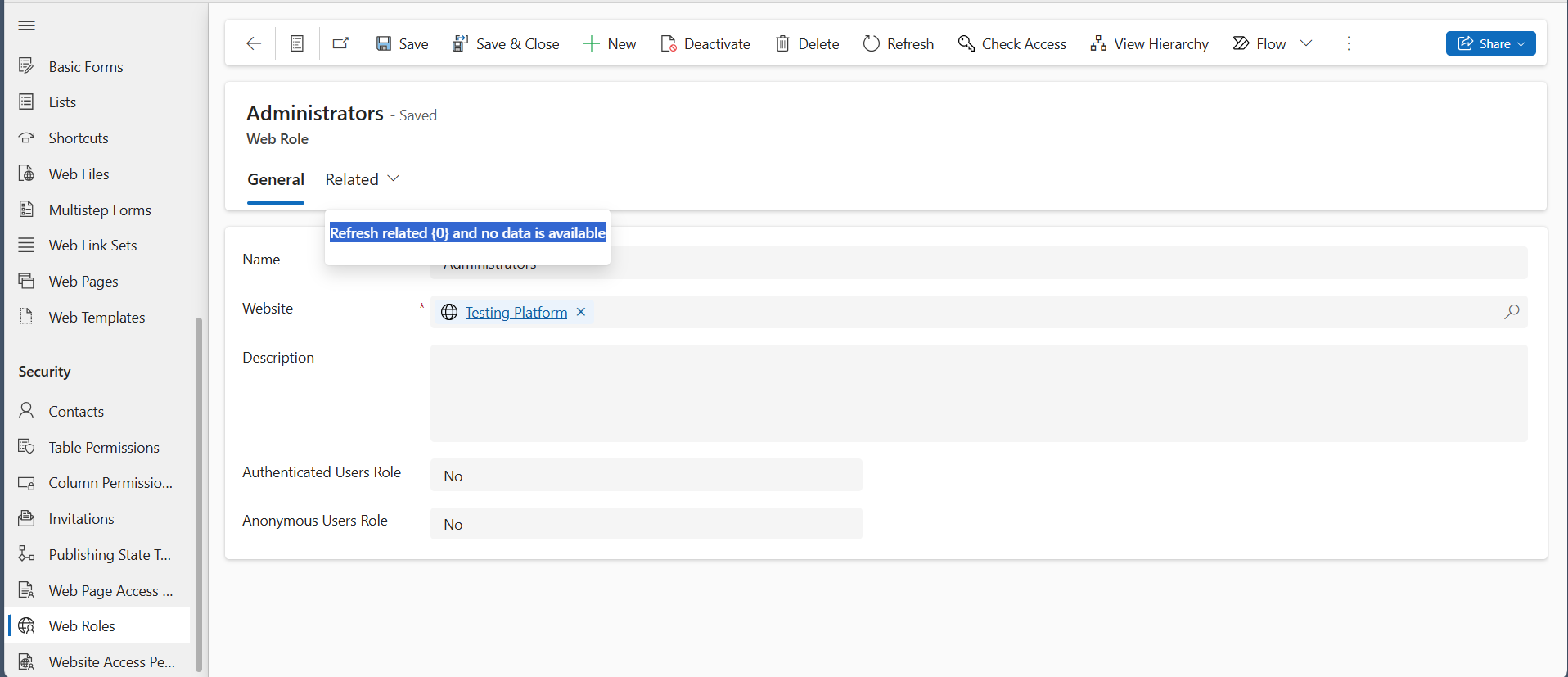
 
I have added the user I want to have admin access as a contact. How can I add this user as an Admin? 
 
Thanks!
Categories:
I have the same question (0)
  • Suggested answer
    Fubar Profile Picture
    8,499 Super User 2026 Season 1 on at
    Go to the Contact record for the user, and add the Web Role from the Contact.
    Also, if your site is in Private mode, you will need grant site access to the user from inside the Power Pages designer Security->Site Visibility and add the user
  • Akah Mandela Profile Picture
    445 on at
    You can only share with other users within your organisation 
  • SH-02081352-0 Profile Picture
    49 on at
    There are many users within our org but they are not listed here. Does this have to do with the environment I am in? I am in a different one than most of our users.
  • Suggested answer
    abm abm Profile Picture
    32,985 Most Valuable Professional on at
    Hi
     
    I had a similar situation and that certain users wants to access certain pages. The steps I followed are:

    PowerApps > Power Pages Management
     
    1. Go to Security > Web Roles. Create new web role > Call it 'Preview Authenticated Role' , set the Website lookup, Set Authenticated users Role to Yes and Anonymous users role to No.
    2. Go to Security > Table Permissions. Select the table and under the Web Roles add the web role 'Preview Authenticated Role'.
     
    3. Go to Content > Web Pages > Go to Access Control Rules > Create 'New Web Page Access Control Rule'. Then add the Web Roles 'Preview Authenticated Role'.
     
    This way you can restrict certain users to test specified pages/tables.
     

Under review

Thank you for your reply! To ensure a great experience for everyone, your content is awaiting approval by our Community Managers. Please check back later.

Helpful resources

Quick Links

Introducing the 2026 Season 1 community Super Users

Congratulations to our 2026 Super Users!

Kudos to our 2025 Community Spotlight Honorees

Congratulations to our 2025 community superstars!

Congratulations to the April Top 10 Community Leaders!

These are the community rock stars!

Leaderboard > Power Pages

#1
11manish Profile Picture

11manish 41

#2
Valantis Profile Picture

Valantis 23

#2
omkarsupreme Profile Picture

omkarsupreme 23

Last 30 days Overall leaderboard



